Overview
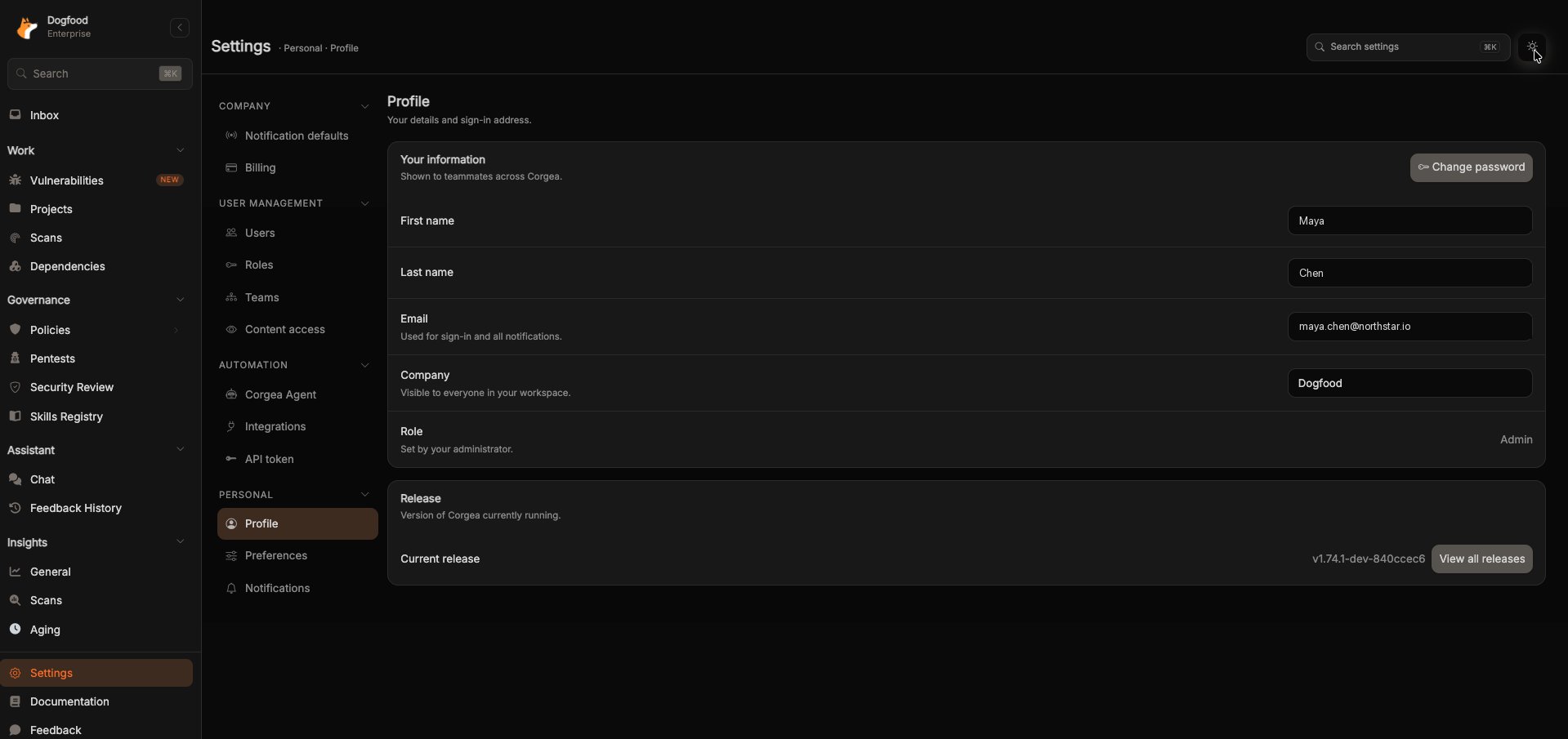
Every setting in Corgea lives under Settings, organized into four categories: Company, User Management, Automation, and Personal. Each category groups the pages that belong together, so you no longer have to hunt through the sidebar to find where something is configured.Opening Settings
Click Settings near the bottom of the sidebar. This always opens Personal → Profile, and from there you pick any section from the rail on the left.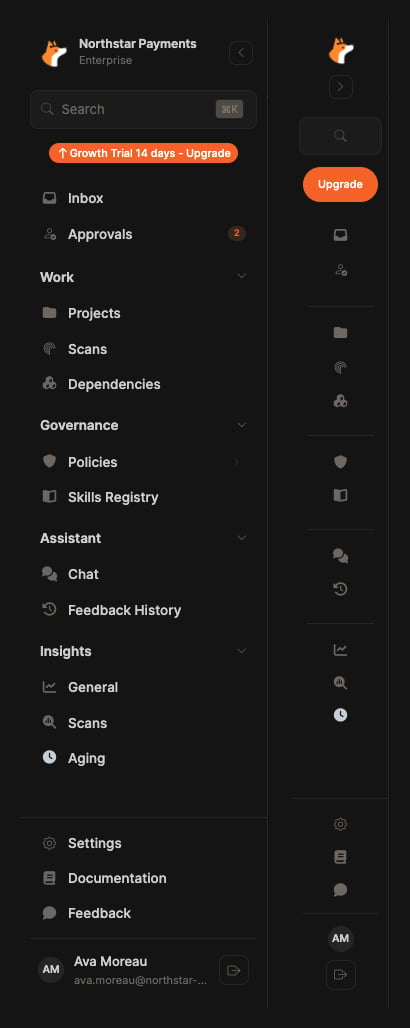
The sidebar groups collapse, but Settings stays pinned at the bottom. A company on a pilot plan also shows the remaining trial time.
- Search settings at the top of the page (or ⌘K) jumps straight to a section by name. Searching “content” takes you to Content access, for example.
- The theme toggle in the top-right corner switches between light and dark.
What You Can See
The rail only lists sections you have access to. Which sections appear depends on your role and your plan, so two people in the same company can see different rails. A user with no administrative permissions sees only the Personal category: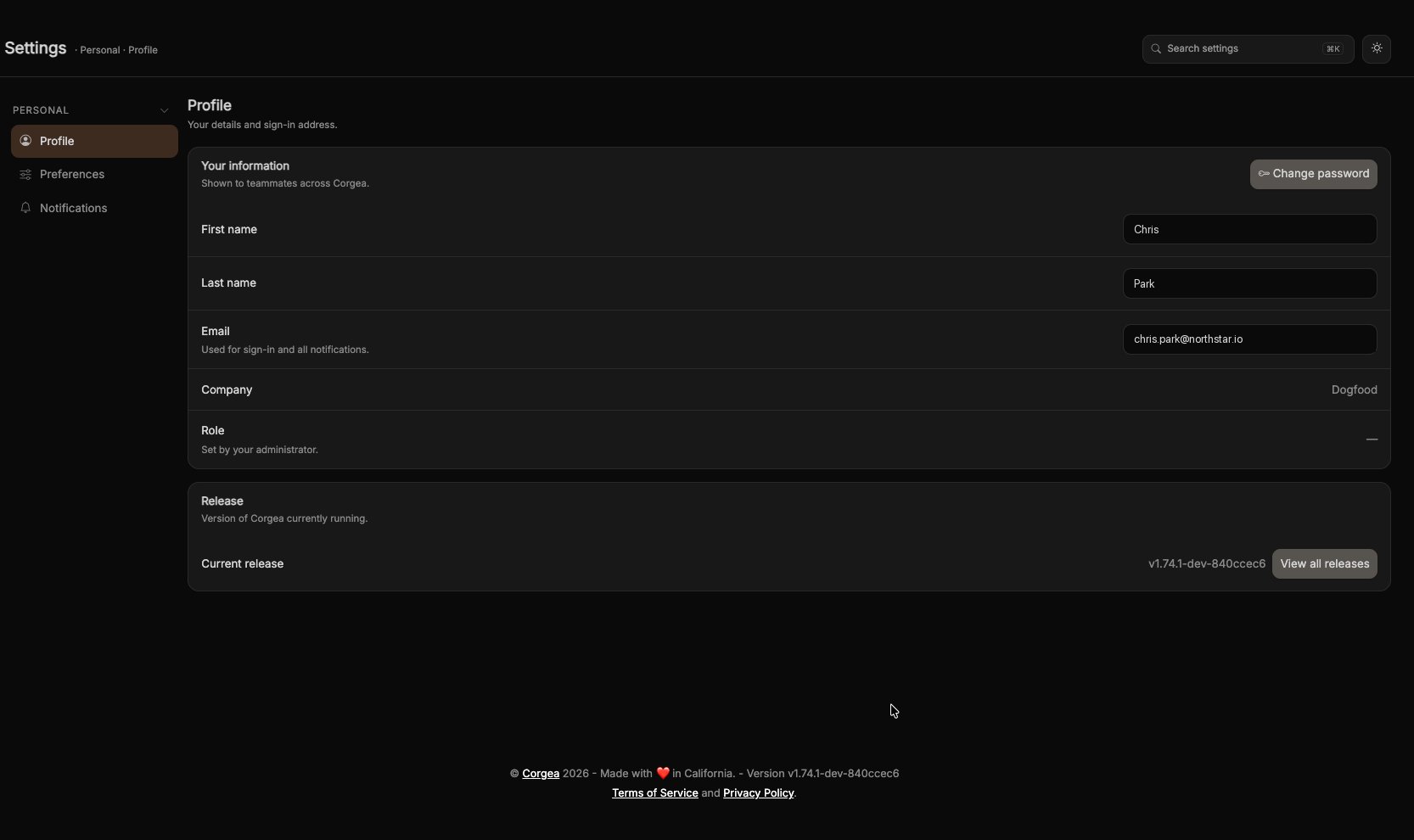
Changes Save Automatically
Settings pages save as you go. Toggle a switch or pick an option and Corgea persists it in the background, confirming with a brief Saved indicator. There are no Save buttons to click. There are three exceptions. The analytics consent controls on Preferences require an explicit Save cookie preferences click because they govern tracking consent. The token expiry on API token is applied with Update Expiration. The company-wide Default Timezone on Users is applied with Save.Personal
Settings that apply to your own account only.Profile
Settings → Personal → Profile (open) Your name, the email address you sign in with, your company, and your role. Change password sends a password reset link to your email. If you’re a company admin, the Company field is editable here and renaming the company applies for everyone. Other users see the company name as read-only text. Role is always read-only and is set by your administrator. The Release card shows the Corgea version you’re running, with a link to the changelog.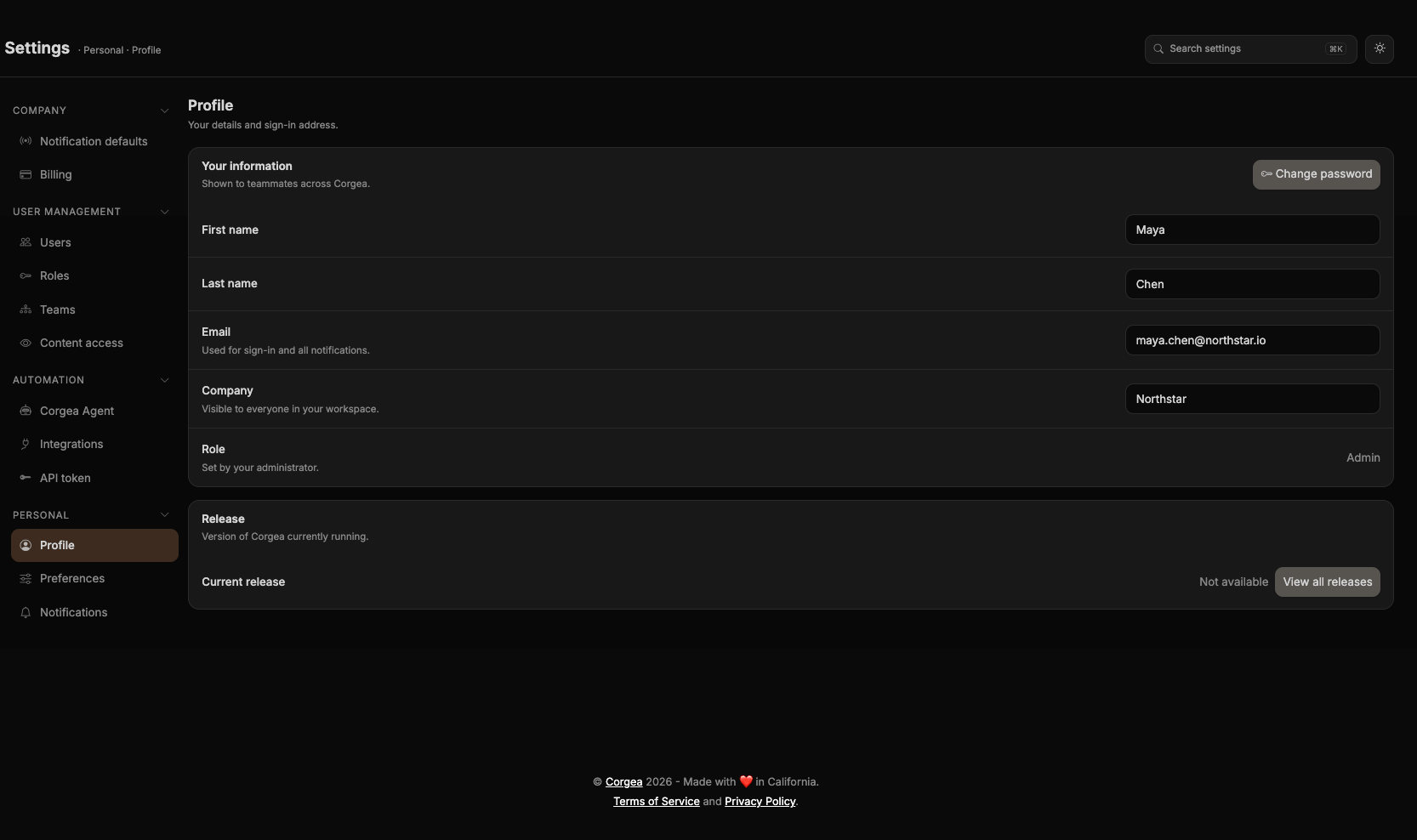
Preferences
Settings → Personal → Preferences (open)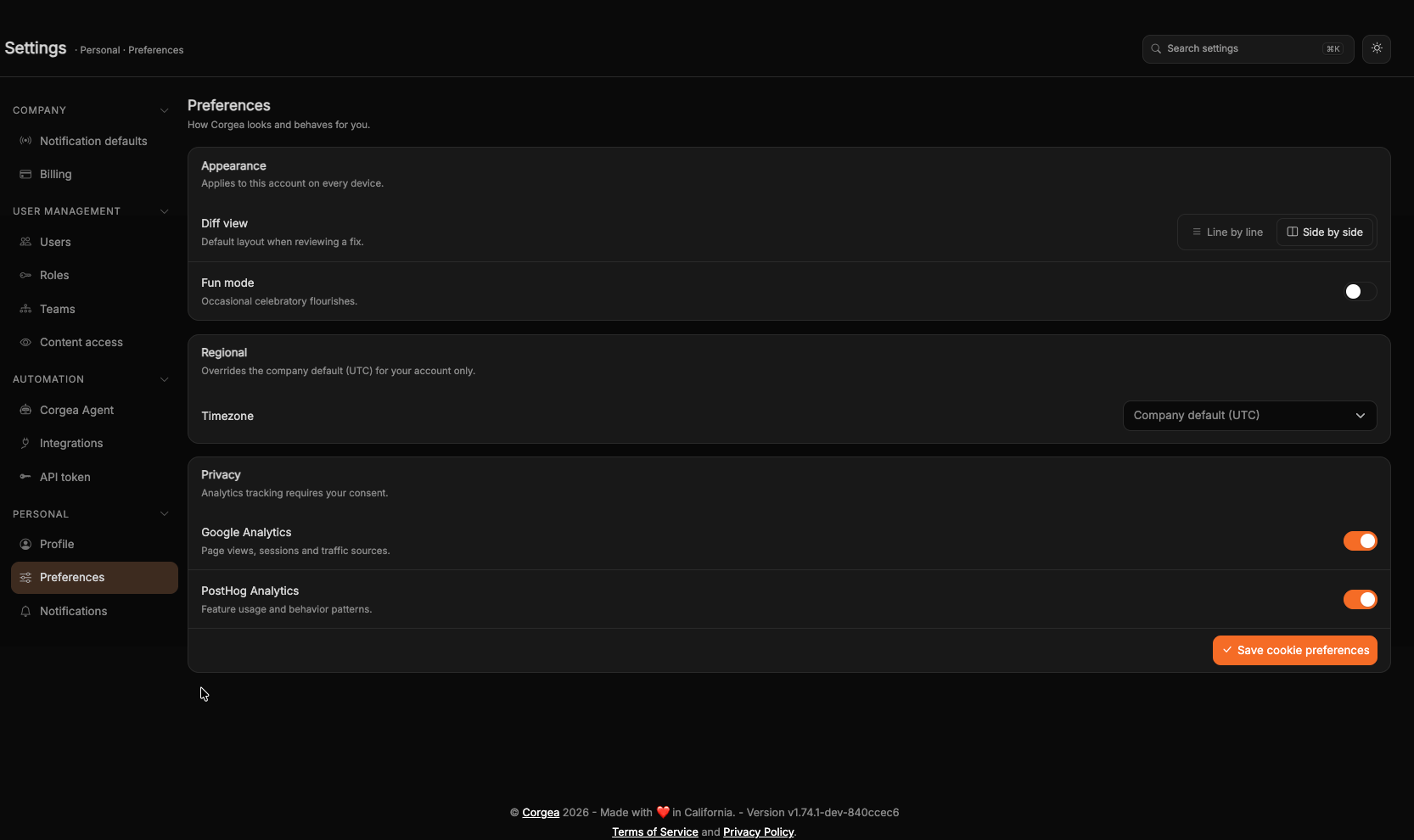
Preferences apply to your account on every device you sign in from.
Notifications
Settings → Personal → Notifications (open) Which emails Corgea sends you. Each notification is set to Inherit, On, or Off — Inherit follows your company’s default. See Notifications for what each notification covers.Company
Triage rules
Settings → Company → Triage rules (open) Company admins can require a second reviewer before a finding is marked False positive or Accepted risk. When enabled, the finding stays unchanged until a different reviewer approves the request. Use the approvals queue to review pending requests; reviewers need Can approve or reject triage requests plus change permission for every finding type in the request.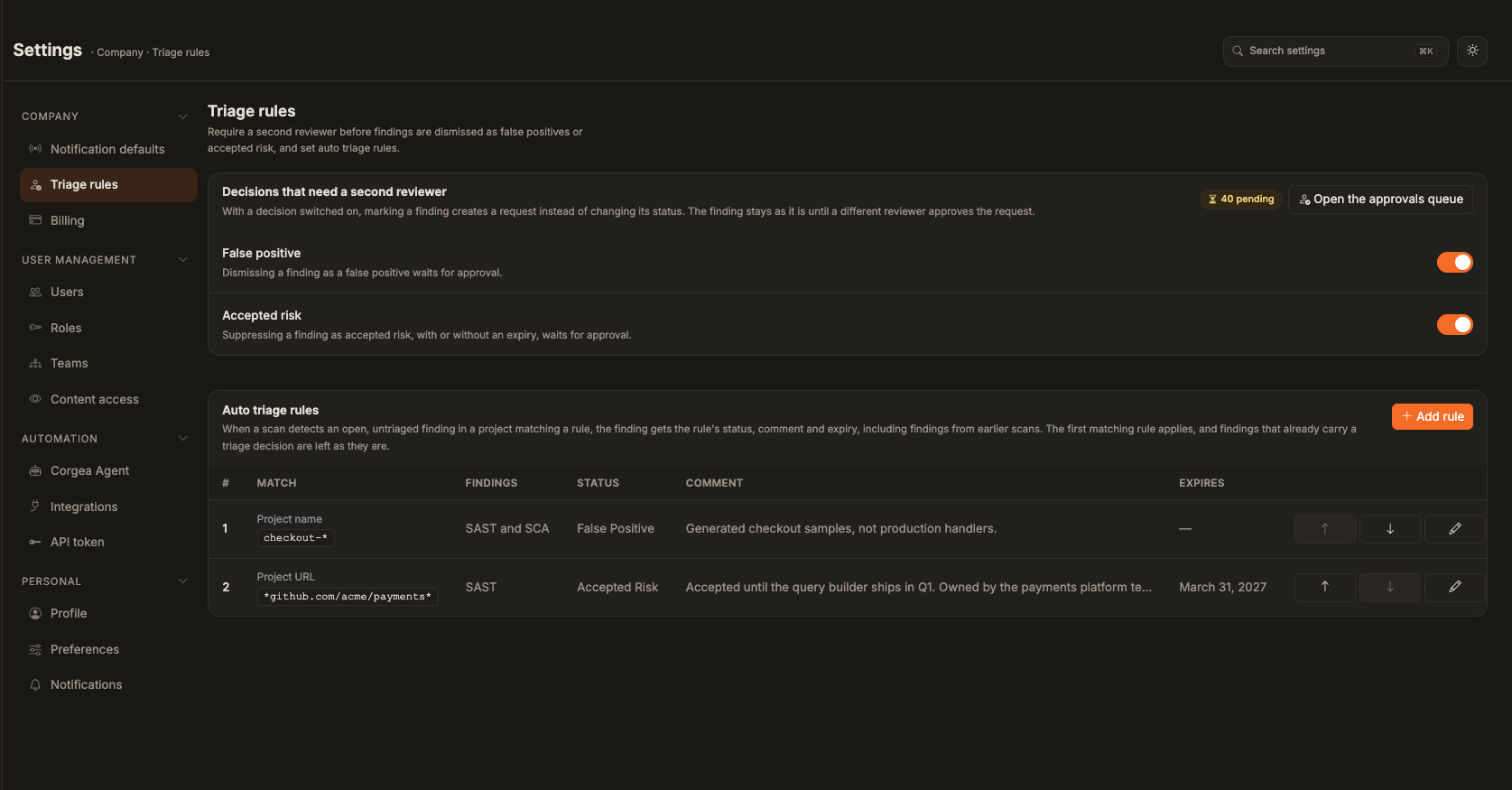
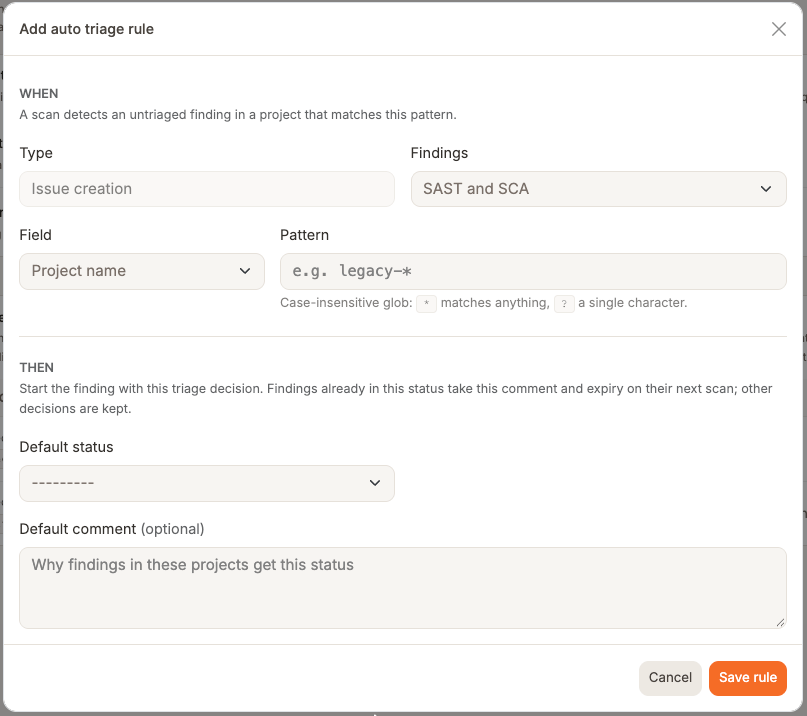
* matches anything, ? matches one character). Rules run in list order. The first match that has not expired applies.
When a scan detects an open SAST or SCA finding with no triage comment, that rule sets the status and comment. An Accepted risk rule also sets the expiry date, which must be in the future. This includes findings from earlier scans when detected again and, for SAST, untriaged findings carried forward by an incremental scan. Findings already in the rule’s status take its current comment and expiry on their next scan, even if a person set that status. Editing a rule therefore updates these findings on their next scan. Findings reopened because their accepted risk expired count as untriaged unless someone has triaged them since; other triage decisions are preserved. The rule applies directly without creating a triage approval request.
Notification defaults
Settings → Company → Notification defaults (open) The starting point for everyone in the company: which emails are on by default, and who receives them. Company admins only. See Notifications.Billing
Settings → Company → Billing (open) Your plan, usage, and invoices. Requires permission to view company details.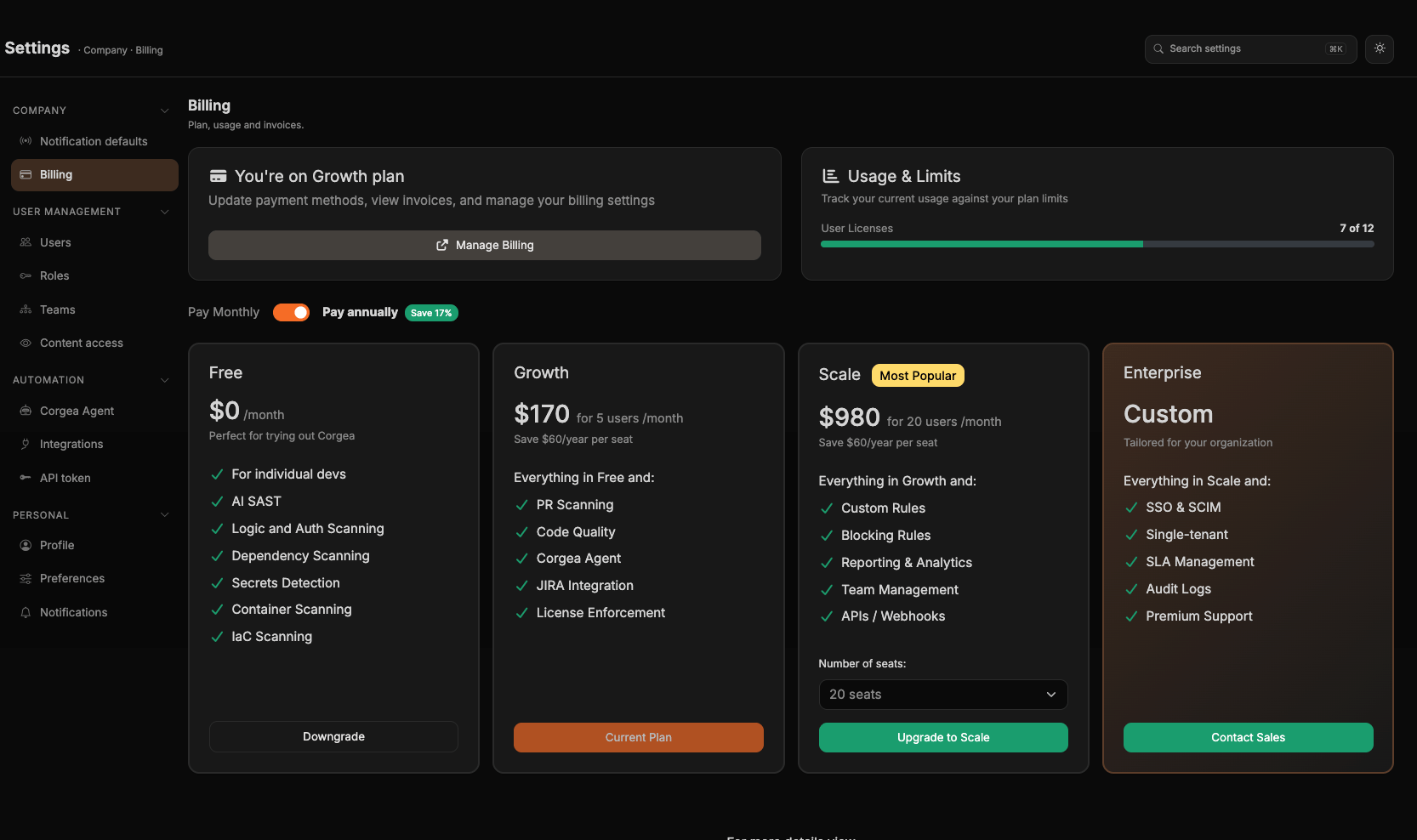
User Management
Users
Settings → User Management → Users (open) Invite, deactivate, and reactivate people, and assign their roles. Company admins also set the Company name and the company-wide Default Timezone on the Company Settings tab of this page. See User Management.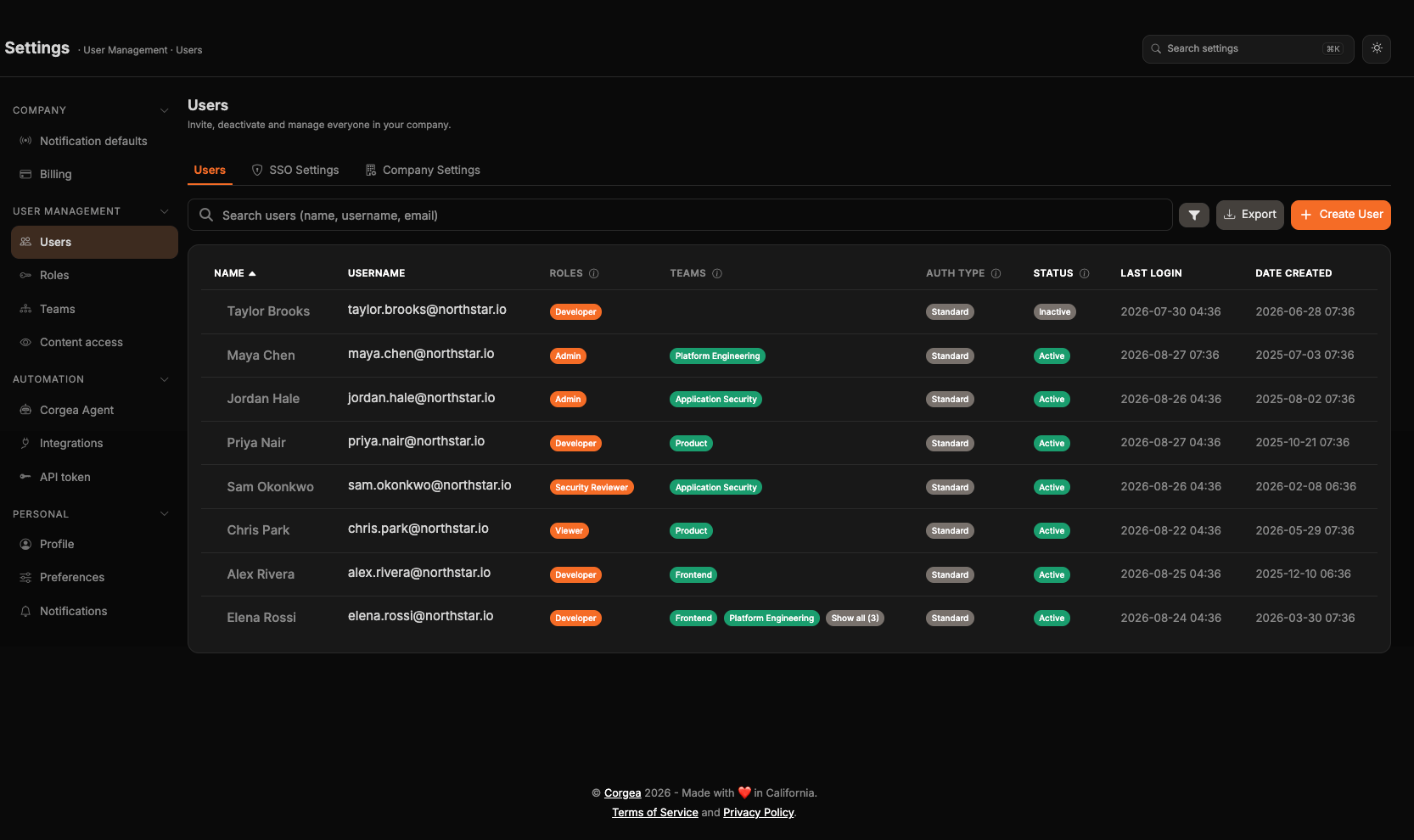
Roles
Settings → User Management → Roles (open) Roles and the permissions each one grants. Requires a plan that includes role management. See Roles.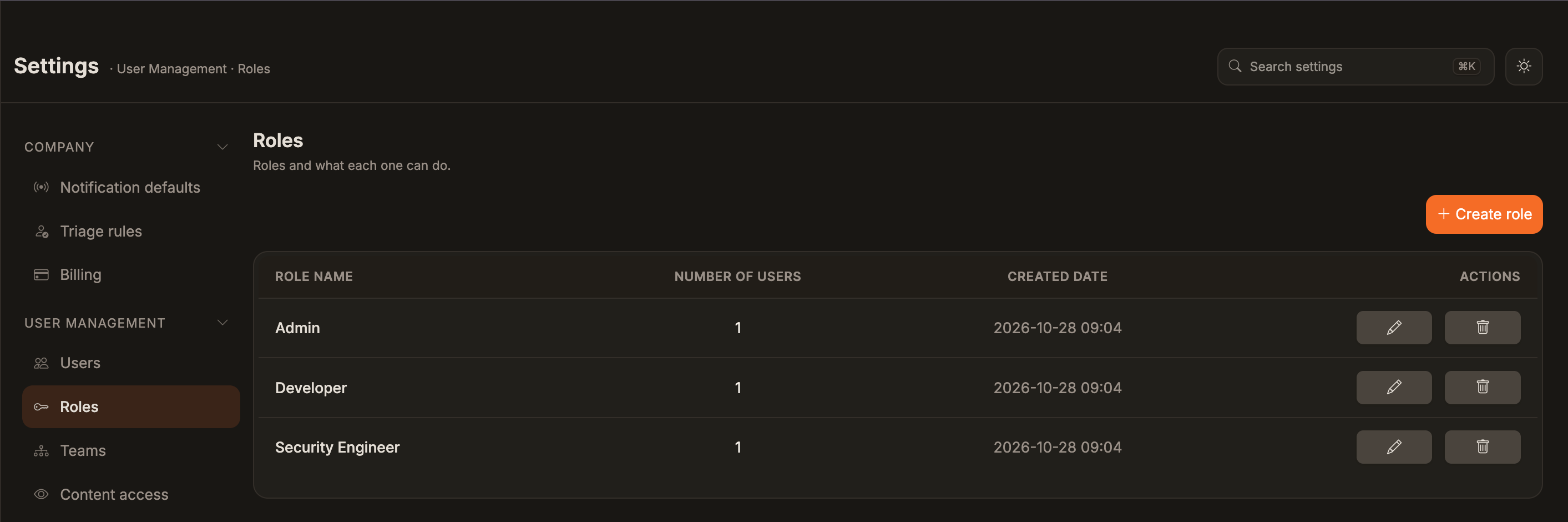
Teams
Settings → User Management → Teams (open) Group people together and grant the whole team access to projects. Requires a plan that includes teams. See Teams.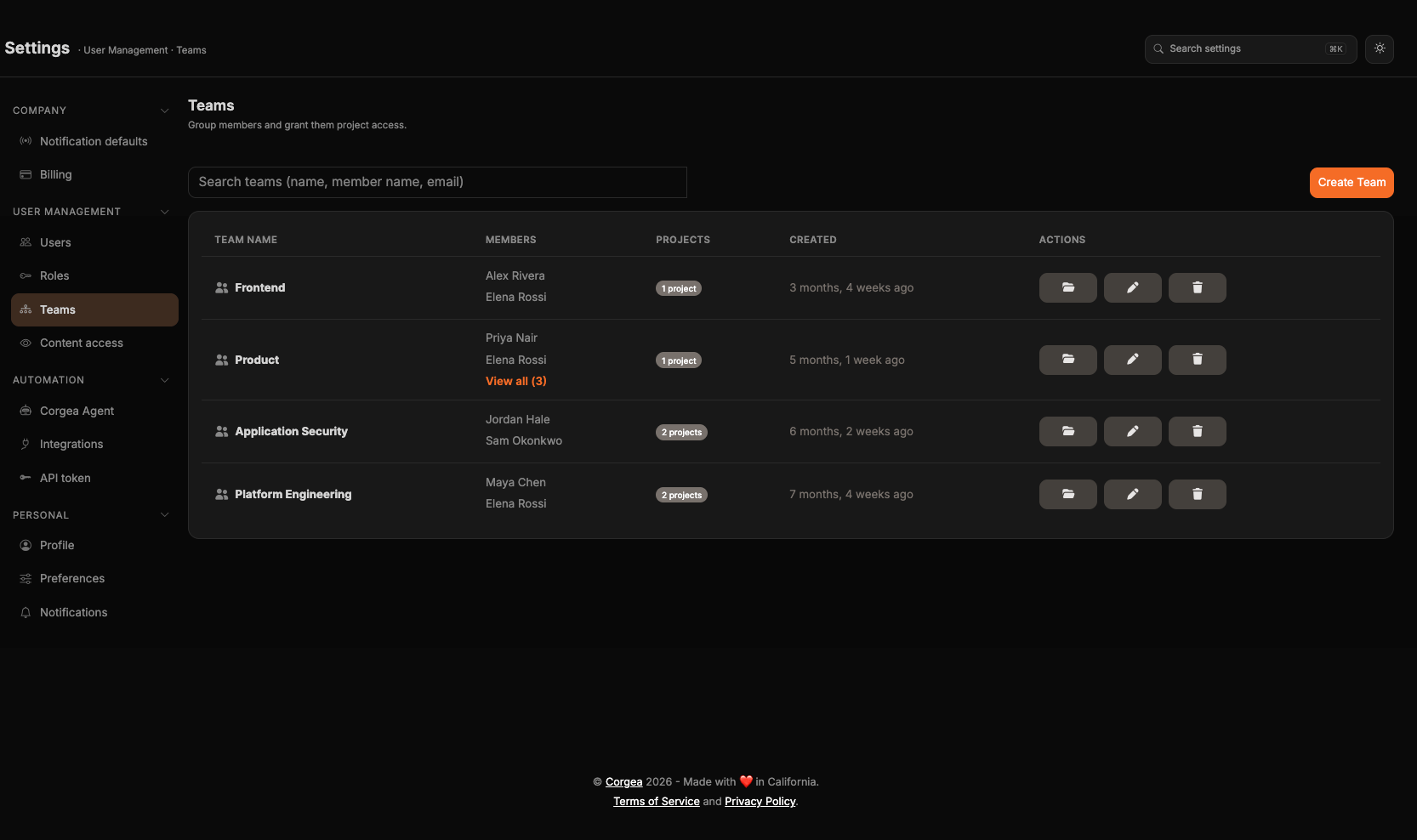
Content access
Settings → User Management → Content access (open) Control which projects each person and team can see. Requires a plan that includes teams. See Content Access Management.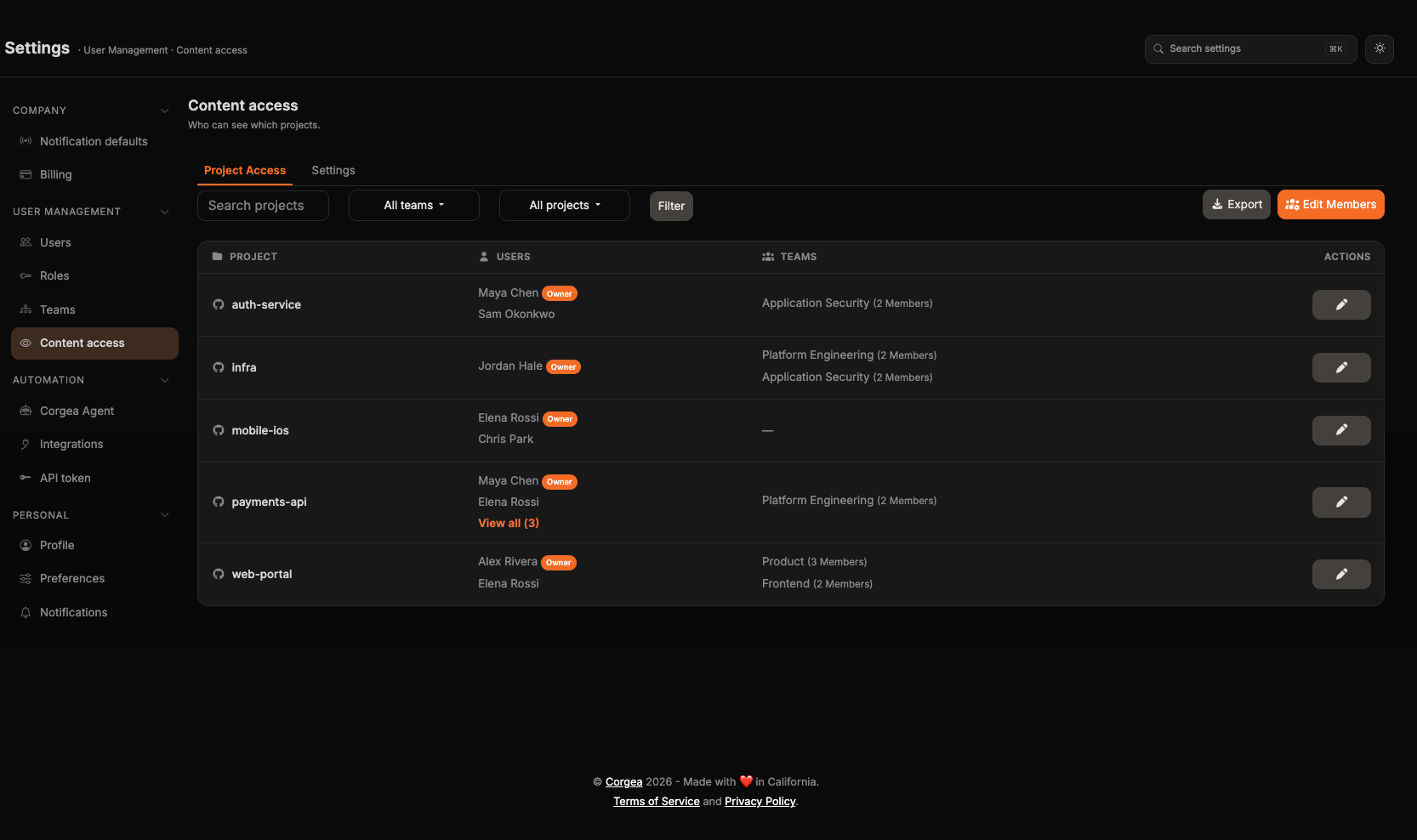
Automation
Corgea Agent
Settings → Automation → Corgea Agent (open) Turn the agent on or off and configure how it triages and fixes issues. See Corgea Agent.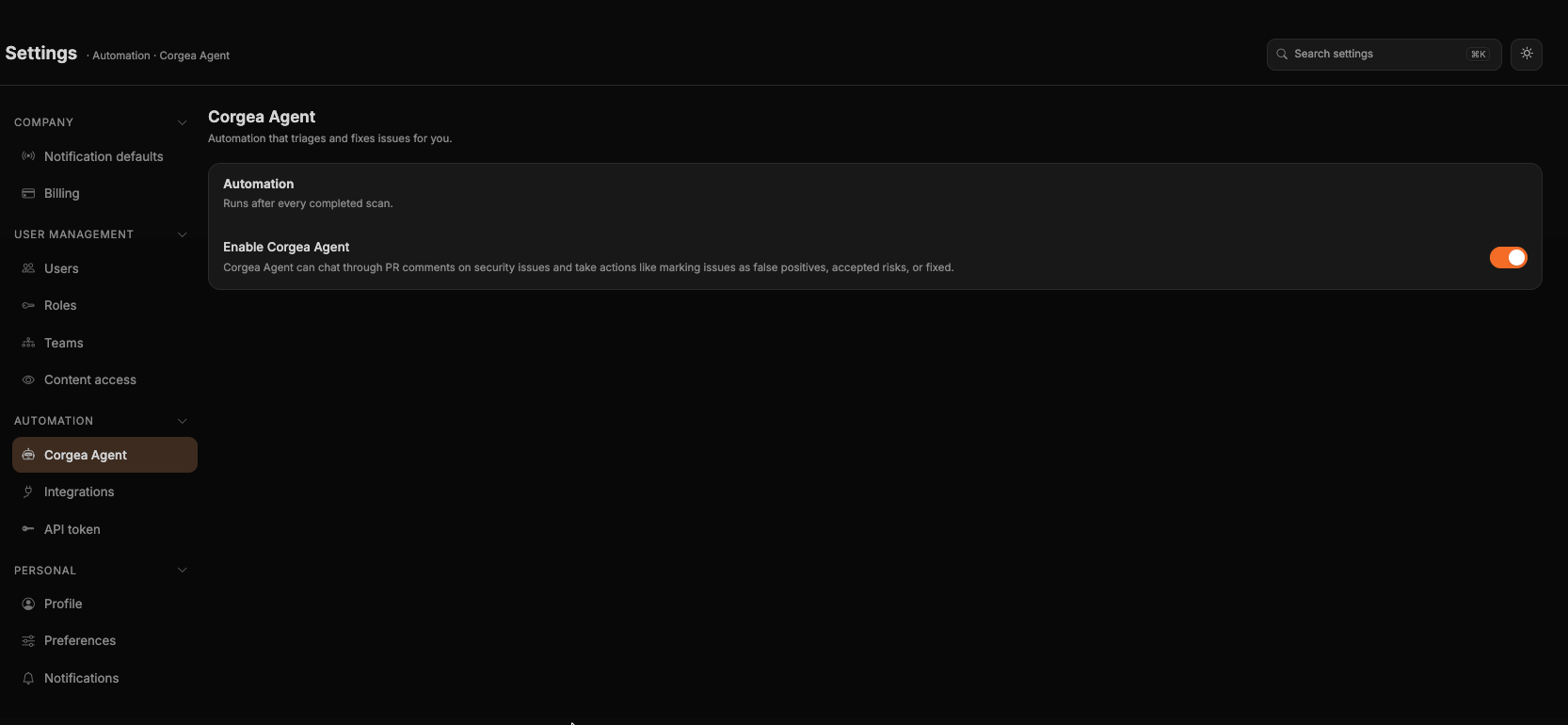
Integrations
Settings → Automation → Integrations (open) Source control, ticketing, scanners, webhooks, package registries, and SAML SSO. Every integration guide in these docs starts here.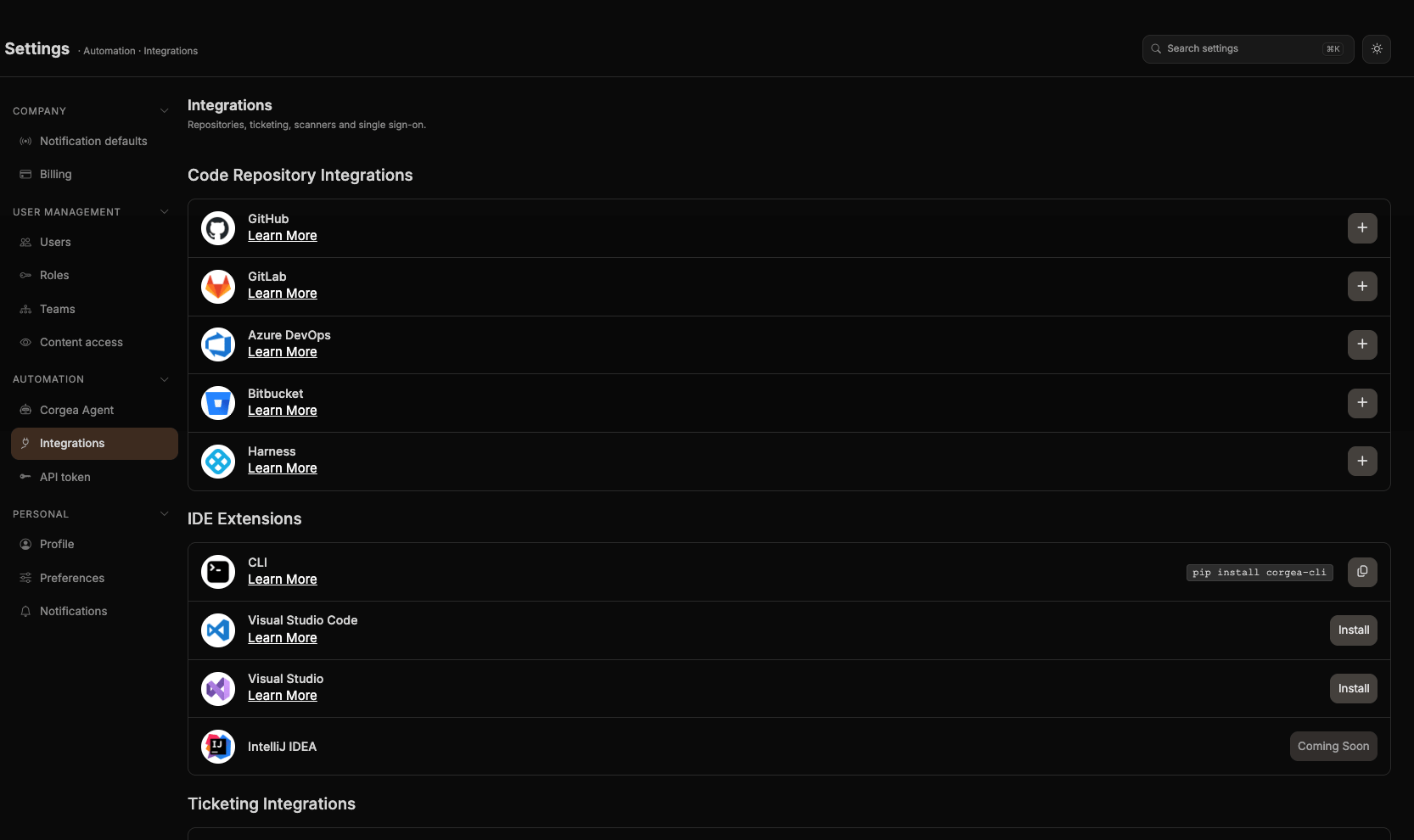
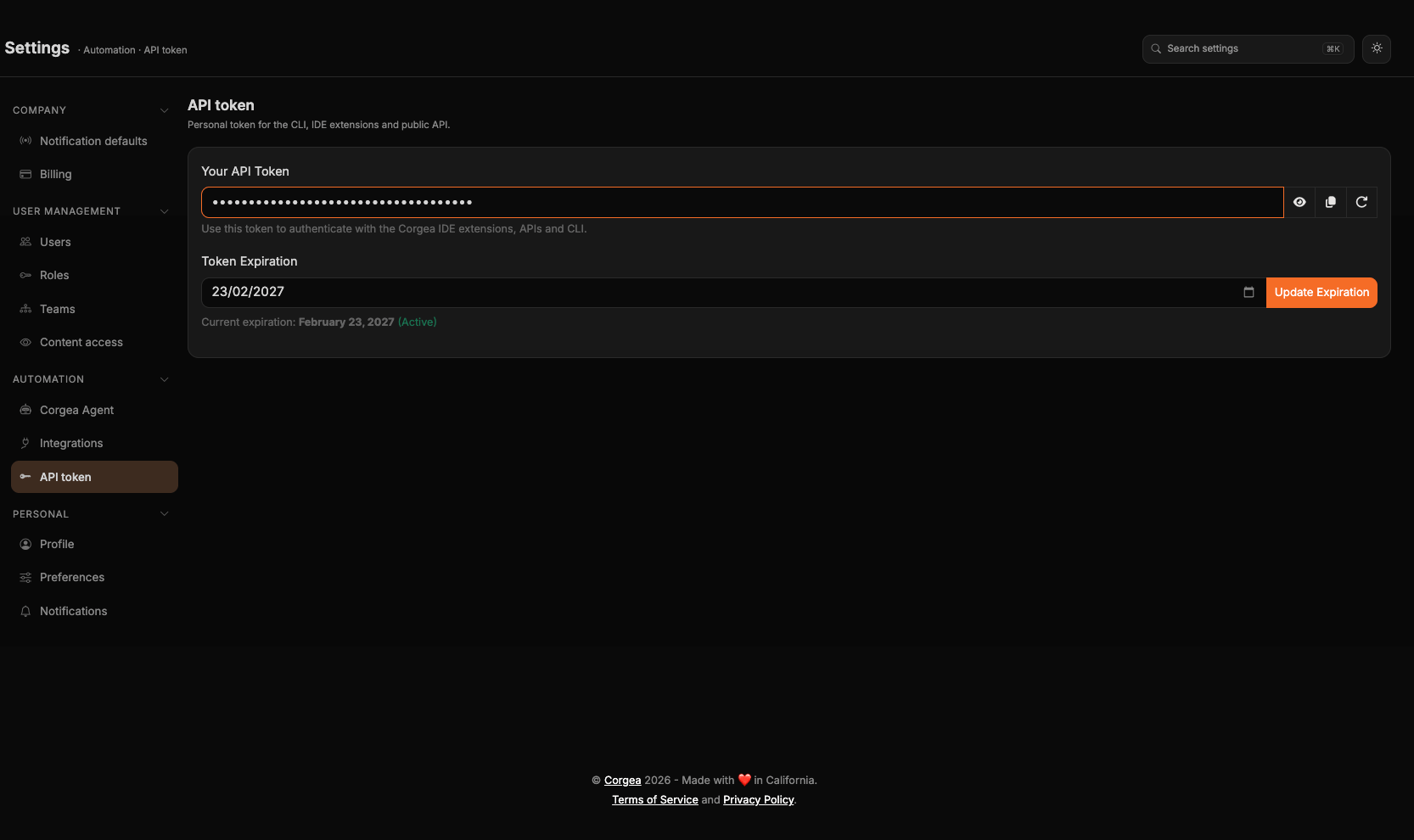
API token
Settings → Automation → API token (open) Your personal token for the CLI, the IDE extensions, the MCP server, and the public API. You can show, copy, and rotate the token, and set an expiration date for it.