
The Path to Autonomous Security
Corgea’s vision is to make application security fully autonomous — handling the heavy lifting so you can focus on building. Our platform already detects vulnerabilities, reduces false positives, and generates AI-powered fixes automatically. But some tasks still require a developer or security engineer to act on findings, apply fixes, and verify results. That’s where Corgea’s agentic integrations come in. By connecting Corgea directly to the AI coding agents you already use — like Cursor, Claude Code, GitHub Copilot, and OpenAI Codex — you give those agents the context and capabilities they need to handle security tasks on your behalf. The result is a development workflow where security issues are not only found but also resolved with minimal manual effort. Corgea offers two powerful agentic integrations: Corgea Agent Skill and Corgea MCP.Corgea Agent Skill
Agent Skills are an open format for giving AI agents new capabilities. A skill is a structured set of instructions, commands, and context that an agent can discover and use on demand — think of it as a playbook that teaches your agent how to interact with a specific tool. The Corgea Agent Skill teaches your coding agent how to use the Corgea CLI to scan code, list issues, inspect vulnerabilities, view AI-generated fixes, and apply them — all from within your development environment. Unlike MCP (which provides read access to Corgea data), the Agent Skill gives your agent the ability to take action: run scans, retrieve diffs, and apply fixes directly to your codebase. Agent Skills are supported by leading AI development tools including Cursor, Claude Code, OpenAI Codex, GitHub Copilot, VS Code, Roo Code, Windsurf, and many more.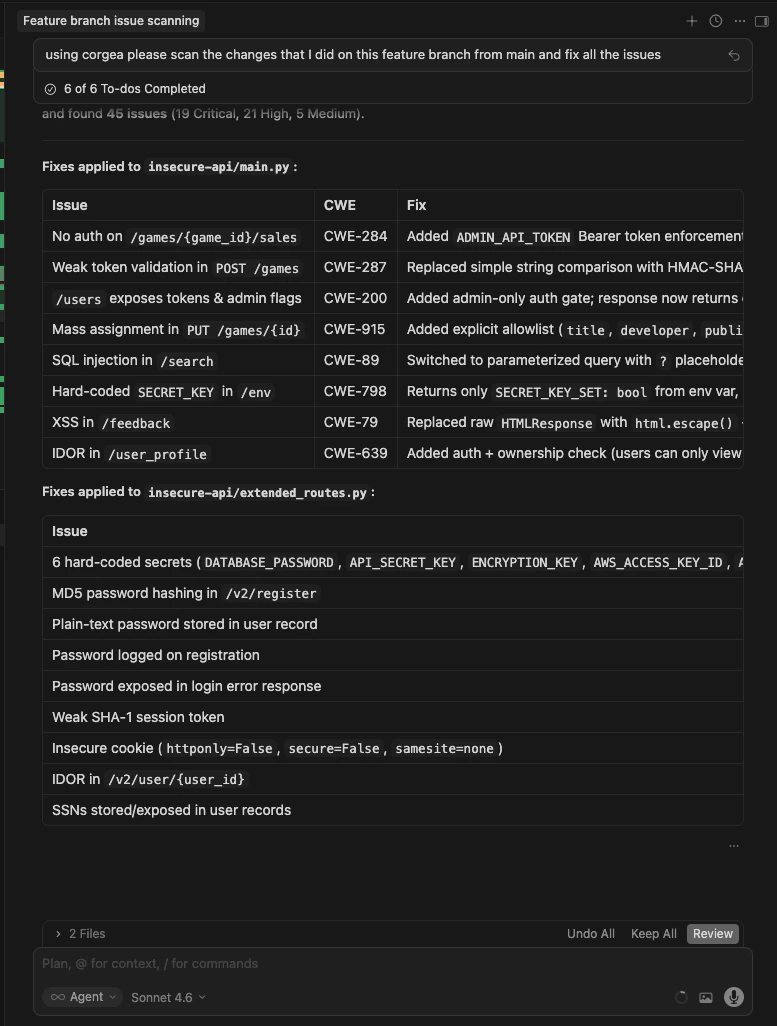
Corgea Agent Skill in action — scanning and fixing vulnerabilities directly from Cursor
Prerequisites
Before installing the skill, you need the Corgea CLI installed and authenticated on your machine. The skill relies on CLI commands likecorgea scan, corgea ls, and corgea inspect to interact with Corgea.
Install the Corgea CLI
Follow the CLI installation and authentication guide to get set up.
Skills Registry
Use the Skills Registry in Corgea to create and manage company-authored Agent Skills for your teams. Add aSKILL.md, optionally provide a version, and submit it for review. Each version is reviewed independently before it becomes installable.
Only approved skill versions can be installed through the CLI. Pending, rejected, or failed versions remain visible in the registry so your team can review status, notes, and previous versions before submitting an update.
Install with npx skills
The maintained public skill is corgea-scan in the first-party Corgea/skills repository. The Skills CLI runs through npx, so you do not need to install it globally. It requires Node.js 18 or later and npm.
The Skills CLI installs the instructions that teach your agent how to use Corgea. It does not install or authenticate the Corgea CLI itself. Complete the Corgea CLI prerequisites first.
- Project
- Global
Install the skill for agents working in the current repository:Project scope is the default. Use it when the skill should be repository-specific. Commit the generated skill files if other contributors should receive them when they check out the project.
--agent flags when you want an explicit, repeatable target:
claude-code, cursor, codex, opencode, github-copilot, windsurf, and many more. For an unattended installation, add --yes:
--copy to create independent copies instead.
Verify, update, or remove the skill
Use the Skills CLI to inspect and maintain the installation:Scan this repository with Corgea.The agent should load
corgea-scan, confirm that the Corgea CLI is available and authenticated, and start the scan from the current repository.
The agent does not find corgea-scan
The agent does not find corgea-scan
Try this first: a newly installed skill is not picked up by a session that is already open. Reload the window and start a new chat. Reinstalling does not help when this is the cause.If it still does not appear, run
npx skills list to confirm the project installation or npx skills list --global for a global installation. If you selected a specific agent, verify it with npx skills list --agent <agent>. Reinstall with the correct --agent and scope, then restart the agent.The agent reports that corgea is not installed or authenticated
The agent reports that corgea is not installed or authenticated
The skill depends on the Corgea CLI. Run
corgea --version and corgea login, then repeat your request. See the CLI installation guide for platform-specific setup.The installer cannot create symlinks
The installer cannot create symlinks
Repeat the installation with
--copy. This creates separate skill files for each selected agent instead of linking them to a shared copy.The skill was installed at the wrong scope
The skill was installed at the wrong scope
Remove it from the current scope, then reinstall it in the intended scope:
Install with the Corgea CLI
The Corgea CLI fetches the approved skill from the Corgea registry and places it in the right directory for your agent:--agent (e.g. cursor, claude-code, codex — see the CLI reference for all supported agents), choose --scope project or --scope user, or install to a custom path with --dir. Set a default agent for future installs with corgea skill set-default-agent <agent>:
--agent to either installer rather than placing files by hand. Both corgea skill install and npx skills add know where each supported agent expects its skills, so you do not need to create the directories yourself.
Skills Marketplace
Corgea also publishes an open marketplace of agent skills at github.com/Corgea/skills. It covers more than the CLI skill above — including skills for tools that run entirely on your machine — and installs into any of the 70+ agents that support the Agent Skills format.
Install a single skill with the skills CLI:
The marketplace is the right choice when you want Sighthound, or when you’d rather manage skills as a set. To install just the Corgea CLI skill,
corgea skill install corgea above is fewer steps and pulls the version approved in your Corgea registry.Use Cases
Fix vulnerabilities from a PR scan
Fix vulnerabilities from a PR scan
When Corgea scans your pull request and reports vulnerabilities, you no longer need to manually inspect each finding and write fixes. Open your coding agent (Cursor, Claude Code, etc.) and ask it to fix the issues:
“Fix all the security issues Corgea found in my latest PR scan.”The agent will automatically connect to Corgea, list the issues for your scan, retrieve the AI-generated diffs, and apply the fixes to your codebase — all in one step.
Scan and fix before committing vibe-coded changes
Scan and fix before committing vibe-coded changes
When you’re rapidly iterating on code with AI assistance (vibe coding), security can easily slip through the cracks. Use the agent to run a security check before every commit:
“Scan my uncommitted changes for security issues and fix anything you find.”The agent will run
corgea scan --only-uncommitted, review the results, and apply fixes — ensuring your fast-moving code stays secure without slowing you down.Targeted security scan on specific files
Targeted security scan on specific files
Focus the scan on the files or directories you’ve been working on:
“Scan the src/auth/ directory for security vulnerabilities.”The agent runs a targeted BLAST scan using
--target src/auth/, reviews the findings, and can apply fixes on the spot.Review and understand a vulnerability
Review and understand a vulnerability
When you want to understand a finding before deciding whether to fix it:
“Show me the details and fix for issue ISSUE_ID.”The agent retrieves the full issue details, explains the vulnerability, and presents the AI-generated fix with a diff — letting you make an informed decision.
Corgea MCP
The Model Context Protocol (MCP) is an open standard that lets AI agents securely connect to external tools and data sources. Corgea’s MCP server exposes your scan results, vulnerability details, SCA findings, and blocking rules directly to any MCP-compatible agent. With Corgea MCP, your AI agent can query scan results, retrieve issue details, list vulnerabilities filtered by severity or project, and check policy configurations — all without you having to copy-paste data or switch between tools. The fastest setup is the Corgea CLI (1.13.0 or later):npx. For a single-tenant instance, pass --url:
Corgea MCP Setup Guide
Full setup instructions, available tools, and client configuration for Claude Desktop, Cursor, and more.
Use Cases
- Contextual code review: Ask your agent “What critical vulnerabilities were found in the last scan?” and get actionable answers grounded in real scan data.
- Vulnerability triage: Let the agent prioritize which issues to fix first based on severity, exploitability, and your organization’s blocking rules.
- Remediation planning: Ask the agent to generate a fix plan for all open high-severity issues in a specific project or scan.
- Dependency risk assessment: Query SCA findings to understand which third-party libraries have known vulnerabilities and what versions to upgrade to.
Agent Skill vs. MCP — When to Use Which
Use both together for the most comprehensive experience: the Agent Skill for taking action on findings, and MCP for querying and understanding your security posture.
Getting Started
1
Install the Corgea CLI
Follow the CLI installation guide to install and authenticate.
2
Install the Corgea Agent Skill
Add the Corgea skill to your coding agent using the installation instructions above.
3
Set up Corgea MCP
Run
corgea mcp install --agent <agent>, or npx @corgea/cli login --url https://<your-instance>.corgea.app && npx @corgea/cli mcp install --agent <agent> if the CLI is not installed. See the MCP setup guide.4
Start using it
Ask your agent to scan your code, review findings, and apply fixes — all from natural language.