
Overview
- What it Does: Lets Corgea sign in to your private package registry so it can analyze the internal packages your projects depend on, along with every package those internal packages bring in.
- Who it’s For: Teams whose applications depend on internally published packages — shared libraries, platform SDKs, in-house frameworks — that live on a private registry instead of a public one such as Maven Central, PyPI, or nuget.org.
Why you need it
Corgea analyzes each dependency by looking it up in the registry it comes from. Public packages are available to anyone, so they work out of the box. Internal packages are not: without credentials, Corgea cannot open them, and anything hidden behind them stays invisible. Without a connected registry you will typically see:- A Dependency Analysis warning on the affected file in the scan’s Errors tab.
- Internal packages listed with no sub-dependencies, because Corgea could not look inside them.
- Missing vulnerabilities, because anything reachable only through an internal package is never analyzed.
Availability
Private package registries are available to enterprise customers on a dedicated tenant. The feature is enabled per organization and is off by default — contact support@corgea.com to turn it on for your account.
Supported package types
Compatible registries
Corgea connects using each package type’s standard protocol, so it is not tied to a specific vendor. Any registry that serves packages the way the standard client expects, and accepts a username and token, will work. That includes:- Sonatype Nexus Repository
- Azure Artifacts
- GitHub Packages
- Google Artifact Registry
- MyGet
- ProGet
- Self-hosted registry servers
Before you start
You will need:- A registry that Corgea can reach. Corgea connects to your registry over the internet. A registry that is only reachable from inside your VPN or private network, or that sits behind an IP allowlist, will not work until you allow access.
- A token with read access. Corgea only downloads packages and reads their dependency information. It never publishes.
- A token that does not expire quickly. Corgea stores the token you provide and reuses it on every scan.
Setting up a registry
Step 1 — Get your registry details
In your registry, create a token (or service account) with read access to the repositories Corgea should use. Note the username it belongs to and the URL of the repository.- Maven
- PyPI
- NuGet
Use the URL of the repository that serves your internal artifacts, for example:
Step 2 — Add the registry in Corgea
Go to Settings → Automation → Integrations → Package Registries and click Manage.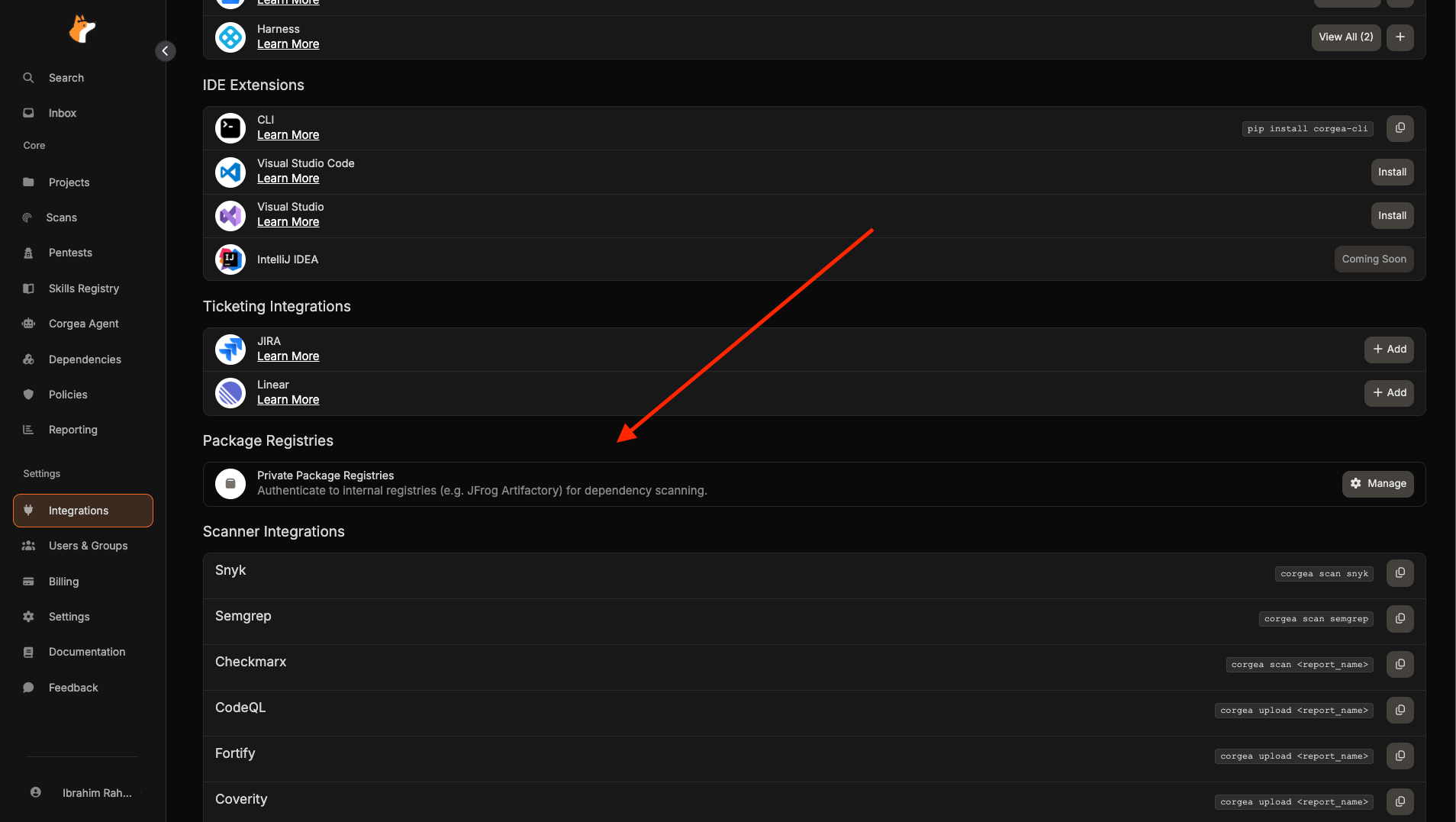
You need the Manage Integrations permission to add, edit, or delete a registry. See Permissions.
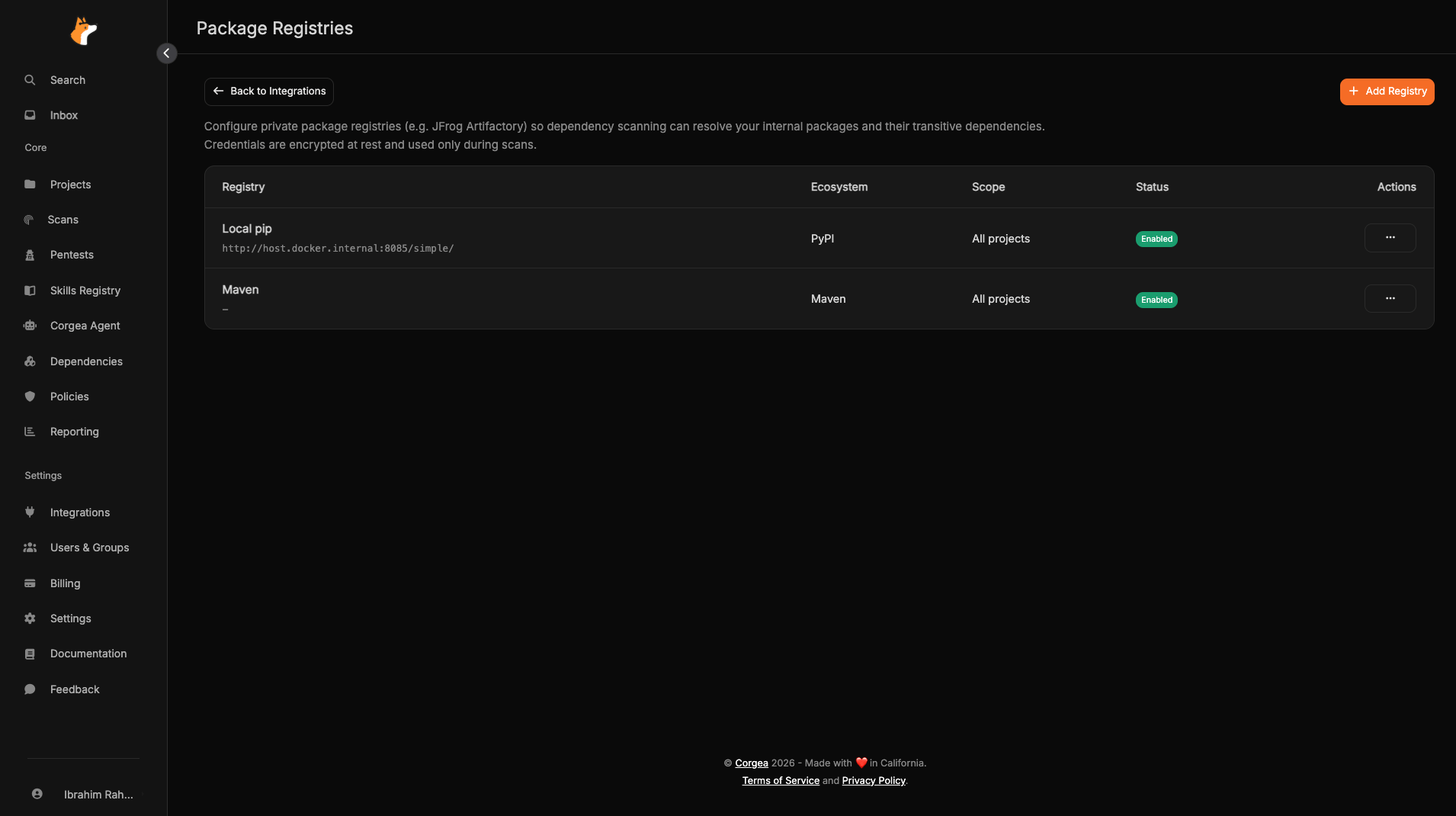
Step 3 — Choose which projects use it
Leave Apply to all projects on so every project in your organization can use this registry, or turn it off and select specific projects. See Choosing which projects use a registry.Step 4 — Re-scan and check the results
Run a new scan on a project that depends on an internal package, then confirm:- The Dependency Analysis warning for that file is gone from the scan’s Errors tab.
- Your internal package now shows sub-dependencies and can be expanded in the dependency tree.
- Vulnerabilities that only exist inside internal packages now appear.
Connecting a registry does not change results from earlier scans. Run a new scan to pick up the improved coverage.
If Corgea cannot reach your registry during a scan, the scan still finishes using public packages and shows a warning on the affected file. A registry problem never fails your scan or blocks your pipeline — but the results will be missing your internal packages until it is resolved.
Setup methods
Structured form (recommended)
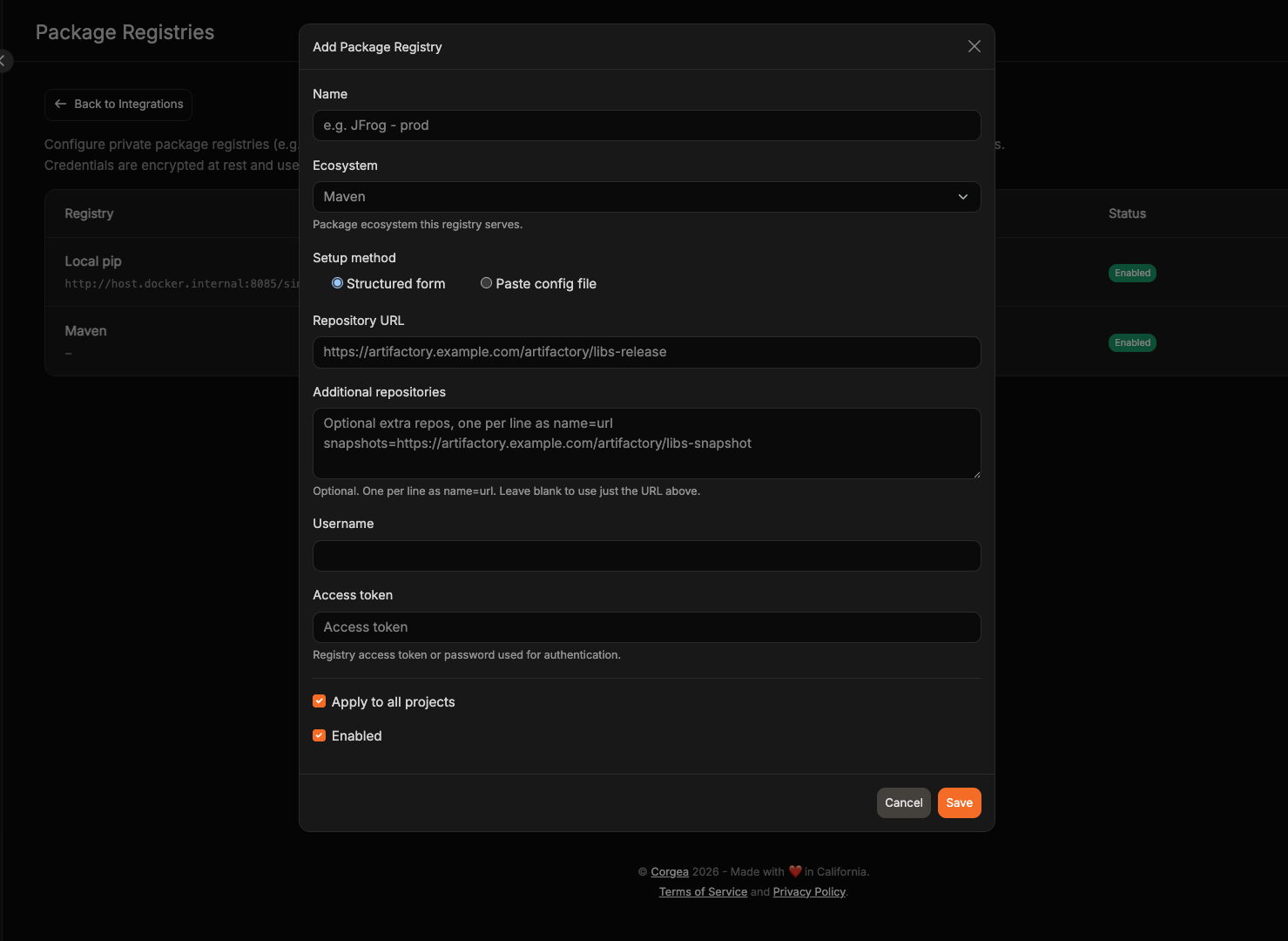
Enter your URL, username, and token, and Corgea handles the rest. Use this unless you have a specific reason not to.Paste config file (advanced)
If you already maintain a package manager configuration file for your registry, you can paste it instead. Choose this when your registry needs settings the form does not cover — such as mirrors, proxies, or rules about which packages come from which source.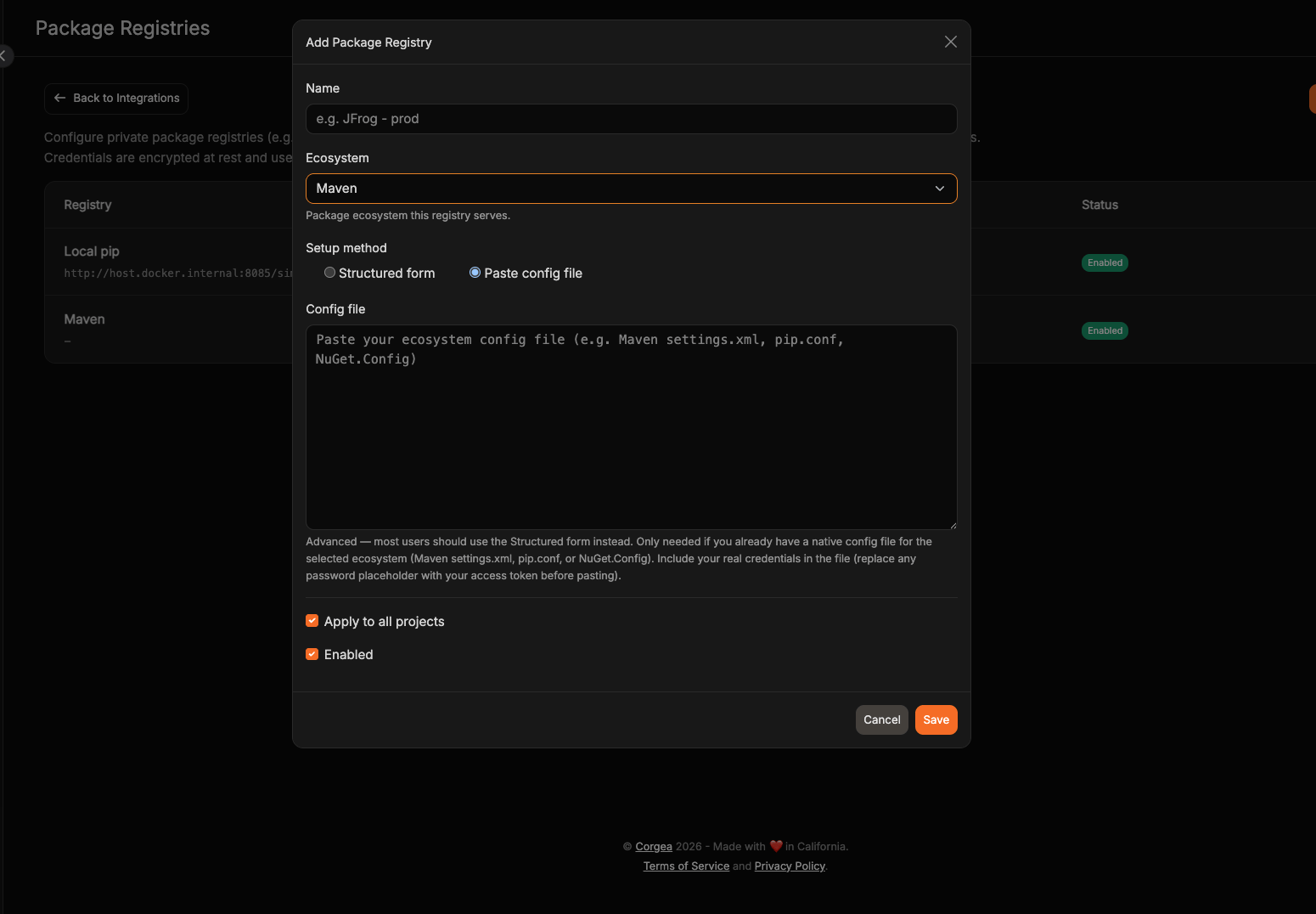
settings.xml, a pip configuration file, or a NuGet.Config.
If you switch an existing registry from one setup method to the other, enter the credentials again for the new method. Corgea keeps only the credentials for the method you are using.
Choosing which projects use a registry
Registries are set up once for your organization, then applied to projects in one of two ways:- Apply to all projects (default): every project in your organization can use the registry. Best for a single company-wide registry.
- Specific projects: only the projects you select. Useful when a registry belongs to one team, or when you want to roll the feature out gradually.
Checking a single project
Open a project and go to Settings → Package Registries to see which registries apply to it:- Registries set to apply everywhere show an All projects badge. Change these from Integrations → Package Registries.
- Other registries show a toggle you can switch on or off for this project.
- A registry that has been turned off completely shows a Disabled badge.
Changing a project’s registries requires the Change Project permission. If Project Access Control is enabled, you also need access to that project.
Using more than one registry
You can add as many registries as you need, and a project can use several at once:- Several registries for the same package type: packages are looked up across all of them.
- Different package types: each is handled independently.
- Several repositories on one registry: list them under Additional repositories instead of creating separate entries.
For a single package type, use the same setup method across all of its registries. If some use Structured form and others use Paste config file, the pasted files are skipped.
Permissions
See Roles for how to assign these.
Security
Your registry credentials are treated as secrets:- Encrypted storage. Credentials are encrypted and are never displayed again after you save them. When you edit a registry, the token field is blank; leaving it blank keeps your existing token.
- Used only during scans. Credentials are used to authenticate to your registry while a scan runs, and for nothing else.
- Isolated. Credentials and any packages downloaded with them are never shared with another scan or another organization.
- Kept out of your repository. Corgea does not write your credentials into any file it produces.
- Hidden in logs and messages. Credentials are removed from error messages and diagnostics shown in Corgea.
- Read-only access. Corgea only downloads packages and reads their dependency information.
Registries on restricted networks
If your network blocks public registries and requires all packages to come through your own registry, point Corgea at a repository that serves both your internal packages and proxies the public ones. Corgea then has everything it needs from a single source. If your registry only serves internal packages and public registries are unreachable, dependency analysis cannot complete.Troubleshooting
Dependency Analysis could not fully process this file
Dependency Analysis could not fully process this file
What it means: Corgea found a package it could not look up — usually an internal package on a registry it cannot sign in to.What to do: Add a registry for that package type, make sure it applies to the project, and re-scan. If a registry is already connected, check the URL and that the token is still valid.
Private package registry auth was enabled but no registry credentials could be loaded
Private package registry auth was enabled but no registry credentials could be loaded
What it means: The project is set up to use a private registry, but no usable registry was available when the scan started. Usually the registry has been turned off, no longer applies to the project, or was deleted.What to do: Go to Integrations → Package Registries and check that a registry for that package type exists, is Enabled, and either applies to all projects or includes this one.
Private registry dependency resolution failed
Private registry dependency resolution failed
What it means: Corgea signed in but could not retrieve the packages. Common causes are an expired or revoked token, a URL pointing at the wrong repository, or a package that is not actually on the registry.What to do: Confirm the credentials work from outside your network:A
401 or 403 means the credentials are wrong. A 404 means the URL is wrong.Private registry dependency resolution timed out
Private registry dependency resolution timed out
What it means: Retrieving your dependencies took too long, usually a very large project or a slow registry.What to do: Commit lock files where you can, so there is less to resolve during the scan, and check your registry’s response times. Then re-scan.
Some modules in a large repository were not covered
Some modules in a large repository were not covered
What it means: The repository contains more independent modules than Corgea resolves in a single scan.What to do: If the uncovered modules matter, split them into separate Corgea projects, or commit lock files for them.
Private registry CVE scan failed or timed out
Private registry CVE scan failed or timed out
What it means: Your internal packages were retrieved, but the vulnerability check over them did not finish.What to do: Re-scan. Results for public packages are unaffected; only vulnerabilities specific to internal packages may be missing.
Dependency analysis fails when public registries are blocked
Dependency analysis fails when public registries are blocked
What it means: Corgea needs some publicly available components to analyze your project, and neither your registry nor the public internet is providing them.What to do: Point the registry at a repository that also proxies public packages. See Registries on restricted networks.
Will this interfere with my own package manager configuration?
Will this interfere with my own package manager configuration?
What it means: Nothing to fix — Corgea adds its registry access alongside any configuration committed to your repository rather than replacing it, so your existing sources and rules continue to apply.What to do: If sources still appear to be missing, check that any configuration file committed to your repository is valid. Corgea leaves a file it cannot read untouched rather than risk breaking your build.
My registry uses http instead of https
My registry uses http instead of https
What it means: This works, but your token is sent unencrypted.What to do: Use
https for anything beyond local testing.I cannot find the feature in Corgea
I cannot find the feature in Corgea
What it means: The feature is off by default, and while it is off it is hidden rather than shown as locked — so there is nothing to click.What to do: Private package registries are available to enterprise customers on a dedicated tenant. Contact support@corgea.com to enable it for your organization, then reload the Integrations page.
Best practices
- Use a dedicated read-only service account rather than a personal token.
- Use long-lived tokens and track their expiry dates so scans do not quietly lose coverage.
- Add one entry per package type, each with its matching URL.
- Prefer a repository that also proxies public packages — it works whether or not your network is restricted.
- Prefer the structured form, and use a pasted configuration file only when you need settings it does not cover.
- Commit lock files where practical. Scans are faster and results more consistent.
- Rotate tokens on your normal schedule and update the registry in Corgea. Leave the token field blank when editing if you are not changing it.
Related
- Dependency Scanning (SCA) — how dependency scanning, the dependency tree, and reachability work
- Roles — granting View and Manage Integrations
- Content Access Management — controlling who can change a project