
Corgea integrates with Harness Code (the Git-based SCM inside the Harness platform). It does not require — and is independent of — Harness CI/CD pipelines.
1
Open your Harness profile
Sign in to Harness, then click your username at the bottom-left of the navigation bar and choose Profile Overview.
2
Create a new API key
Scroll down to the My API Keys section of your profile and click + API Key to create a new key.
3
Name your API key
Give the key a descriptive name such as 
corgea-integration, then click Save.4
Add a token to the API key
The API key itself does not authenticate requests — you need to generate a token under it. Expand the API key you just created and click + Token.
5
Generate the token
Give the token a name (for example 
corgea-token) and an expiration date, then click Generate Token.6
Copy the token
Copy the generated token to your clipboard, then close the dialog. Corgea supports Harness Personal Access Tokens (PATs) in the format 
pat.<accountId>.<tokenId>.<secret> and Service Account Tokens (SATs) in the format sat.<accountId>.<tokenId>.<secret>. Corgea automatically derives your account ID from the token, so you don’t need to provide it separately.7
Open the Corgea integrations page
Sign in to Corgea at 
corgea.app (or {your-instance}.corgea.app for self-hosted deployments) and go to Settings → Automation → Integrations. In the Code Repository Integrations section, click the + button next to Harness.8
Add the integration
Paste the PAT or SAT you copied from Harness into the API Token field.By default Corgea discovers repositories across the Harness organizations and projects the token can see. If you want to limit which orgs Corgea looks at, enter a comma-separated list of org identifiers in the Org allowlist field (for example 
default,my-other-org). Leave it blank to allow all visible orgs.9
Optional settings
Expand Optional settings if you need to adjust any of the defaults:
- Name — a friendly label for the integration. Useful when connecting multiple Harness accounts.
- Base URL — defaults to
https://app.harness.iofor Harness SaaS. Override this if you are connecting to a self-hosted Harness installation. - Gateway prefix — defaults to
/gateway(the SaaS prefix). Some self-hosted deployments drop this prefix; in that case clear the field.
H icon and a <org>/<project>/<repo> label.
For projects created through the CLI or another URL-based workflow, use the full Harness web or Git clone URL for the repository. Corgea uses the account, organization, project, and repository identifiers in that URL to select the correct integration, which is especially important when you connect multiple Harness accounts.
How it works
- Repository discovery — Corgea calls the Harness Code API to list every repository under the orgs/projects your token can access (filtered by the allowlist if you set one). New repositories show up automatically; you can force a refresh from the Projects page.
- Pull request scans — when you bind a Corgea project to a Harness repo, Corgea registers a per-repo webhook on Harness Code. Subsequent PR opens, reopens, and pushes trigger an incremental scan and post the results as inline review comments on the diff. Corgea also writes a commit status check (
corgea-security-scan) so PR rules can require it before merging. - Apply fixes as PRs — from any Corgea-detected issue you can click Create Pull Request to have Corgea push the fix to a new Harness branch and open a PR back into the issue’s source branch.
- Corgea Agent — replies to Corgea’s PR comments are routed through the Corgea Agent (when enabled for your company), which can mark issues as false positives, assign them, or answer follow-up questions, threaded under the original review comment.
Permissions
The user or service account that owns the API key must have at least the Org View role and Code Admin role for the Harness orgs and projects you want Corgea to access. See the Harness RBAC documentation for details.Supported Harness deployments
Connection status and troubleshooting
In Settings → Automation → Integrations, the Harness card shows counts of expired tokens and integrations with permission errors. Open the integration list to see each connection’s owner, date added, and status; connections that need attention appear first.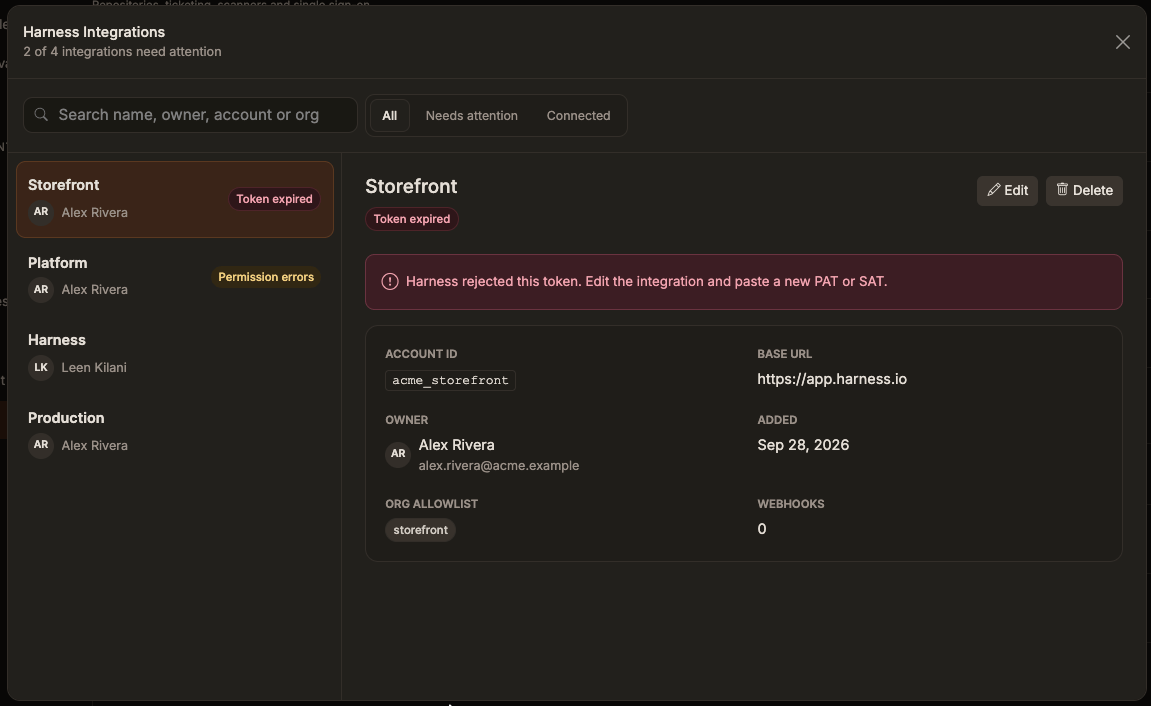
- Token expired — Harness rejected the token. Edit the integration and replace it with a new PAT or SAT.
- Permission errors — Expand the errors under that integration to see the affected operation, available organization/project/repository details, required permissions, and when the error last occurred. Grant the missing access in Harness or replace the token with one that has access.
- Connected — The integration is not marked expired and has no recorded permission errors.