Overview
Corgea’s project management live inside each project’s dashboard. Use this page to tailor scanning behavior so it aligns with your codebase, compliance needs, and team workflows. You can block noisy files, force-scan folders Corgea would otherwise skip, ignore irrelevant CWEs, document policies, and see the operational views you need to keep your application secure. Every change you make here applies to future scans for the selected branch. If you’re new to these controls, start with the Default Settings and gradually refine the filters after reviewing a few scan reports.Changing scan settings requires the Can edit project permission. The Settings dialog is only available to users with project edit access.
File Ignore Rules
File ignore rules help you keep findings focused on the code that matters. Matching files are skipped for future scans and ignored when new issues are added to the project. We already exclude common build artifacts, dependency folders, and generated files, so you typically only need to add rules that are unique to your project structure.Default exclusions
- Test files:
*_test.*,test_*.*,*.test.*,*.spec.*,*__tests__/*,*test/*,*tests/* - Dependencies:
*node_modules/*,*python*/site-packages/* - Generated code:
*generated.*,*.gen.go,*.pb.*,*.designer.cs,*.d.ts - Build artifacts:
*build/*,*dist/*,*coverage/* - Configuration:
tsconfig.json,webpack.config.js,pnpm-lock.yaml,*compose*.yml - Other common folders: directory names
migrate,migration,migrations,changelog; also*mock/*,*mocks/*,*fixtures*,*tmp/*,*log/*,*logs/*
How to add custom ignores
1
Open the Settings dialog
From the project dashboard, click Settings to open the settings dialog, then expand the File Ignore Rules section.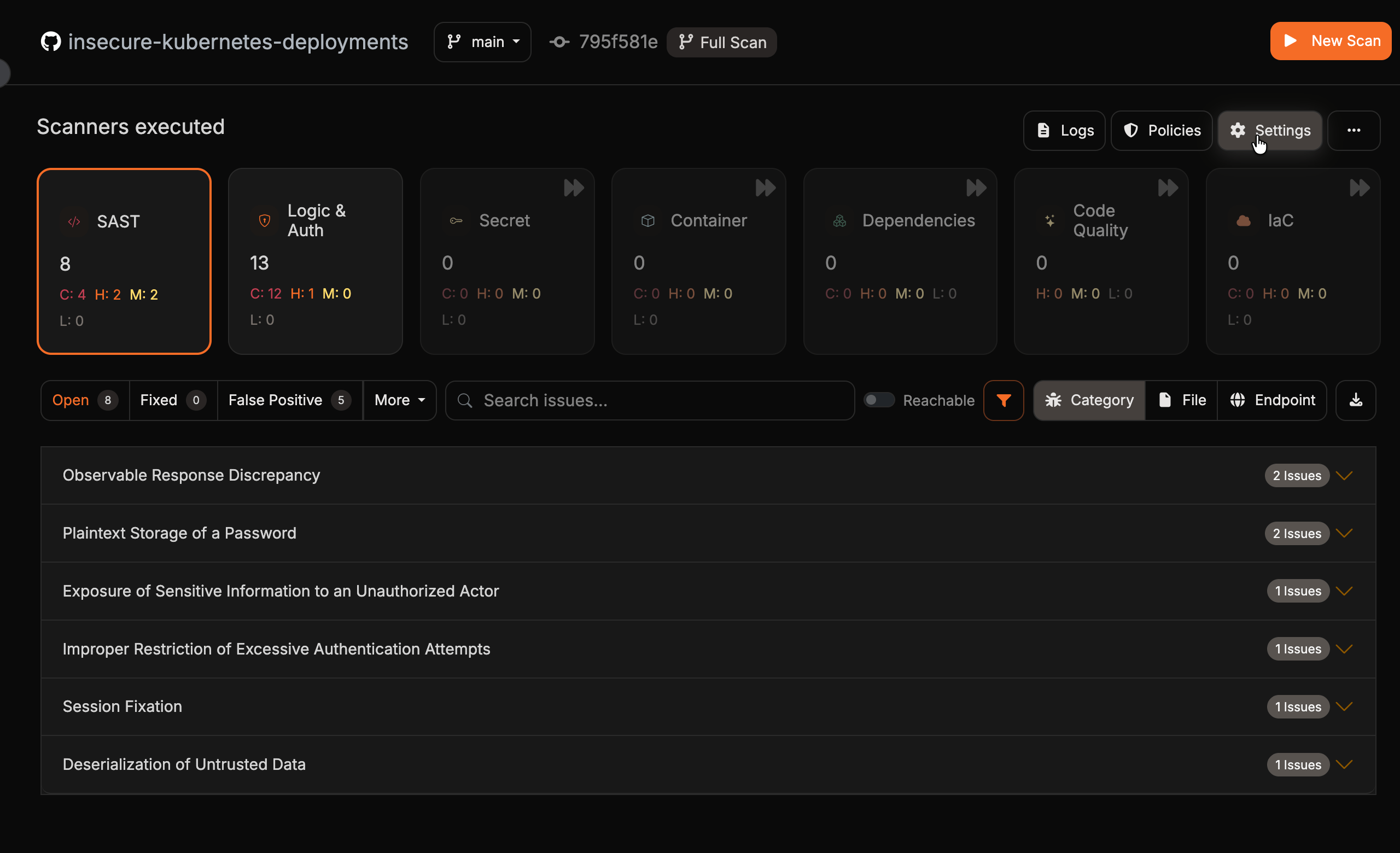
2
Add a pattern
In Glob Pattern of files to ignore, enter a single glob pattern for the paths (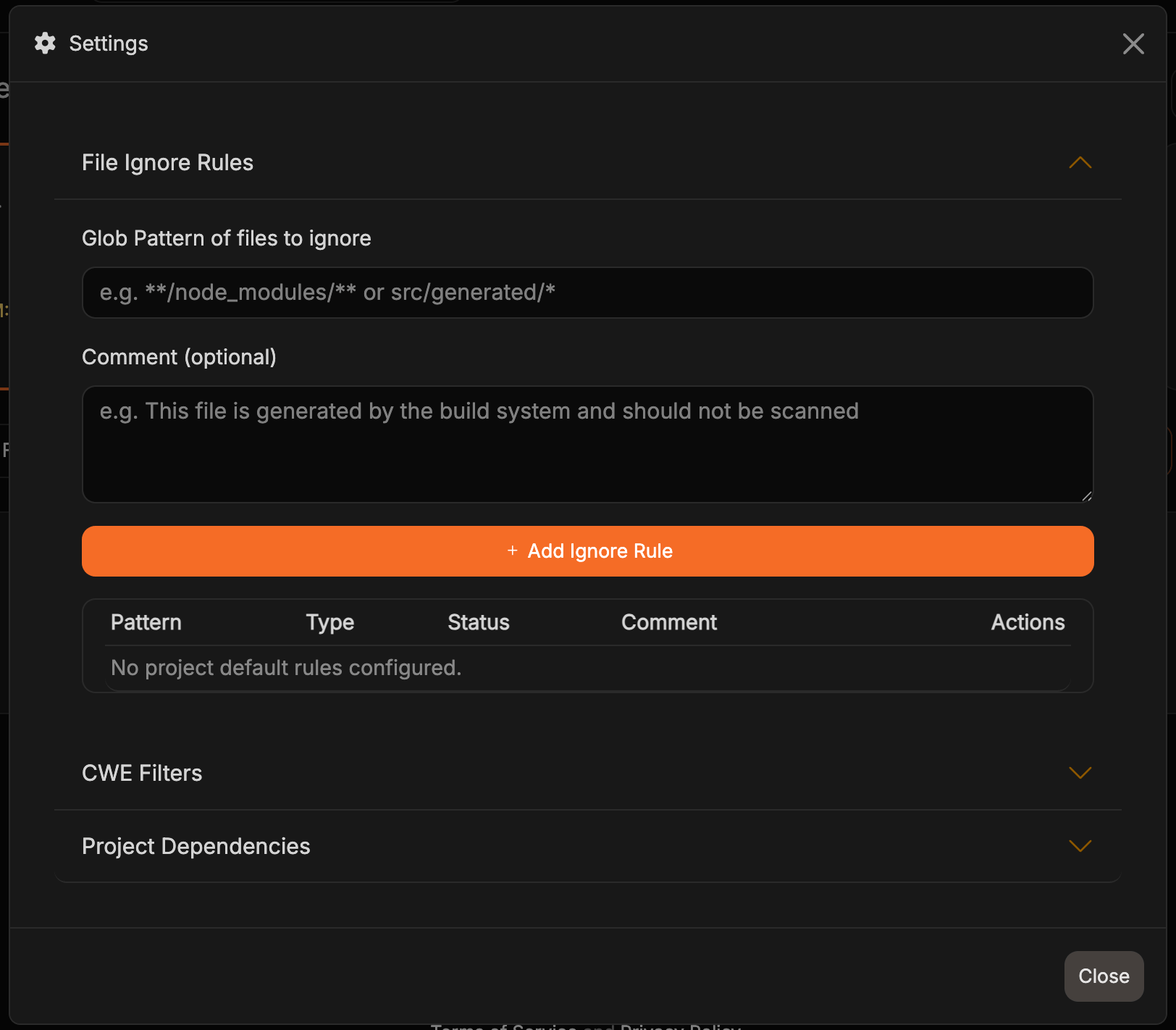
src/tools/), directories (**/legacy/**), or nested files (src/assets/languages/**) you want to skip. Patterns that start with **/ can match the folder at any depth, including the repository root. Optionally add a Comment (optional) explaining why the rule exists (up to 200 characters), then click Add Ignore Rule. Each new rule appears in the table below with its Pattern, Type, Status, and Comment.3
Update a rule's comment
To edit a rule’s comment, re-enter its exact pattern. The button changes to Update Ignore Rule, and submitting updates the comment on the existing rule instead of creating a duplicate. Submitting a blank comment leaves the existing comment unchanged.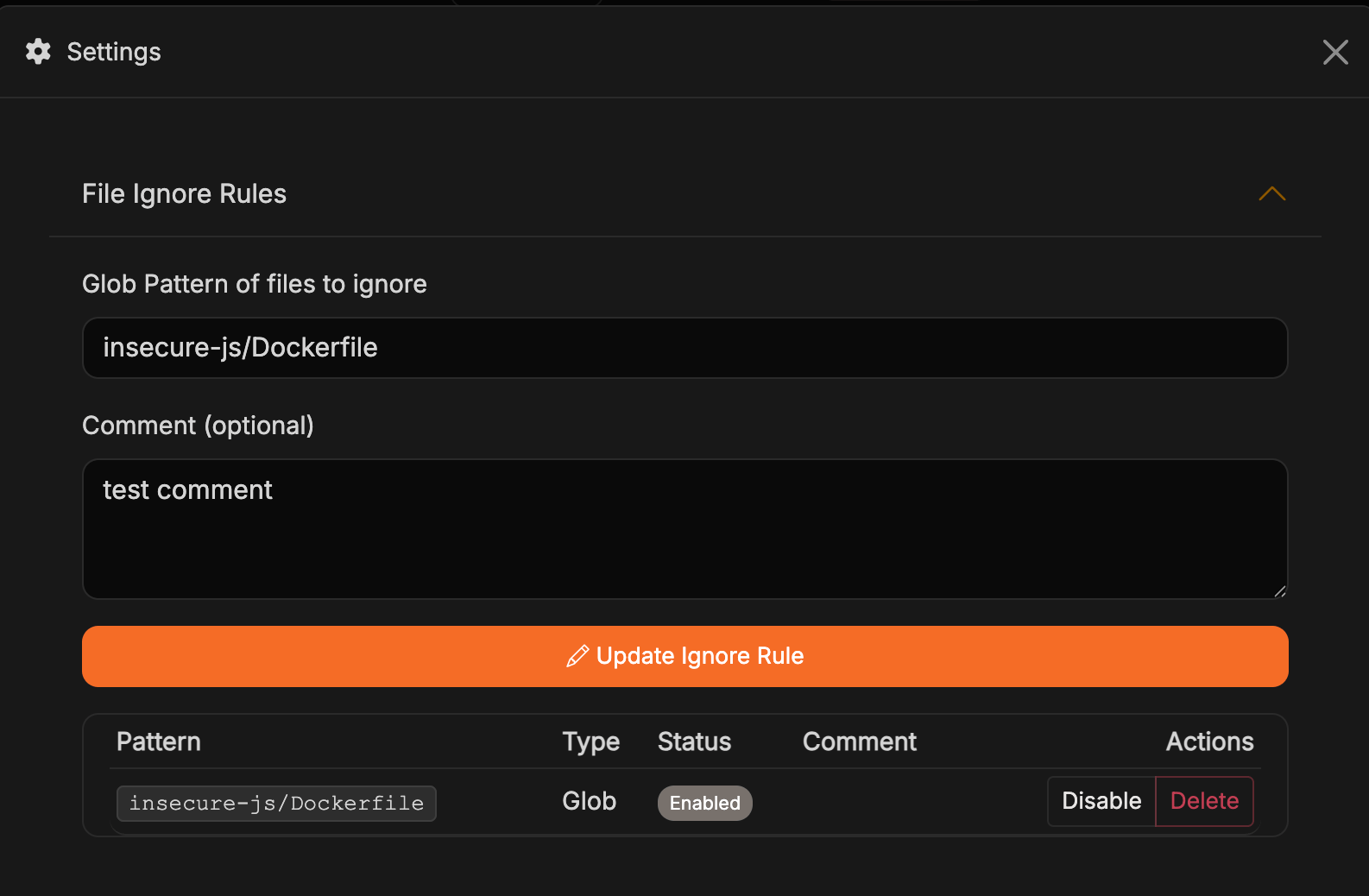
4
Enable, disable, or delete rules
Use the Actions column to Disable a rule (it stays in the list but is skipped during scans), Enable it again, or Delete it entirely. The Status column shows whether each rule is currently active.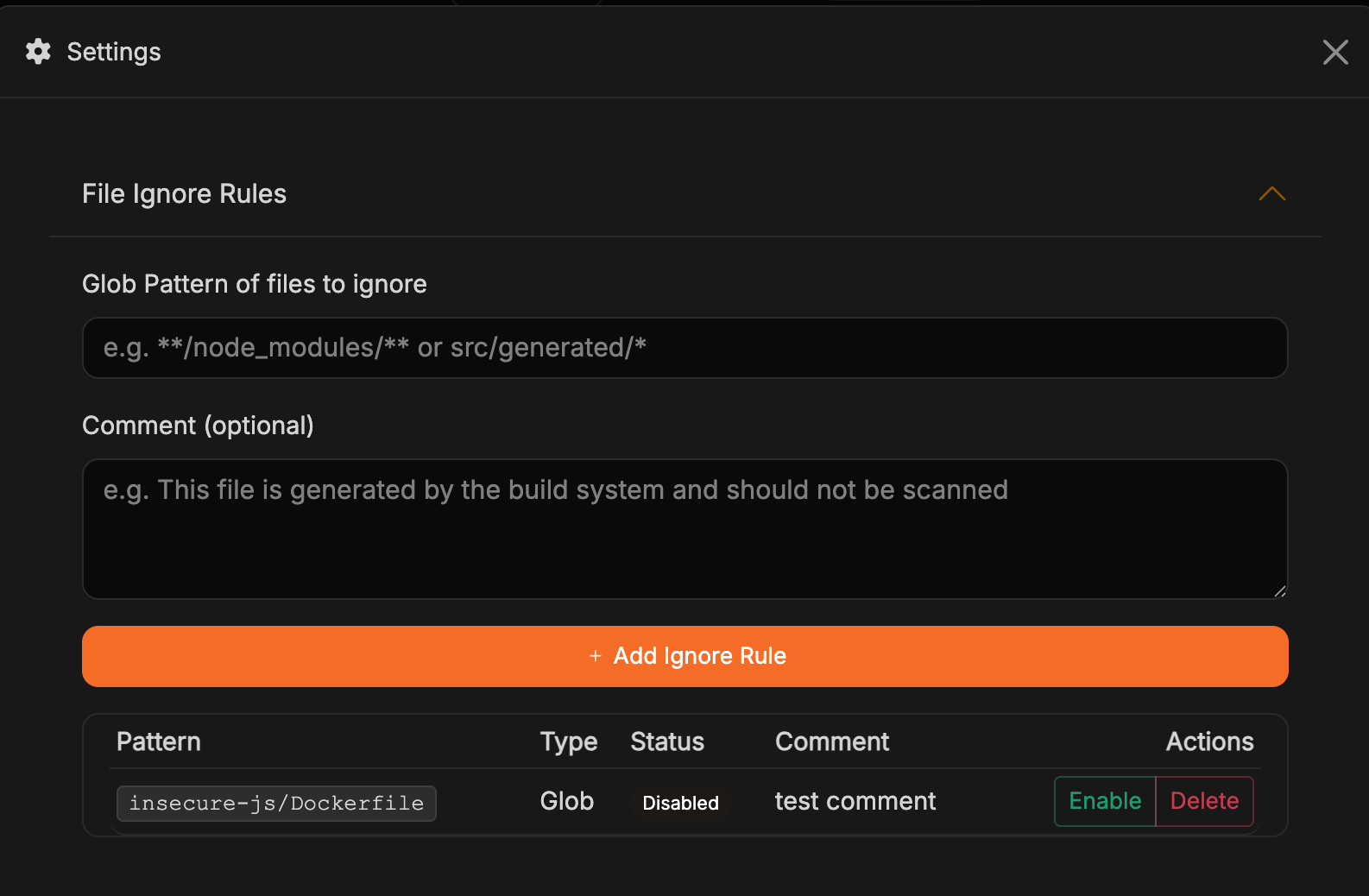
5
Monitor
Run a test scan to make sure the behavior matches your expectations. Revisit this list whenever you add new generated outputs or temporary directories.
When to add rules
- Internal tooling: Scripts or utilities that should never be scanned (e.g., internal deploy scripts or CLI helpers).
- Legacy or deprecated code: Modules you’re no longer shipping but still keep for reference.
- Vendor or third-party artifacts: Files provided by hardware vendors or partners that don’t change and you don’t control.
- Documentation or content: Rule out large doc folders when only code matters.
- Custom output: Non-standard build directories created during CI or local experimentation.
File Include Rules
Corgea skips common folders such asmigrations, vendor, and node_modules. Include rules scan matching files anyway. Use them when that code is yours — for example a migrations folder, or a fork under vendor/.
A File Ignore Rule still wins if both match. Patterns that match the whole repository (**, **/*) are rejected. Include rules do not scan files Corgea still treats as tests, minified, or generated from their contents.
1
Open File Include Rules
From the project dashboard, click Settings, then expand File Include Rules.
2
Add a pattern
In Glob Pattern of files to always scan, enter a glob such as 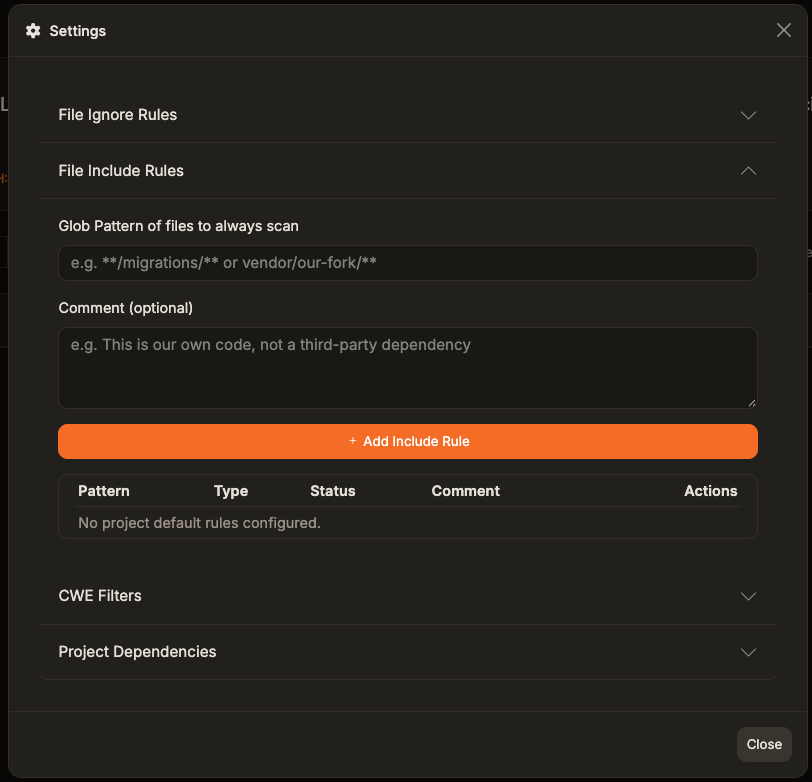
**/migrations/** or vendor/our-fork/**. Patterns that start with **/ can match the folder at any depth, including the repository root. Optionally add a Comment (optional) explaining why the files should be scanned (up to 200 characters), then click Add Include Rule.3
Enable, disable, or delete rules
Use the Actions column the same way as File Ignore Rules.
include_paths in corgea.yaml. If a file was skipped on an earlier scan, run one full scan after adding the rule (corgea scan --disable-incremental, or Full Scan in the app) so it is analyzed.
CWE Filters
CWEs let you align Corgea’s findings with your project’s threat model. Think of this section as your security policy in code: you can disable specific vulnerability families that you’re already protecting through other controls or that don’t apply to your stack.How to configure filters
1
Open CWE Filters
In the Settings dialog, expand the CWE Filters section. By default, all CWEs are tracked.
2
Pick the CWEs you want to ignore
Enter a CWE ID (for example, 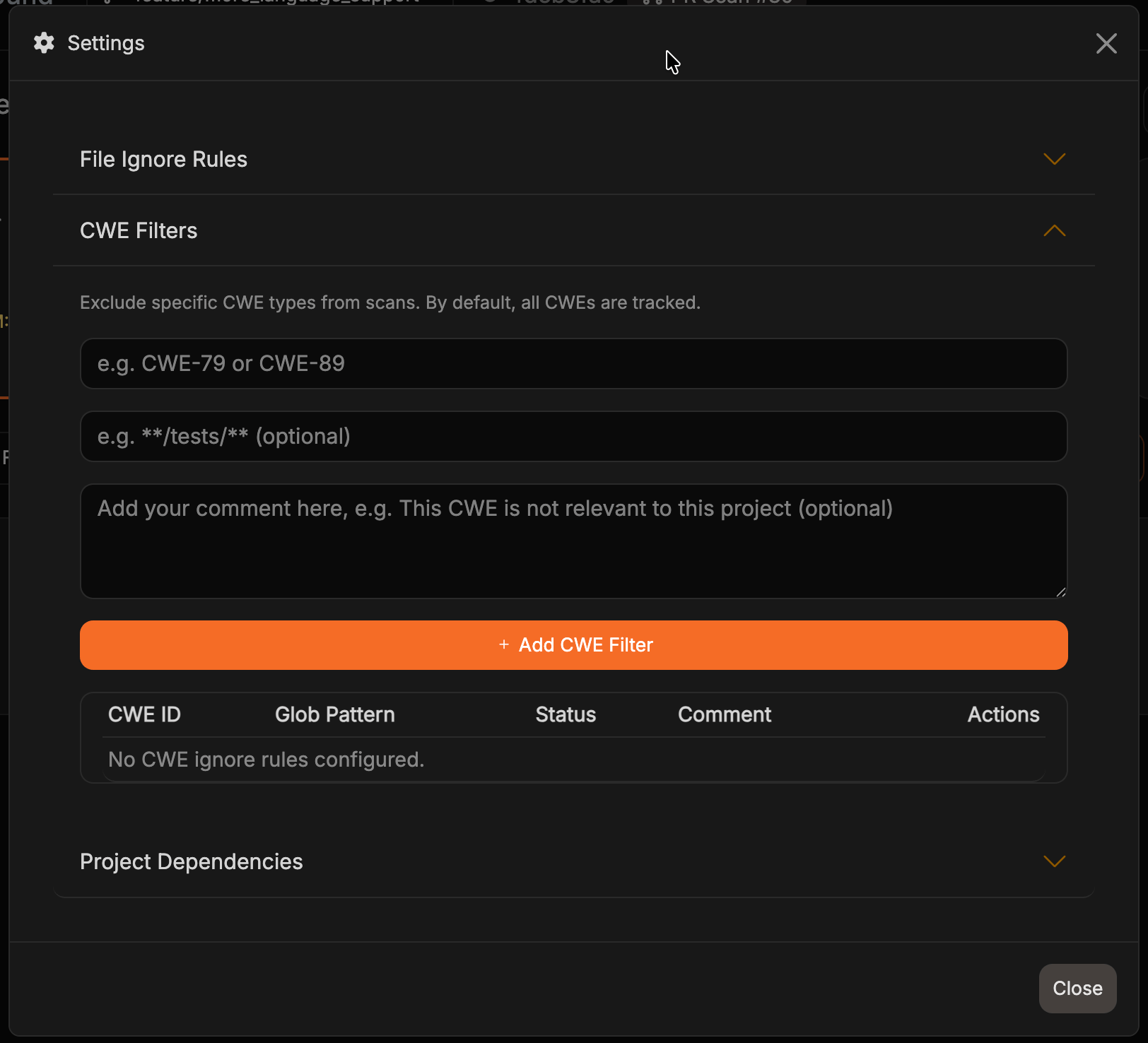
CWE-79) and optionally include a Glob Pattern to scope the rule to specific files or folders (for example, **/tests/**). Leave the glob pattern empty to apply the rule across all files in the project. Add an optional Comment explaining why the filter exists, then click Add CWE Filter.3
Update, disable, or delete filters
Re-enter an existing CWE and glob pattern combination to edit its comment—the button changes to Update CWE Filter and the existing entry is updated instead of duplicated. Submitting a blank comment leaves the existing comment unchanged. Use the Actions column to disable, enable, or delete a filter at any time.
Common scenarios
- Focus on critical paths: Temporarily mute low-impact CWEs until you finish triaging high-severity findings.
- Framework-level protection: Skip CWEs covered by built-in framework hardening (e.g., managed auth providers).
- Compliance tailoring: Disallow CWEs that violate organizational policies while keeping scans manageable.
- Early-stage development: Move fast by hiding noise but re-enable the filters later before shipping.
Tip: Periodically re-run scans with the full CWE list enabled so you don’t miss regressions when filters change.
Project Views and Controls
Search the Projects List
Use the search box on the Projects page to match project names, repository URLs, and tags. A one-character search filters projects already added to Corgea; enter at least two characters to also include matching repositories discovered from your connected source code providers. Recently added or renamed repositories may appear after the provider inventory refreshes; administrators can use the page’s refresh action to request an updated inventory. Click the filter icon beside the search box to show the project filters. Choose a tag, an Integration (GitHub, GitLab, Azure DevOps, Bitbucket, Harness, or Zip Upload), or a Team. Where available, use Projects I Own or Projects I’m Member Of to filter by your role; selecting a role clears the team selection, and selecting a team clears the role selection. Search and the other filters apply together. Hiding the filter panel keeps filters active, and the icon shows the number set. Click Clear to reset the filters while keeping your search text. When content access control is enabled, the Teams column on the Projects page lists both directly linked teams and teams whose project tags or repository URL patterns match the project. Each team appears only once.Trigger a Scan for a Specific Branch
Select the branch you care about from the branch picker at the top of the dashboard before starting a scan. Corgea locks the scan to that branch’s latest commit and stores branch metadata so you can compare results across lines of development.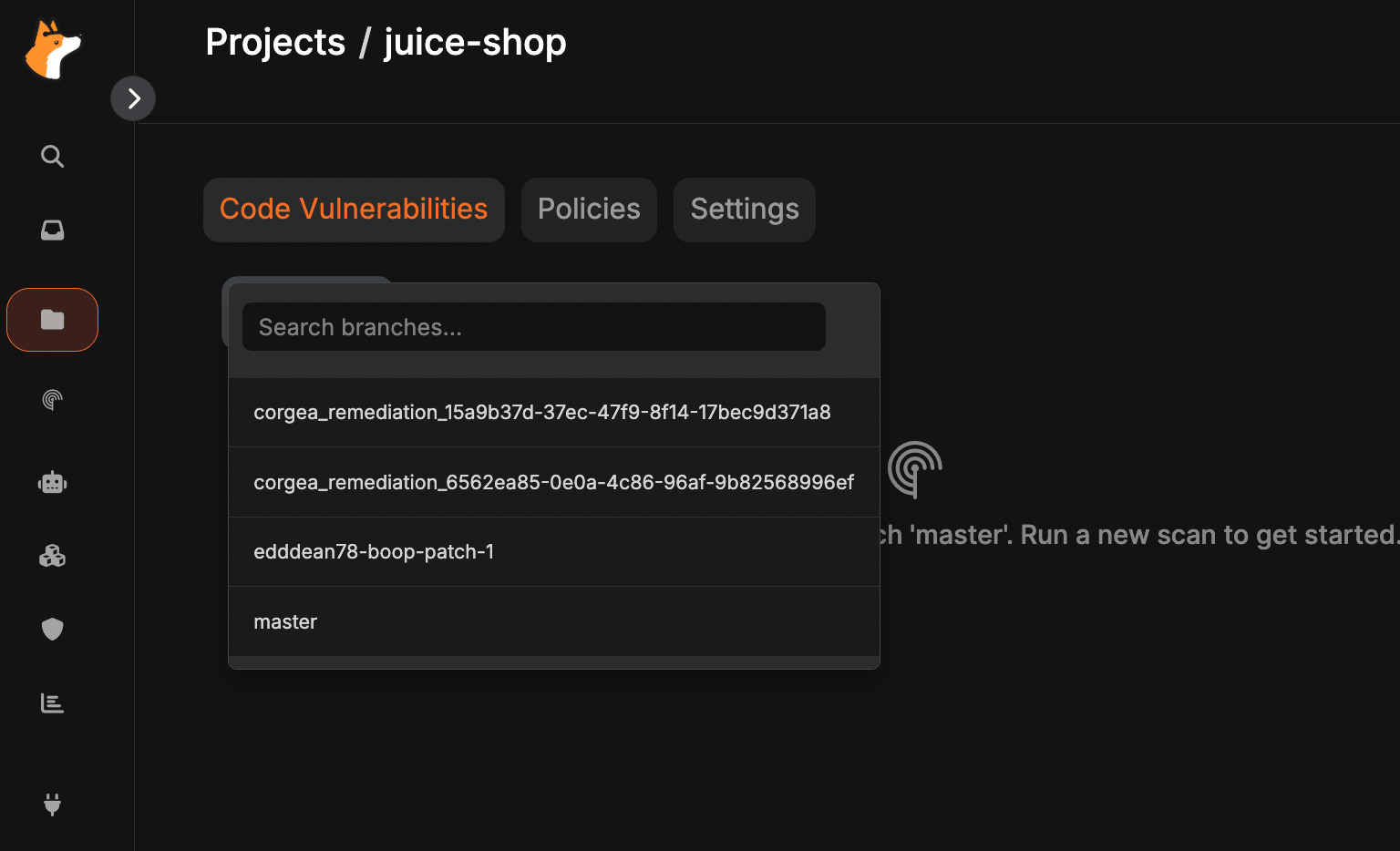
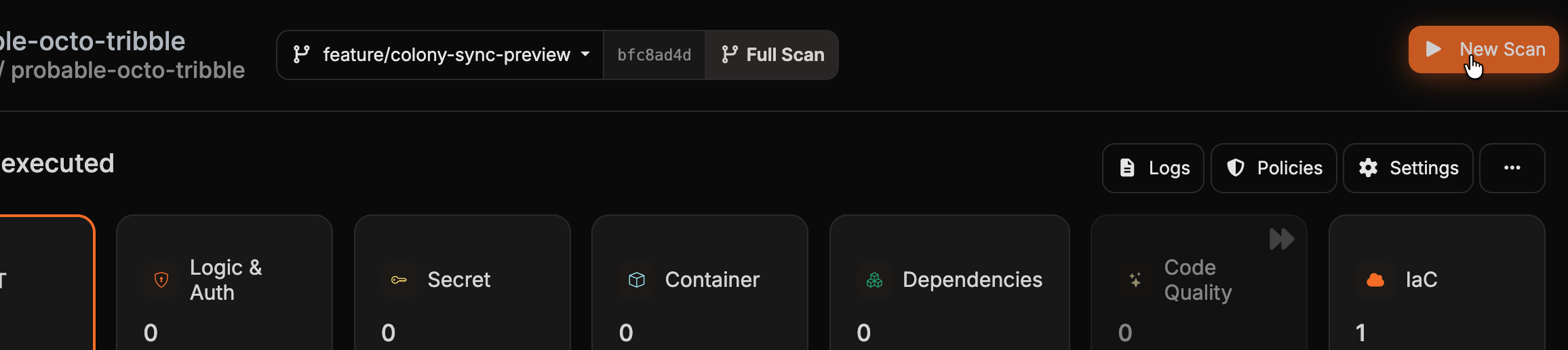
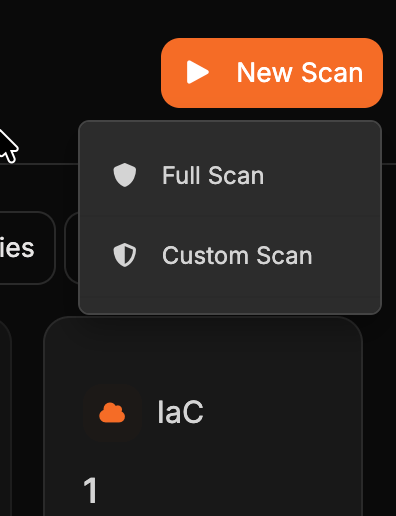
- Full Scan runs every scanner enabled for the project against the selected branch.
- Custom Scan opens a dialog where you choose which scanners to run and, for scanners driven by policies, which policies to include. Confirm with Start Custom Scan. Scanners your plan doesn’t include are shown but marked Plan Restricted.
When scanning isn’t available for a project, the button is greyed out with a lock icon. Hover it to see the reason.
Scan Log
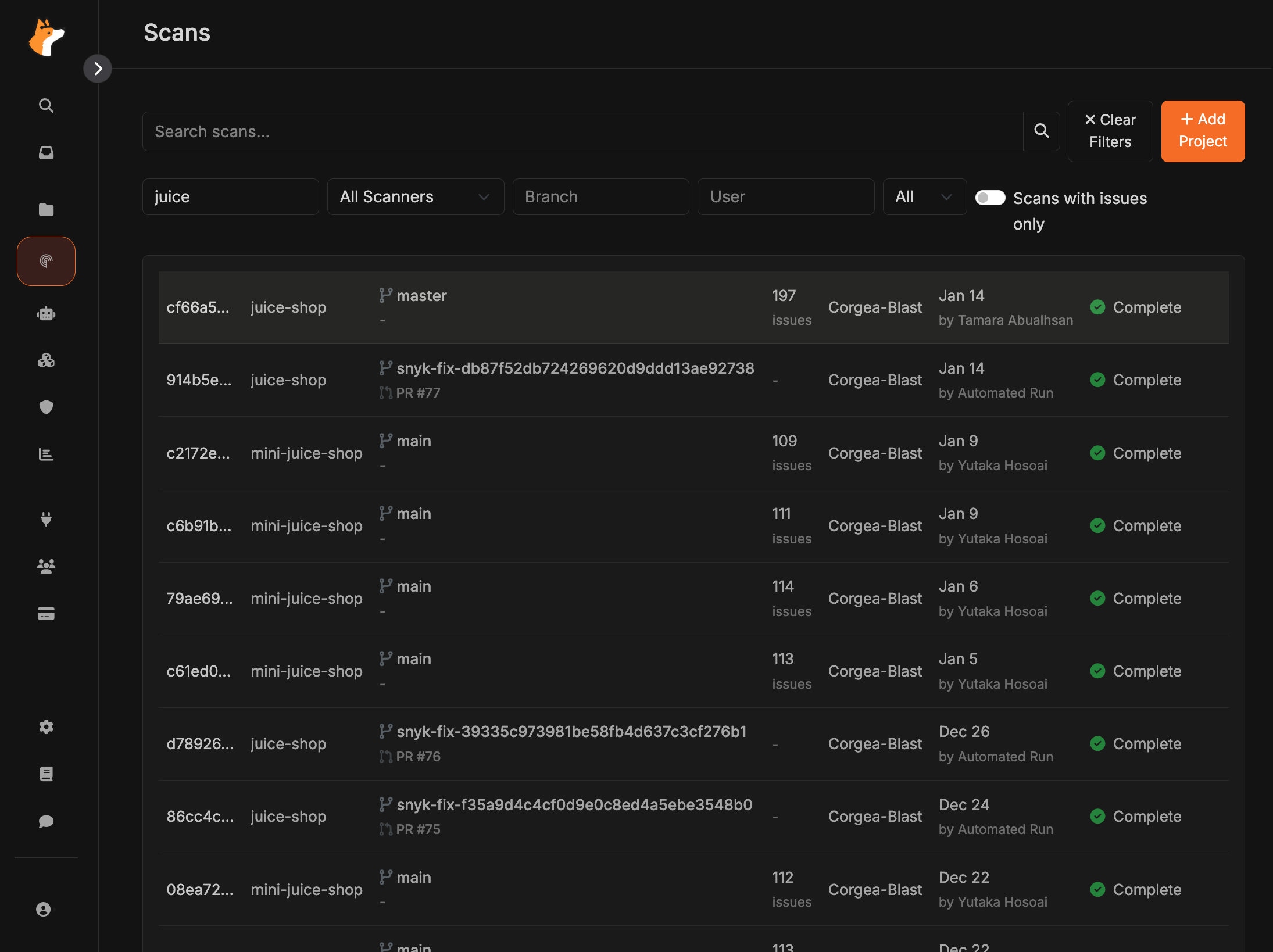
The Scan Log tracks every run you kick off. It records status, duration, branch, and who triggered each scan. Use this page to rerun scans, compare results side by side, and jump into the findings that caused failures. In the Scan Log filters, search for a tag in the Tag dropdown, choose a scanner from All Scanners, or choose Manual Full Scan, Scheduled Full Scan, or PR Scan from All Scan Triggers. Selections update the list immediately; use Clear to reset the filters. The scan list updates the status of running scans in place. When more scans match your filters, a button appears with that count, for example 3 scans to show. Click it to load the first page with your current filters.
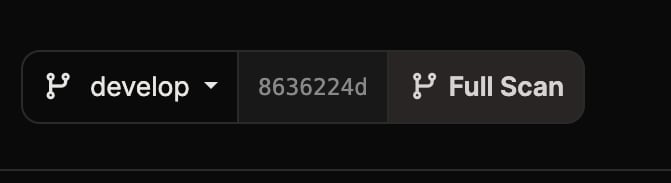
- Full Scan — covers the selected branch or uploaded project
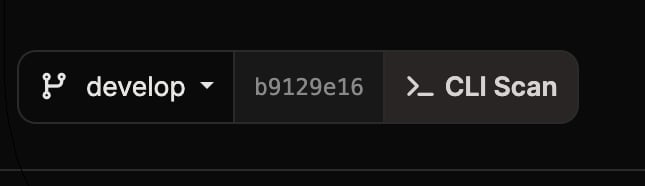
- CLI Scan — triggered from the CLI
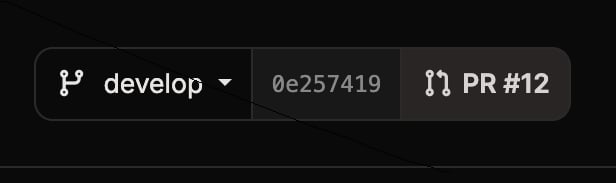
- PR #N — triggered from a pull request (links to the PR when available)
Endpoint Findings Filters
Use the Reachable toggle to limit scan results to findings with at least one static call path from a discovered endpoint. The toggle state is preserved in the URL so you can share or bookmark the filtered view. Switch to the Endpoint view to group findings by HTTP method and route. Each group shows its issue count and severity distribution. Where reachability data is available, the group also shows the maximum call depth and number of call graphs. Expand an endpoint to review its associated findings.Advanced Vulnerability Search
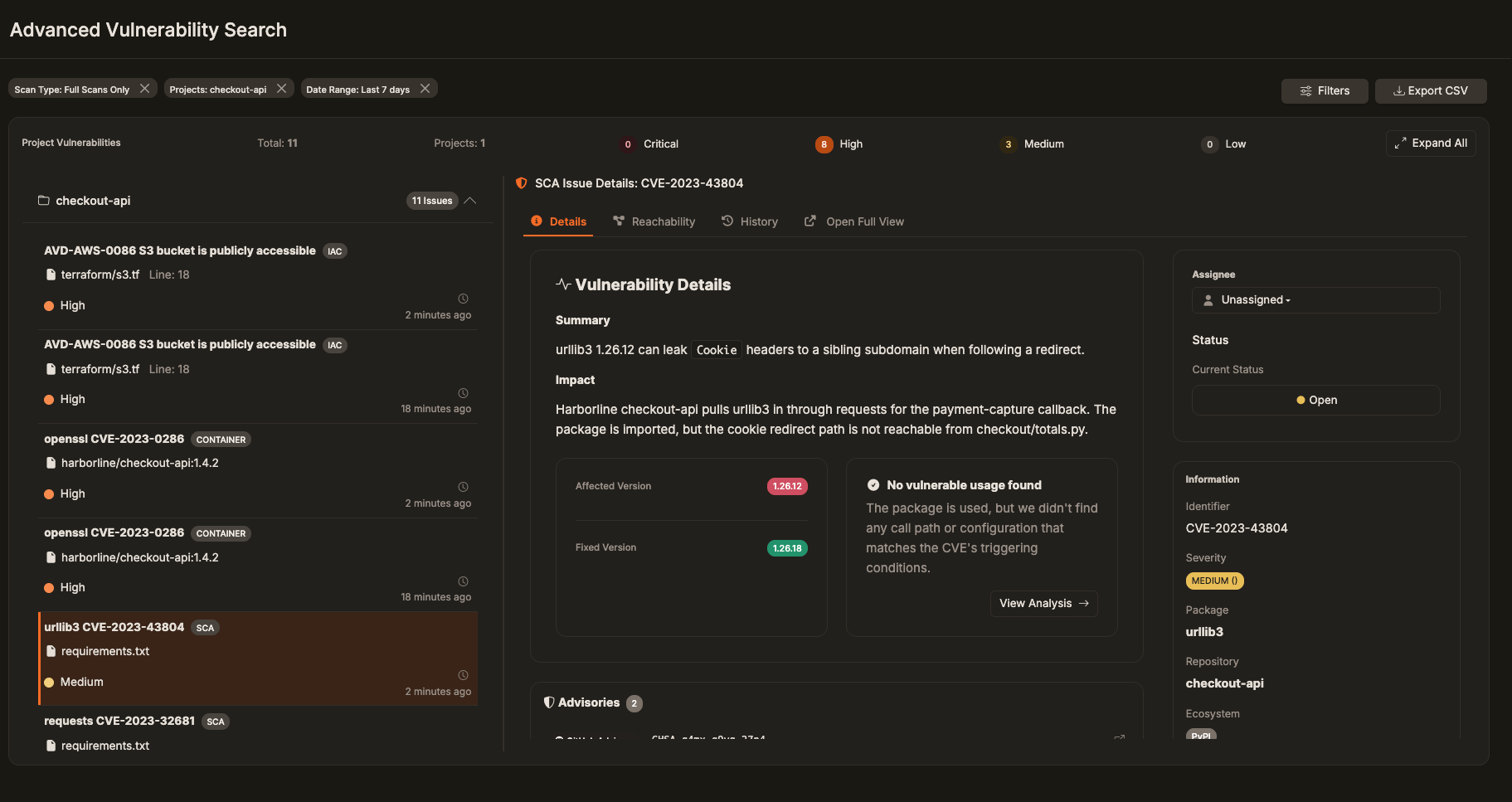
Click the Advanced button on the project page to open the Advanced Vulnerability Search page and zero in on findings across every scan run. The view surfaces totals plus severity counts at the top, and you can expand any project to reveal its files, CWE badges, urgency levels, detection times, and other context without leaving the list. When content access control is enabled, the project and tag filters offer only projects you can access and tags from those projects.- Filters: Narrow results by Vulnerability Category, Urgency, Status, Fix Status, Scan Type, Project, Branch, policies, or other metadata. A Date Range (preset or custom) is required so the system knows which span of time to examine.
- Date reminder: The interface highlights what’s missing if you try to run a search without selecting a date range, and keeps the controls disabled until you pick a preset or custom window.
- Results exploration: Click any row to load more context in the side panel while keeping your active filters in place. This lets you review evidence, remediation guidance, and related scan details without disrupting the list.
- SCA and container findings: Open inline package details, history, and reachability when available. Use Open Full View for the full finding page.
- IaC findings: Change assignment and status from the search results, including on smaller screens.