
SLA Management lets you define remediation and escalation timeframes by urgency for SAST (code) and SCA (dependency) findings. When deadlines are missed, Corgea can notify your team by email and/or webhook (
sla.violation events).Who it’s For
Project managers, security teams, and developers who need predictable response times for open findings.Key Features
- Separate SLAs for Code Vulnerability (SAST) and Dependency Vulnerability (SCA)
- Configurable remediation and escalation timeframes per urgency (Critical, High, Medium, Low)
- Email summaries when deadlines are missed (recipients depend on issue type and deadline stage)
- Webhook notifications via Corgea webhooks (
sla.violationevent) — use an existing integration webhook or create one from the SLA form - Daily automated checks for breached deadlines (
overdue/escalated) - SLA breach status on issues and in Issue Aging reporting for code and dependency findings
How to Access
Go to Policies → SLA Management. Requires the appropriate plan and
Issue SLA permissions.Setup Instructions
1
Open SLA Management
Navigate to Policies and open SLA Management.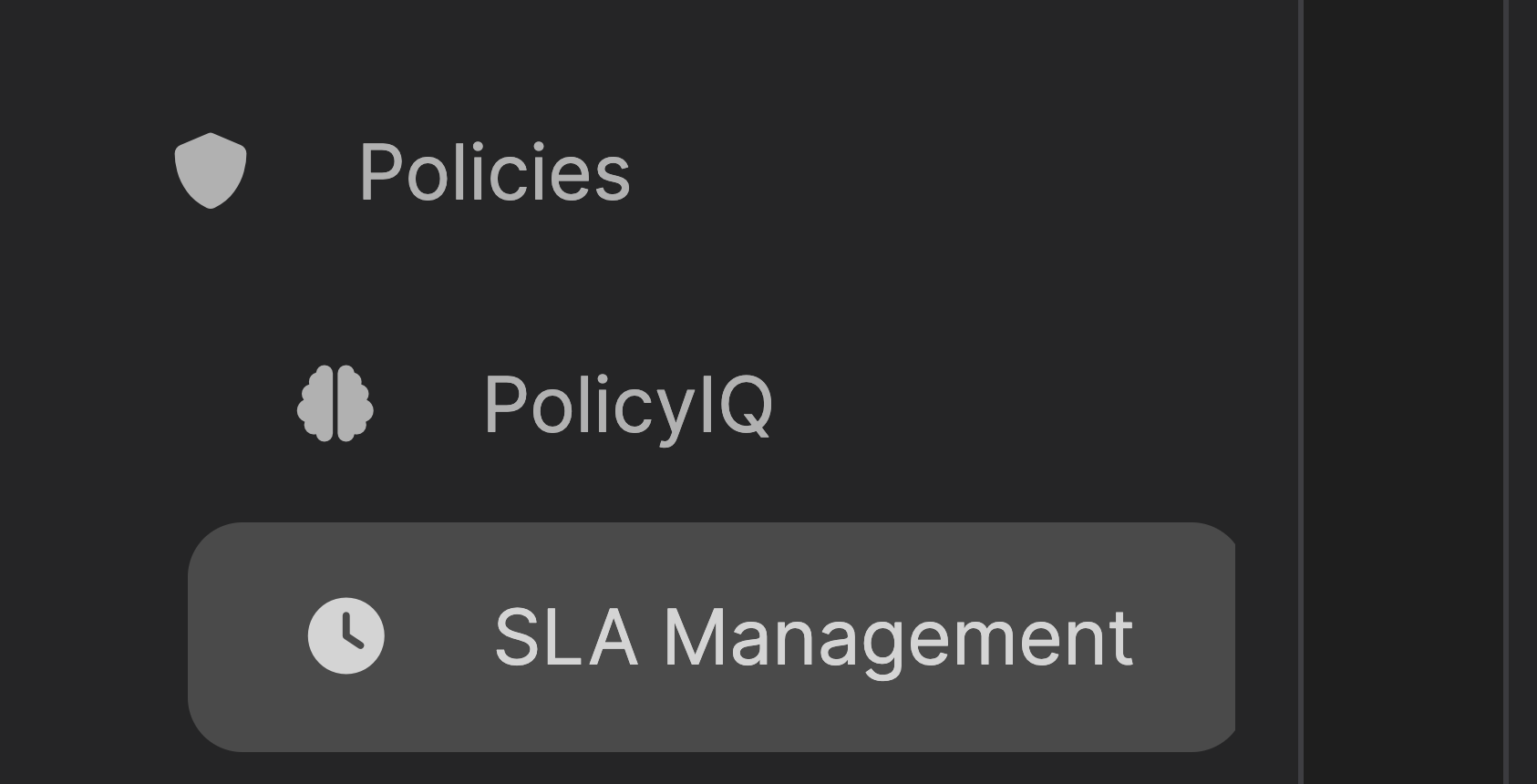
2
Create Issue SLA
Click Create Issue SLA.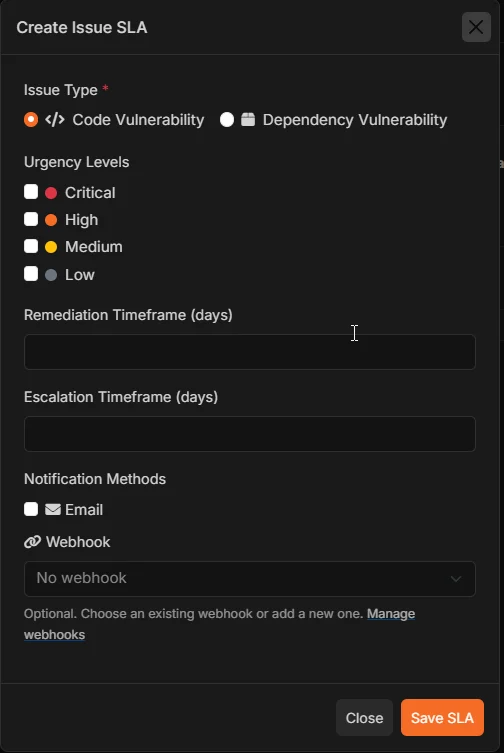
3
Choose issue type
Select Code Vulnerability (SAST) or Dependency Vulnerability (SCA). Each SLA applies only to the selected type.
4
Set urgency and timeframes
Choose urgency levels and set Remediation and Escalation timeframes (days).
5
Configure notifications
- Email — optional; sends a daily summary to the right people when a deadline is missed (see below).
- Webhook — optional; pick an existing webhook from the dropdown or enter a new HTTPS URL (creates a webhook subscribed to
sla.violation). See Webhooks.
6
Save
Click Save SLA.
How Notifications Work
Corgea checks open issues once per day. Alerts are sent only after a deadline is missed—not while an issue is still within its SLA window.Email notifications
Turn on Email when creating or editing an SLA. You’ll receive a daily summary listing overdue issues by project and severity (one email per person, not one email per issue). There are two kinds of deadlines:- Remediation — the first alert that an issue is overdue and should be addressed.
- Escalation — a later alert, typically for project leads when the issue remains open.
Dependency vulnerabilities (SCA)
Assign dependency issues from the issue details page (Assignee dropdown), the same way as code issues.
Webhook notifications
When a webhook is configured on an SLA, Corgea fires asla.violation event to that webhook with a structured JSON payload (see Webhooks). You can:
- Select an existing webhook (Corgea automatically subscribes it to
sla.violationif needed), or - Enter a new URL to create a dedicated webhook for SLA alerts (HTTPS required).
sla.violation, project filters match if any project in the payload overlaps your filter (useful when one notification spans multiple projects).
SLAs created before this release may still list Slack as a notification method. New and edited SLAs use webhook instead; subscribe a Slack incoming webhook under Integrations → Webhooks and select it on the SLA form.
Editing and Managing SLAs
- Use Edit on an existing SLA. The form pre-fills issue type, urgency, timeframes, email checkbox, and the selected webhook (if any).
- The SLA table shows Type (SAST or SCA), timeframes, and configured notification methods.
Reporting and Issue Status
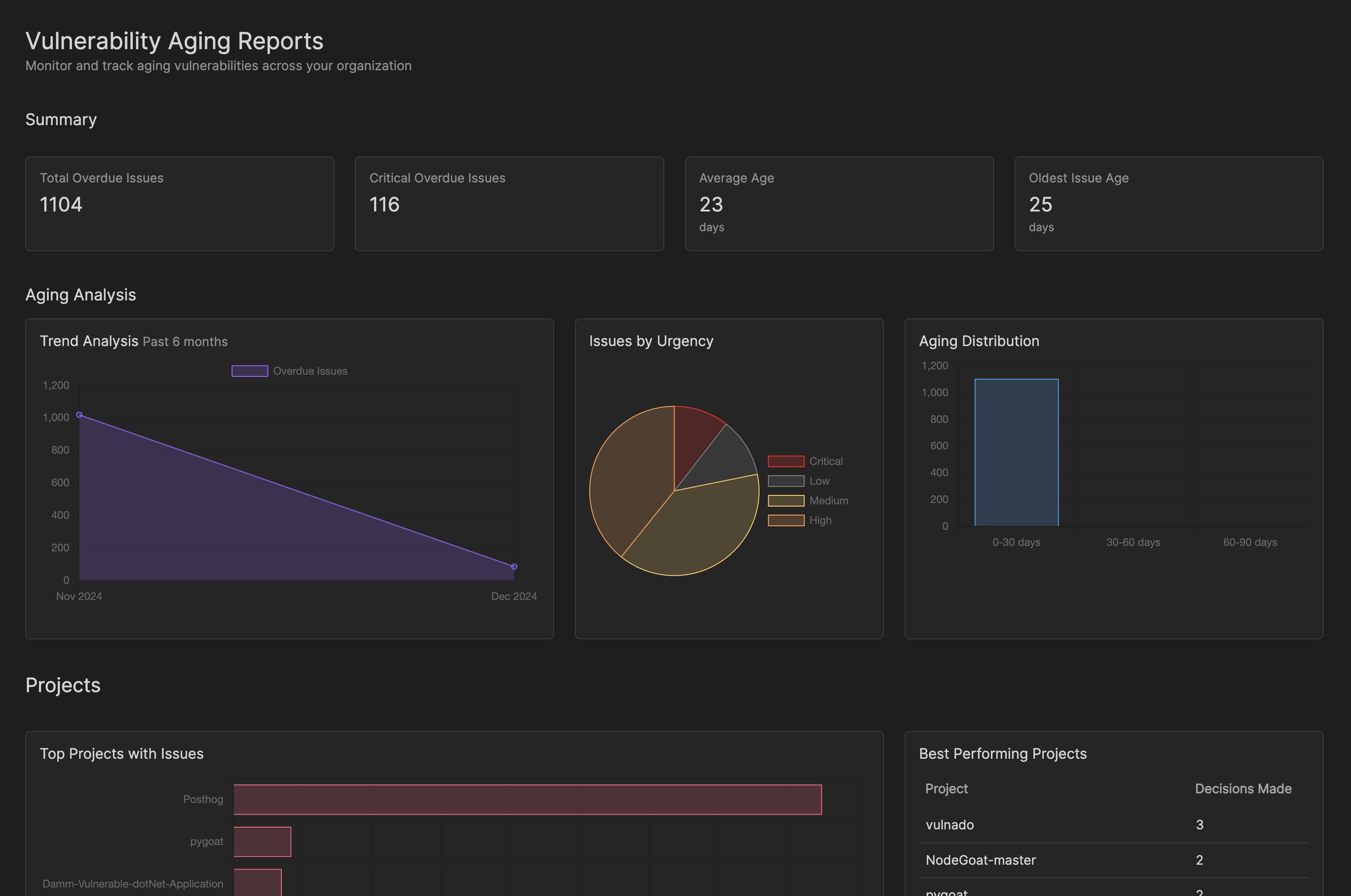
- Reporting → Aging includes overdue code and dependency issues (summary counts, urgency breakdown, projects, ecosystems, and trends).
- Code and dependency issues show SLA status and appear in assignee breakdowns on the aging report when assigned.
- Filter dependency SLA status on scan dependency views when an SCA SLA applies.
Examples
SLA for critical code findings
1
Create SLA
Create an SLA with type Code Vulnerability (SAST) and Critical urgency.
2
Set timeframes
Set remediation to 2 days and escalation to 3 days.
3
Notify
Enable Email and select a Slack or Teams webhook subscribed to
sla.violation.SLA for high-severity dependencies
1
Create SLA
Create an SLA with type Dependency Vulnerability (SCA) and High (and Critical, if desired) urgency.
2
Set timeframes
Set remediation and escalation windows appropriate for your patch cadence.
3
Notify
Use Email to project owners and/or a webhook for your security channel.