> ## Documentation Index
> Fetch the complete documentation index at: https://docs.corgea.app/llms.txt
> Use this file to discover all available pages before exploring further.
# Vulnerabilities Workbench
> Review and triage findings across your organization
## Overview
The **Vulnerabilities** page provides an organization-wide view of open security findings. Use it to review findings across projects, investigate details, export results, and apply triage decisions without opening each scan separately.
The Vulnerabilities Workbench is available to organizations where it has been enabled by Corgea. Contact your Corgea representative to request access. Users also need permission to view at least one finding type.
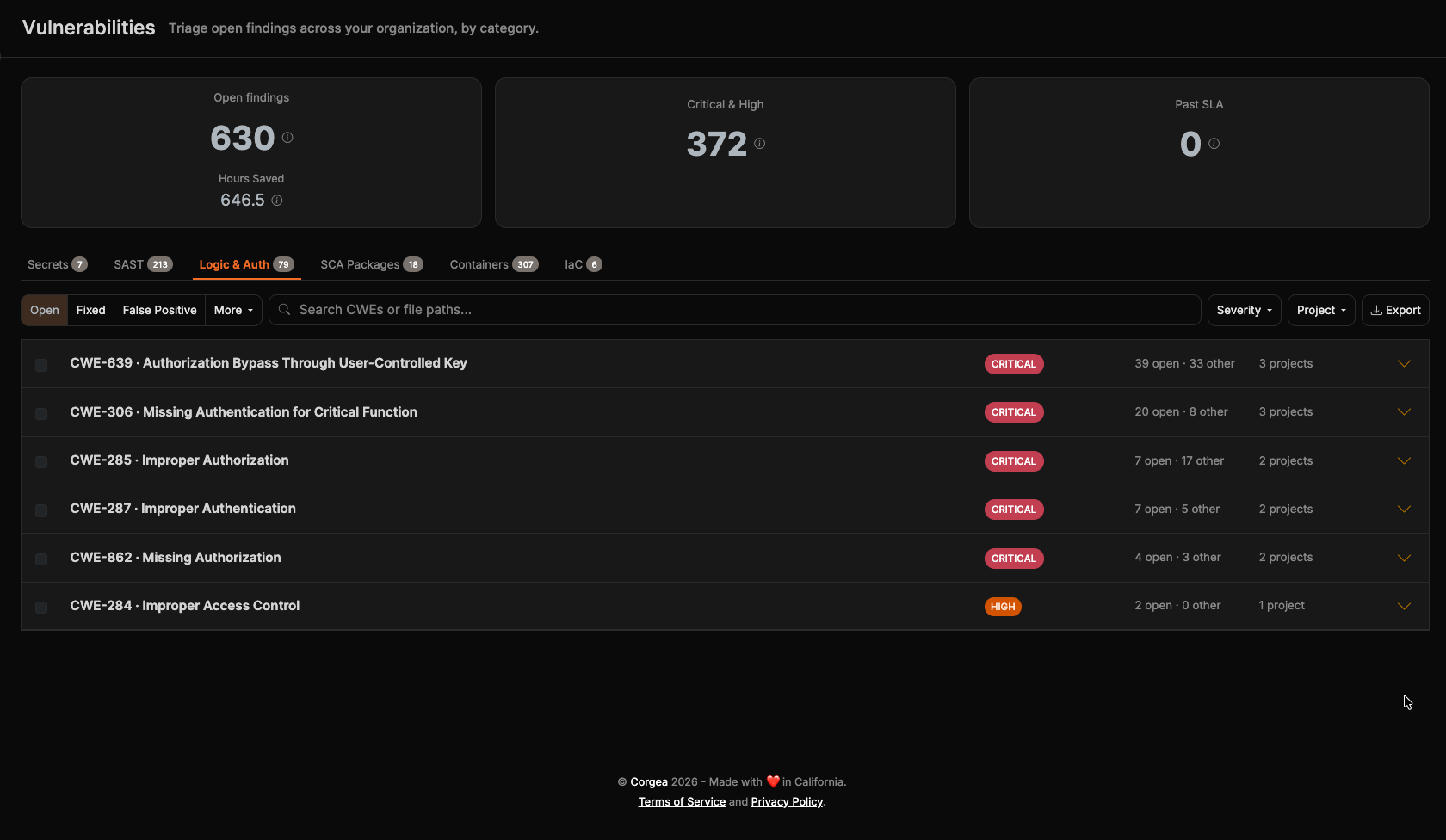 The summary cards show **Open findings** (with estimated **Hours Saved**), **Critical & High**, and **Past SLA**. Findings are separated into these tabs:
* **Secrets**
* **SAST**
* **Logic & Auth**
* **SCA Packages**
* **Containers**
* **IaC**
Each tab is available only when you have permission to view that finding type. The badge on a tab shows its unfiltered open-finding count.
## Find and review findings
Select a tab, then expand its groups and projects to reach individual findings. Grouping is tailored to each finding type—for example, SCA findings begin with packages, container findings with images, and IaC findings with rules.
Use the status controls to switch between **Open**, **Fixed**, **False Positive**, and the additional statuses available for that finding type. You can also search and filter by severity and project. The Secrets tab adds a validity filter, while SCA Packages adds a reachability filter.
Select a finding to open the details drawer. From the drawer, you can review its evidence, assign it, change its disposition, or open the full finding page. A comment is required when changing a disposition. When suppressing a supported finding as accepted risk, you can also choose when the suppression expires.
## Export findings
Click **Export** to download a CSV containing the findings that match the active tab, status, search, and filters. The export includes the latest occurrence of each finding and is limited to 25,000 rows.
To export only particular findings, select them and click **Export selection** in the action bar.
## Triage findings in bulk
Select individual findings or an expanded group. You can also choose **Select all findings matching the current filters** after making an initial selection.
The bulk action bar lets you:
* Assign findings to a team member
* Reopen findings
* Suppress findings as accepted risk
* Mark findings as false positives
* Export the selection
Bulk status changes require a comment. The action bar summarizes the number of selected findings, projects, and teams, and reports any findings that were skipped. A bulk selection can contain up to 1,000 findings.
Assignment and disposition controls appear only when you have permission to change that finding type. Export remains available with view permission.
The summary cards show **Open findings** (with estimated **Hours Saved**), **Critical & High**, and **Past SLA**. Findings are separated into these tabs:
* **Secrets**
* **SAST**
* **Logic & Auth**
* **SCA Packages**
* **Containers**
* **IaC**
Each tab is available only when you have permission to view that finding type. The badge on a tab shows its unfiltered open-finding count.
## Find and review findings
Select a tab, then expand its groups and projects to reach individual findings. Grouping is tailored to each finding type—for example, SCA findings begin with packages, container findings with images, and IaC findings with rules.
Use the status controls to switch between **Open**, **Fixed**, **False Positive**, and the additional statuses available for that finding type. You can also search and filter by severity and project. The Secrets tab adds a validity filter, while SCA Packages adds a reachability filter.
Select a finding to open the details drawer. From the drawer, you can review its evidence, assign it, change its disposition, or open the full finding page. A comment is required when changing a disposition. When suppressing a supported finding as accepted risk, you can also choose when the suppression expires.
## Export findings
Click **Export** to download a CSV containing the findings that match the active tab, status, search, and filters. The export includes the latest occurrence of each finding and is limited to 25,000 rows.
To export only particular findings, select them and click **Export selection** in the action bar.
## Triage findings in bulk
Select individual findings or an expanded group. You can also choose **Select all findings matching the current filters** after making an initial selection.
The bulk action bar lets you:
* Assign findings to a team member
* Reopen findings
* Suppress findings as accepted risk
* Mark findings as false positives
* Export the selection
Bulk status changes require a comment. The action bar summarizes the number of selected findings, projects, and teams, and reports any findings that were skipped. A bulk selection can contain up to 1,000 findings.
Assignment and disposition controls appear only when you have permission to change that finding type. Export remains available with view permission.