> ## Documentation Index
> Fetch the complete documentation index at: https://docs.corgea.app/llms.txt
> Use this file to discover all available pages before exploring further.
# Teams
> Organize users into teams and manage project access at scale with team-based permissions
## Overview
Teams in Corgea provide a powerful way to manage project access at scale. Instead of assigning users individually to each project, you can organize your users into teams and grant entire teams access to projects. This streamlines permission management, especially for organizations with multiple projects and numerous team members.
Teams and team management are available on plans that include Team Management.
## What Are Teams?
A **Team** is a named group of users within your organization. Teams act as a bridge between your organizational structure and your projects, allowing you to mirror real-world teams (like "Security Team," "Frontend Engineers," or "DevOps") directly in Corgea.
### Key Characteristics
* **Company-Scoped**: Teams are specific to your organization and cannot be shared across different companies
* **Flexible Membership**: Add or remove users from teams at any time
* **Reusable**: A single team can be assigned to multiple projects
* **Dynamic Access**: When you add someone to a team, they automatically gain access to all projects assigned to that team
## Implementing Teams in Your Organization
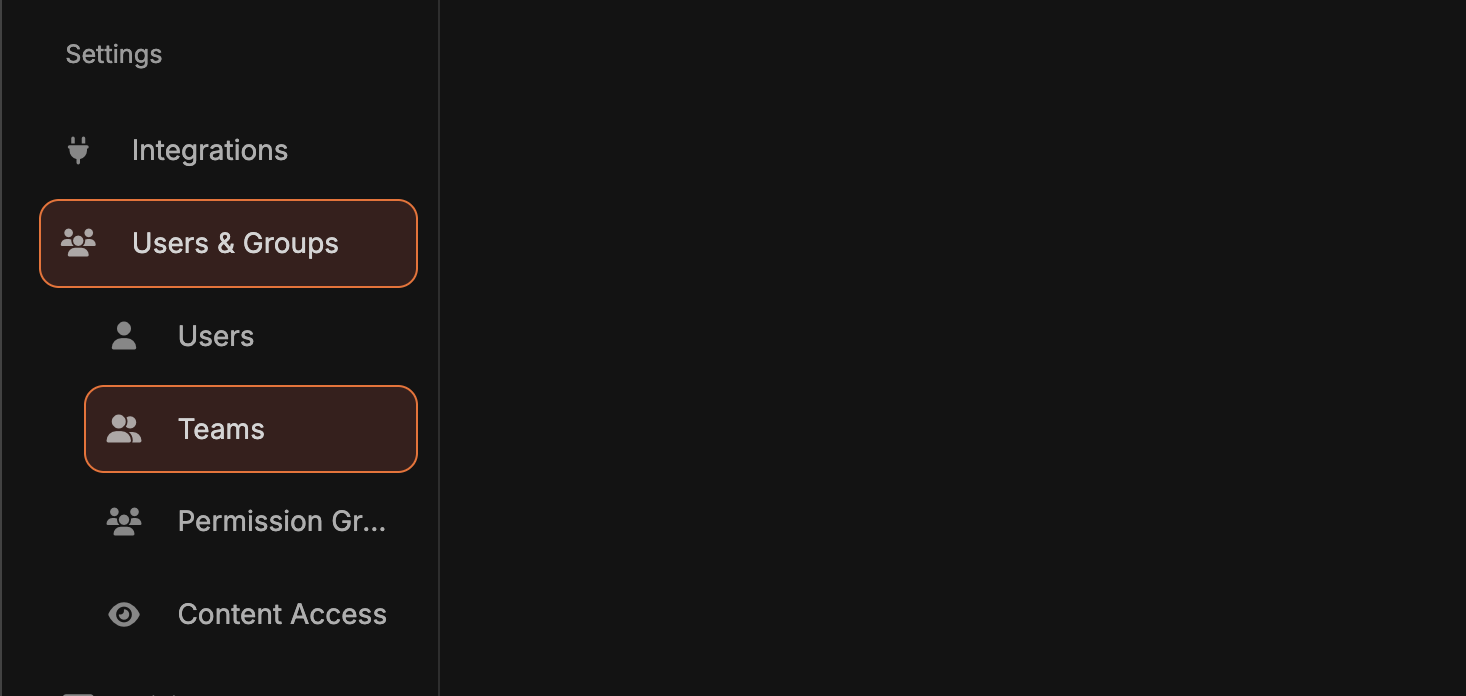 You will need View Teams permission to see this.
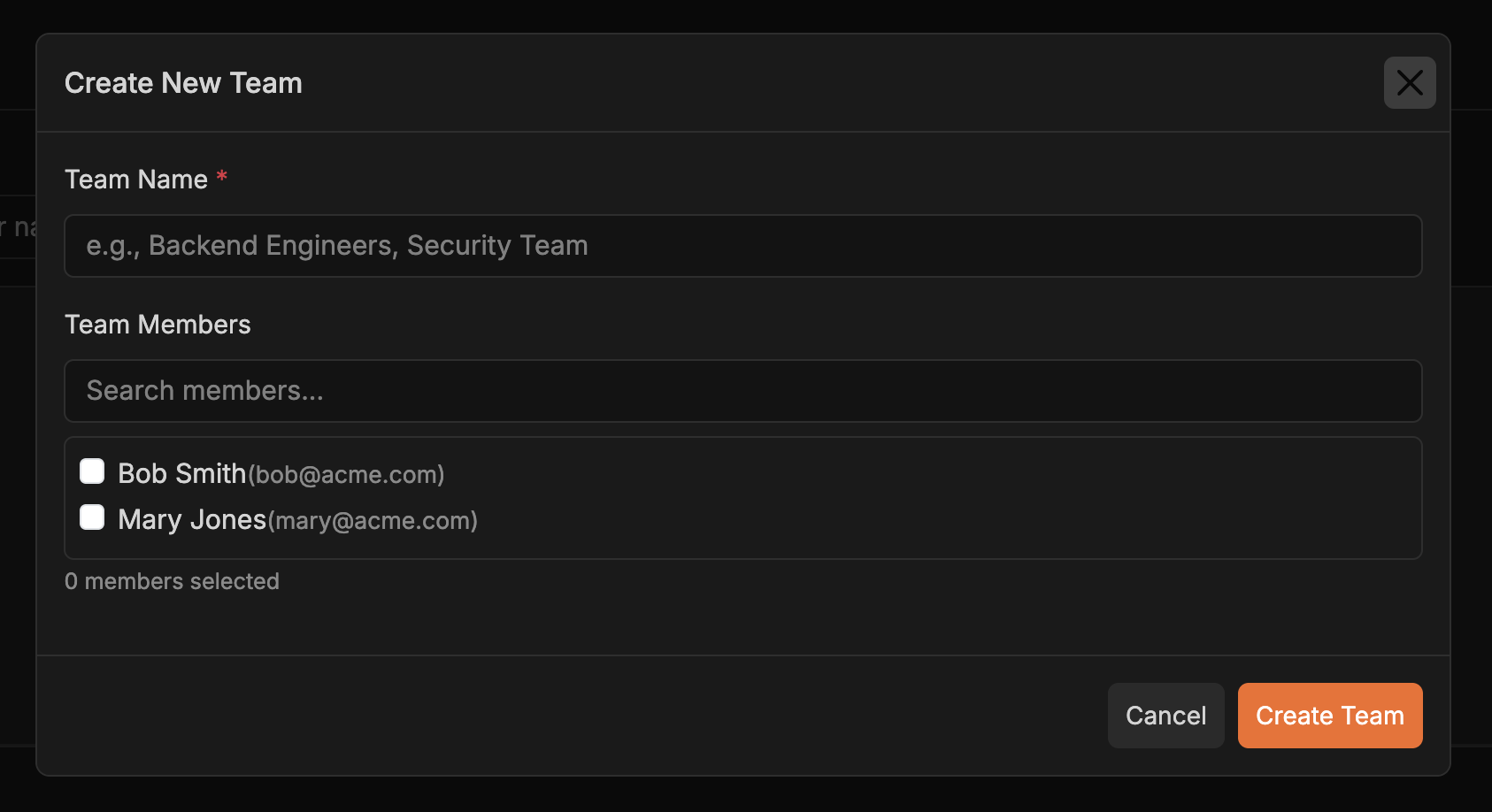 2. Click "Create Team"
3. Provide a descriptive name (e.g., "Backend Engineers," "Security Reviewers")
4. Select initial members from your organization
5. Save the team
As your organization evolves:
* **Add new members**: Click on a team and add users
* **Remove members**: Remove users
* **Edit team details**: Rename teams or adjust membership as needed
1. Navigate to the Content Access management page (see [Content Access Management Guide](content-access-management))
2. Select the project you want to manage
3. Add your newly created team to the project
4. All team members now have access
## Common Use Cases
Create department teams (e.g., "Security Team") and assign them to relevant projects. New hires automatically inherit access when added to the team.
Build cross-functional teams (e.g., "Mobile App Team") and grant access to related repositories for streamlined collaboration.
Create teams for contractors or temporary staff, assign to specific projects, then remove everyone at once when the engagement ends.
Combine team assignments with direct ownership. For example, assign a team as members while making senior engineers owners for elevated permissions.
Instead of managing thousands of individual assignments, create a few teams and assign them to projects—maintenance becomes exponentially easier.
## Best Practices
**Mirror Your Organizational Structure**: Create teams that reflect how your organization actually works. This makes it intuitive for everyone to understand who has access to what.
**Use Descriptive Names**: Name teams clearly: "QA Team" is better than "Team 3." Future administrators will thank you.
**Regular Audits**: Periodically review team memberships and project assignments to ensure they're still accurate. People change roles, and access should reflect that.
**Start with Broader Teams**: Begin with larger teams (like "Engineering") and create more specific ones (like "iOS Team") as needed. It's easier to refine than to consolidate.
**Combine with Direct Assignments**: Don't feel limited to only using teams. For unique situations, direct user assignments work perfectly alongside team assignments.
**Document Your Team Structure**: Maintain documentation about what each team represents and which projects they should access. This helps with onboarding and audits.
**Learn more:**
* [Content Access Management Guide](content-access-management) - Understand how project access control works in Corgea
* [User Management](user_management) - Learn about managing users in your organization
2. Click "Create Team"
3. Provide a descriptive name (e.g., "Backend Engineers," "Security Reviewers")
4. Select initial members from your organization
5. Save the team
As your organization evolves:
* **Add new members**: Click on a team and add users
* **Remove members**: Remove users
* **Edit team details**: Rename teams or adjust membership as needed
1. Navigate to the Content Access management page (see [Content Access Management Guide](content-access-management))
2. Select the project you want to manage
3. Add your newly created team to the project
4. All team members now have access
## Common Use Cases
Create department teams (e.g., "Security Team") and assign them to relevant projects. New hires automatically inherit access when added to the team.
Build cross-functional teams (e.g., "Mobile App Team") and grant access to related repositories for streamlined collaboration.
Create teams for contractors or temporary staff, assign to specific projects, then remove everyone at once when the engagement ends.
Combine team assignments with direct ownership. For example, assign a team as members while making senior engineers owners for elevated permissions.
Instead of managing thousands of individual assignments, create a few teams and assign them to projects—maintenance becomes exponentially easier.
## Best Practices
**Mirror Your Organizational Structure**: Create teams that reflect how your organization actually works. This makes it intuitive for everyone to understand who has access to what.
**Use Descriptive Names**: Name teams clearly: "QA Team" is better than "Team 3." Future administrators will thank you.
**Regular Audits**: Periodically review team memberships and project assignments to ensure they're still accurate. People change roles, and access should reflect that.
**Start with Broader Teams**: Begin with larger teams (like "Engineering") and create more specific ones (like "iOS Team") as needed. It's easier to refine than to consolidate.
**Combine with Direct Assignments**: Don't feel limited to only using teams. For unique situations, direct user assignments work perfectly alongside team assignments.
**Document Your Team Structure**: Maintain documentation about what each team represents and which projects they should access. This helps with onboarding and audits.
**Learn more:**
* [Content Access Management Guide](content-access-management) - Understand how project access control works in Corgea
* [User Management](user_management) - Learn about managing users in your organization