> ## Documentation Index
> Fetch the complete documentation index at: https://docs.corgea.app/llms.txt
> Use this file to discover all available pages before exploring further.
# Settings
> Find and change every account, company, and automation setting from one place
## Overview
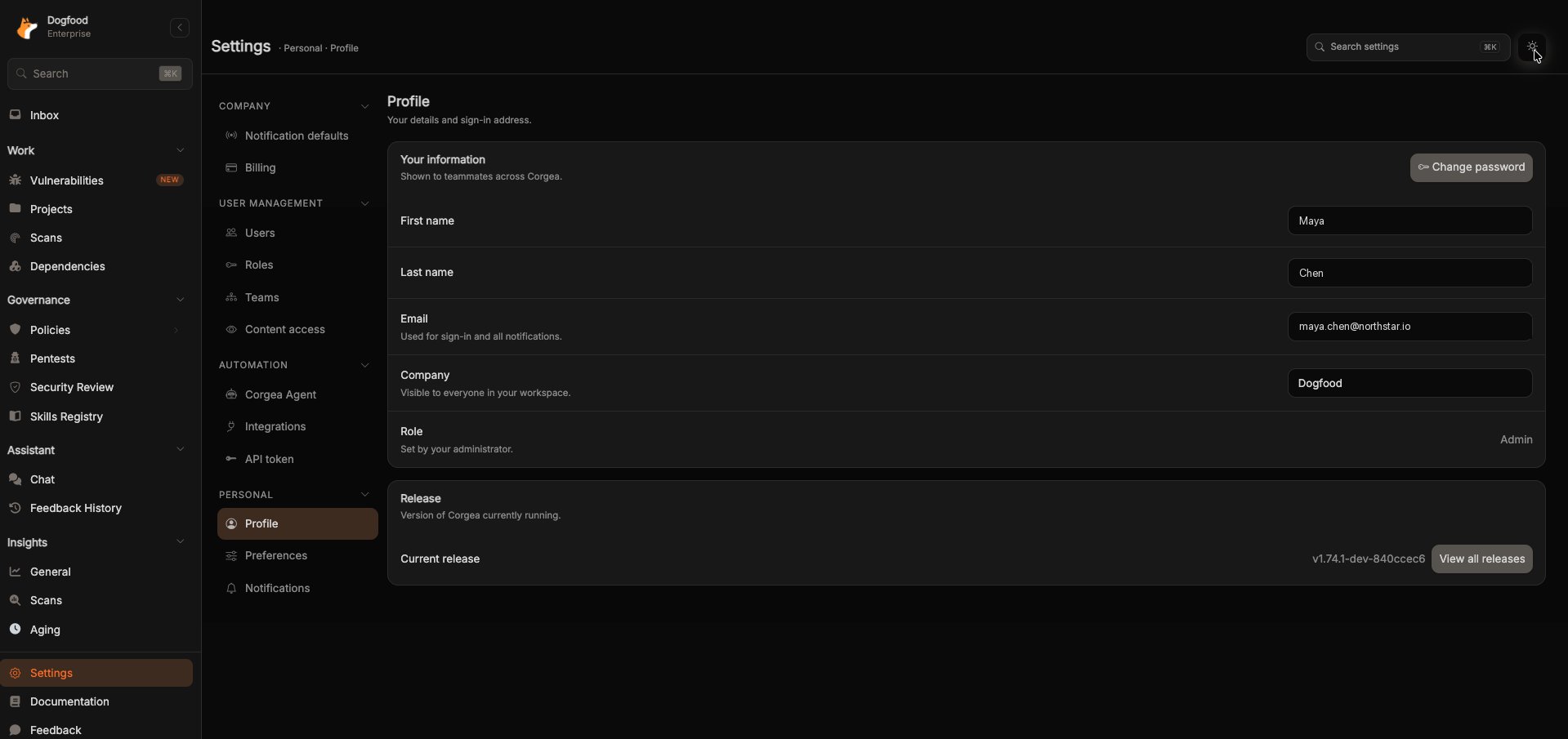
Every setting in Corgea lives under **Settings**, organized into four categories: **Company**, **User Management**, **Automation**, and **Personal**. Each category groups the pages that belong together, so you no longer have to hunt through the sidebar to find where something is configured.
## Opening Settings
Click **Settings** near the bottom of the sidebar. This always opens **Personal → Profile**, and from there you pick any section from the rail on the left.
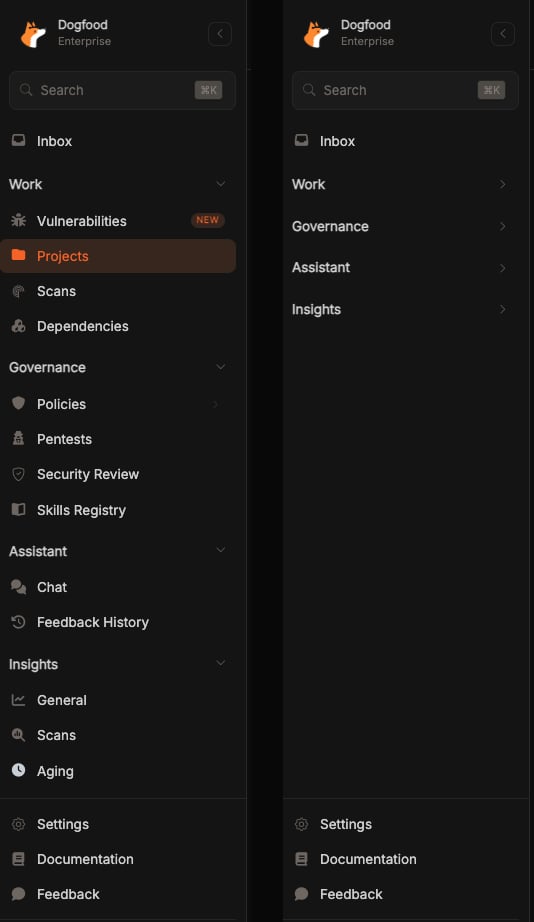 Two shortcuts are worth knowing:
* **Search settings** at the top of the page (or ⌘K) jumps straight to a section by name. Searching "content" takes you to Content access, for example.
* The theme toggle in the top-right corner switches between light and dark.
On a narrow screen the rail collapses into a drawer you open from the header.
Two shortcuts are worth knowing:
* **Search settings** at the top of the page (or ⌘K) jumps straight to a section by name. Searching "content" takes you to Content access, for example.
* The theme toggle in the top-right corner switches between light and dark.
On a narrow screen the rail collapses into a drawer you open from the header.
 ## What You Can See
The rail only lists sections you have access to. Which sections appear depends on your [role](/permission_groups) and your plan, so two people in the same company can see different rails.
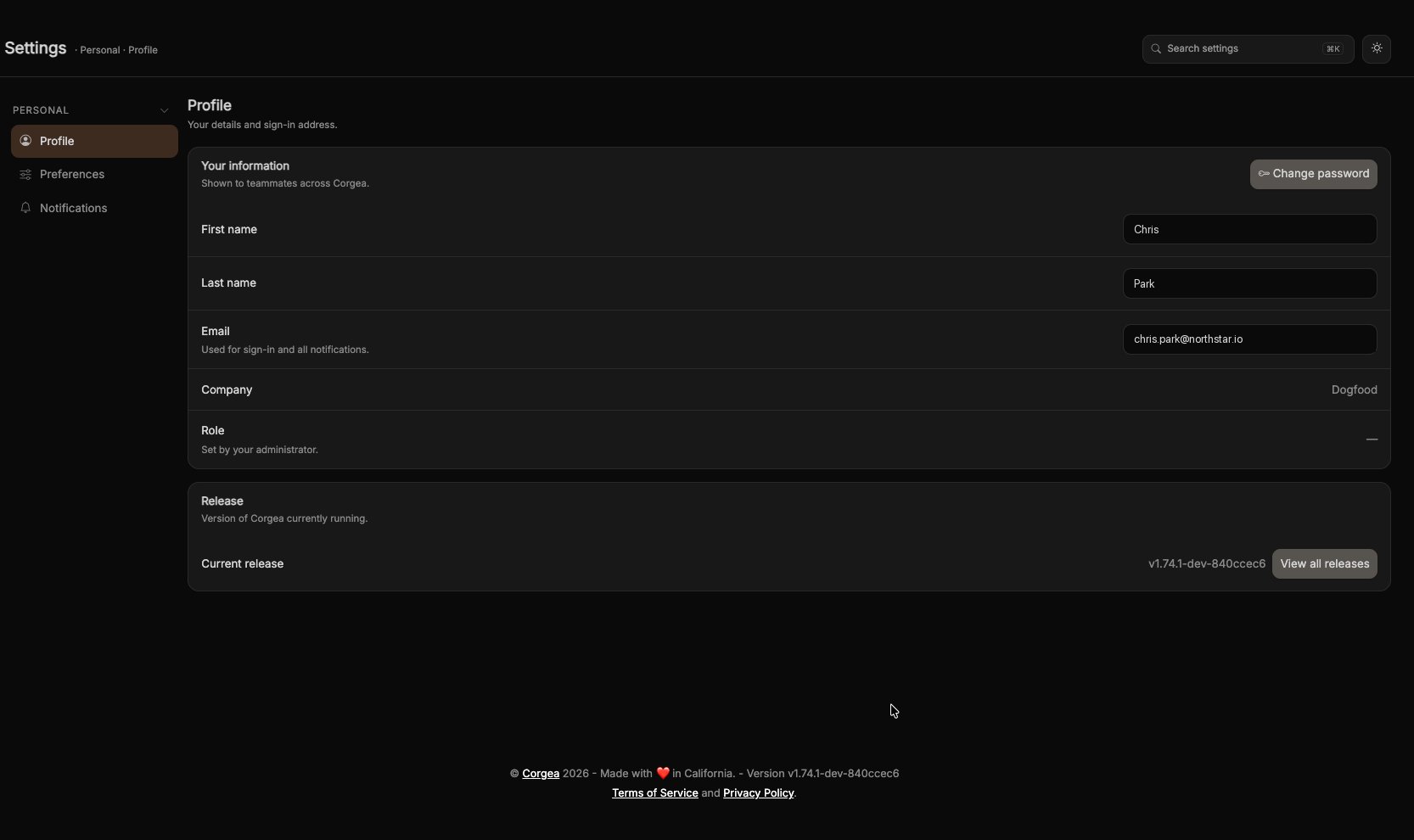
A user with no administrative permissions sees only the **Personal** category:
## What You Can See
The rail only lists sections you have access to. Which sections appear depends on your [role](/permission_groups) and your plan, so two people in the same company can see different rails.
A user with no administrative permissions sees only the **Personal** category:
 ## Changes Save Automatically
Settings pages save as you go. Toggle a switch or pick an option and Corgea persists it in the background, confirming with a brief **Saved** indicator. There are no **Save** buttons to click.
There are three exceptions. The analytics consent controls on **Preferences** require an explicit **Save cookie preferences** click because they govern tracking consent. The token expiry on **API token** is applied with **Update Expiration**. The company-wide **Default Timezone** on **Users** is applied with **Save**.
## Personal
Settings that apply to your own account only.
### Profile
**Settings → Personal → Profile** ([open](https://www.corgea.app/settings/user/))
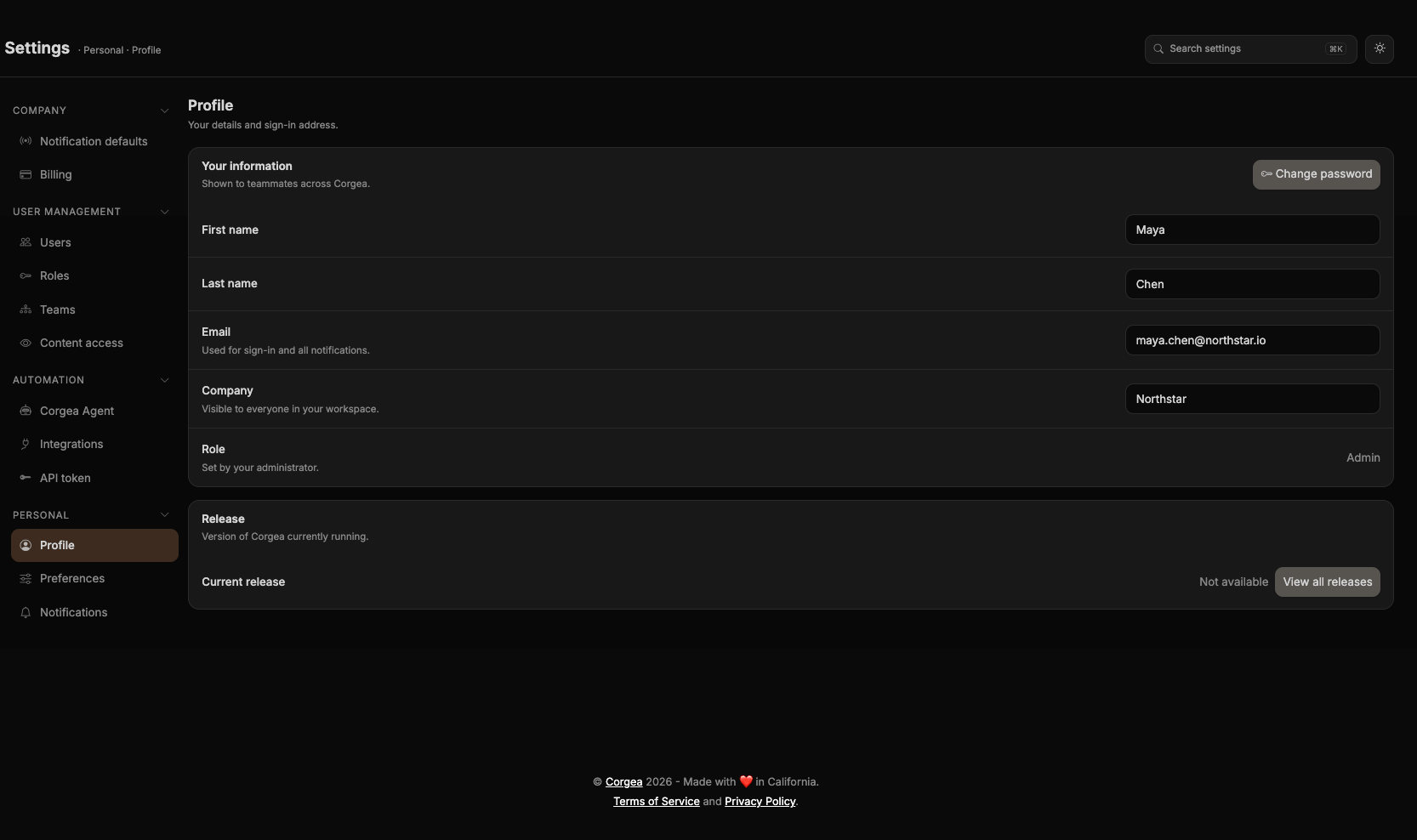
Your name, the email address you sign in with, your company, and your role. **Change password** sends a password reset link to your email.
If you're a company admin, the **Company** field is editable here and renaming the company applies for everyone. Other users see the company name as read-only text. **Role** is always read-only and is set by your administrator.
The **Release** card shows the Corgea version you're running, with a link to the [changelog](/changelog).
## Changes Save Automatically
Settings pages save as you go. Toggle a switch or pick an option and Corgea persists it in the background, confirming with a brief **Saved** indicator. There are no **Save** buttons to click.
There are three exceptions. The analytics consent controls on **Preferences** require an explicit **Save cookie preferences** click because they govern tracking consent. The token expiry on **API token** is applied with **Update Expiration**. The company-wide **Default Timezone** on **Users** is applied with **Save**.
## Personal
Settings that apply to your own account only.
### Profile
**Settings → Personal → Profile** ([open](https://www.corgea.app/settings/user/))
Your name, the email address you sign in with, your company, and your role. **Change password** sends a password reset link to your email.
If you're a company admin, the **Company** field is editable here and renaming the company applies for everyone. Other users see the company name as read-only text. **Role** is always read-only and is set by your administrator.
The **Release** card shows the Corgea version you're running, with a link to the [changelog](/changelog).
 ### Preferences
**Settings → Personal → Preferences** ([open](https://www.corgea.app/settings/user/preferences/))
### Preferences
**Settings → Personal → Preferences** ([open](https://www.corgea.app/settings/user/preferences/))
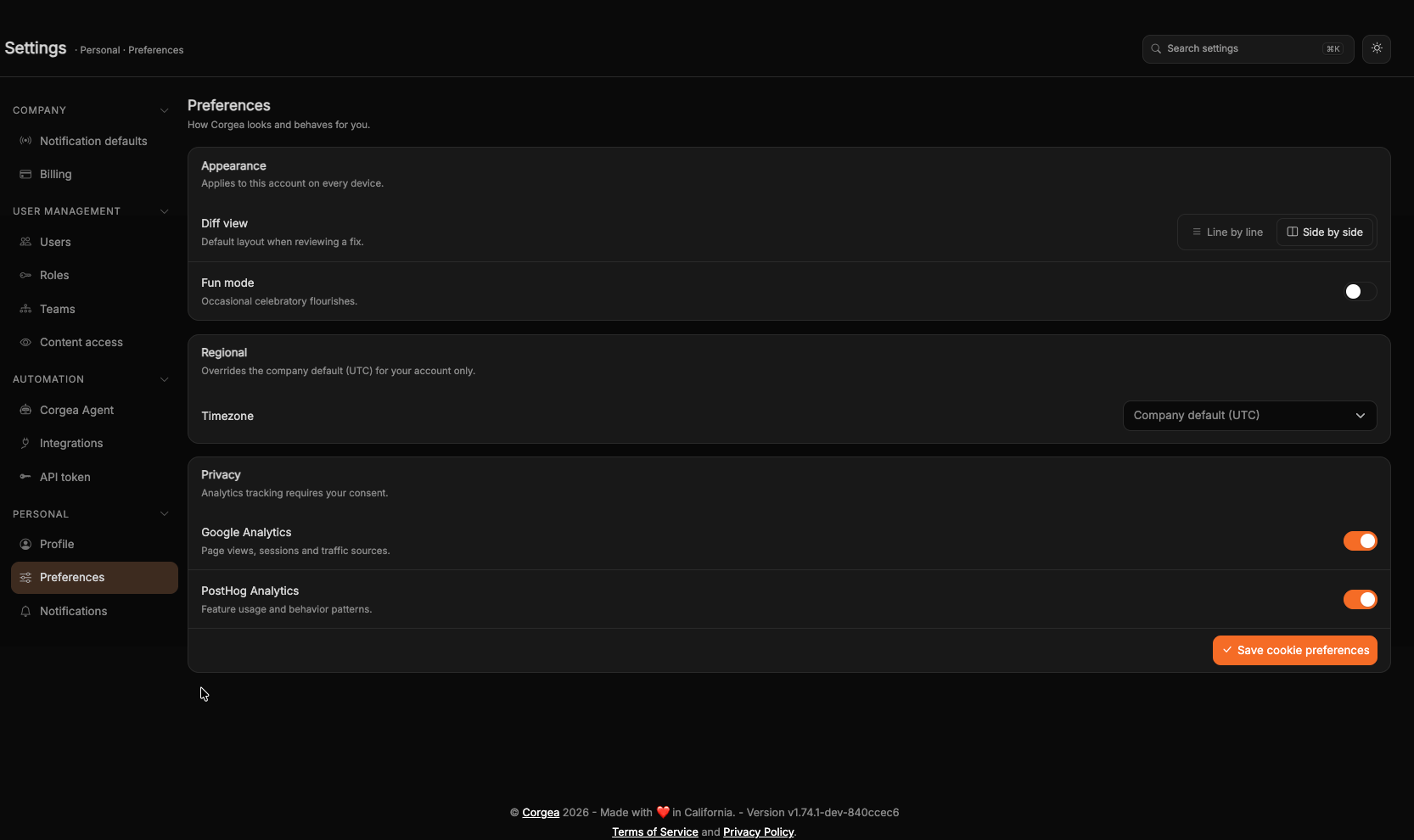 | Setting | What it does |
| -------------------------------------------- | ----------------------------------------------------------------------------------------------------------------------------------- |
| **Diff view** | Whether fixes open **Line by line** or **Side by side** by default |
| **Fun mode** | Occasional celebratory flourishes in the interface |
| **Timezone** | Overrides your company's default timezone for your account only. Leave it on **Company default** to follow whatever admins have set |
| **Google Analytics** / **PostHog Analytics** | Analytics consent. Click **Save cookie preferences** to apply |
Preferences apply to your account on every device you sign in from.
### Notifications
**Settings → Personal → Notifications** ([open](https://www.corgea.app/settings/notifications/))
Which emails Corgea sends you. Each notification is set to **Inherit**, **On**, or **Off** — **Inherit** follows your company's default. See [Notifications](/notifications) for what each notification covers.
## Company
### Notification defaults
**Settings → Company → Notification defaults** ([open](https://www.corgea.app/settings/company/notifications/))
The starting point for everyone in the company: which emails are on by default, and who receives them. Company admins only. See [Notifications](/notifications).
### Billing
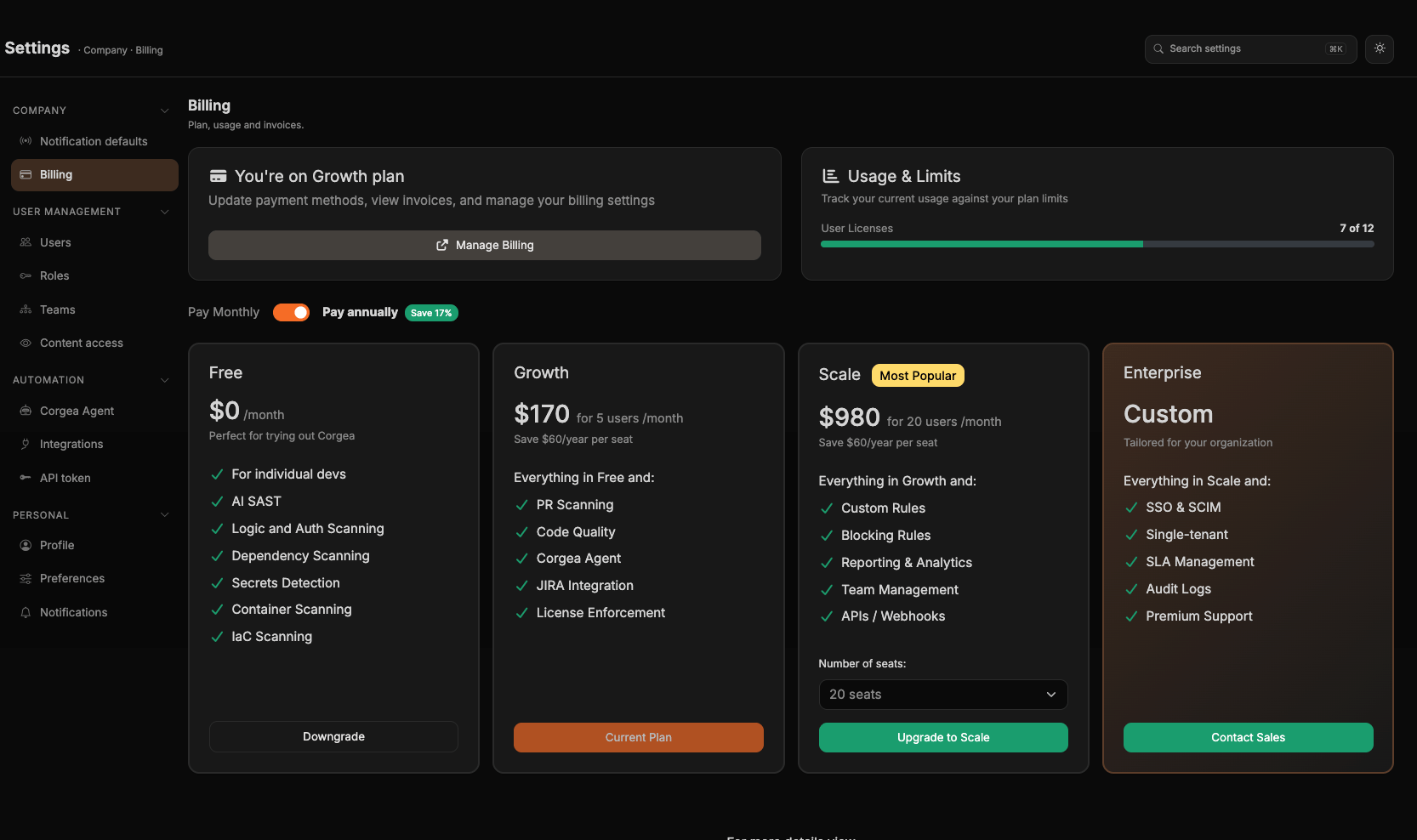
**Settings → Company → Billing** ([open](https://www.corgea.app/settings/company/billing/))
Your plan, usage, and invoices. Requires permission to view company details.
| Setting | What it does |
| -------------------------------------------- | ----------------------------------------------------------------------------------------------------------------------------------- |
| **Diff view** | Whether fixes open **Line by line** or **Side by side** by default |
| **Fun mode** | Occasional celebratory flourishes in the interface |
| **Timezone** | Overrides your company's default timezone for your account only. Leave it on **Company default** to follow whatever admins have set |
| **Google Analytics** / **PostHog Analytics** | Analytics consent. Click **Save cookie preferences** to apply |
Preferences apply to your account on every device you sign in from.
### Notifications
**Settings → Personal → Notifications** ([open](https://www.corgea.app/settings/notifications/))
Which emails Corgea sends you. Each notification is set to **Inherit**, **On**, or **Off** — **Inherit** follows your company's default. See [Notifications](/notifications) for what each notification covers.
## Company
### Notification defaults
**Settings → Company → Notification defaults** ([open](https://www.corgea.app/settings/company/notifications/))
The starting point for everyone in the company: which emails are on by default, and who receives them. Company admins only. See [Notifications](/notifications).
### Billing
**Settings → Company → Billing** ([open](https://www.corgea.app/settings/company/billing/))
Your plan, usage, and invoices. Requires permission to view company details.
 ## User Management
### Users
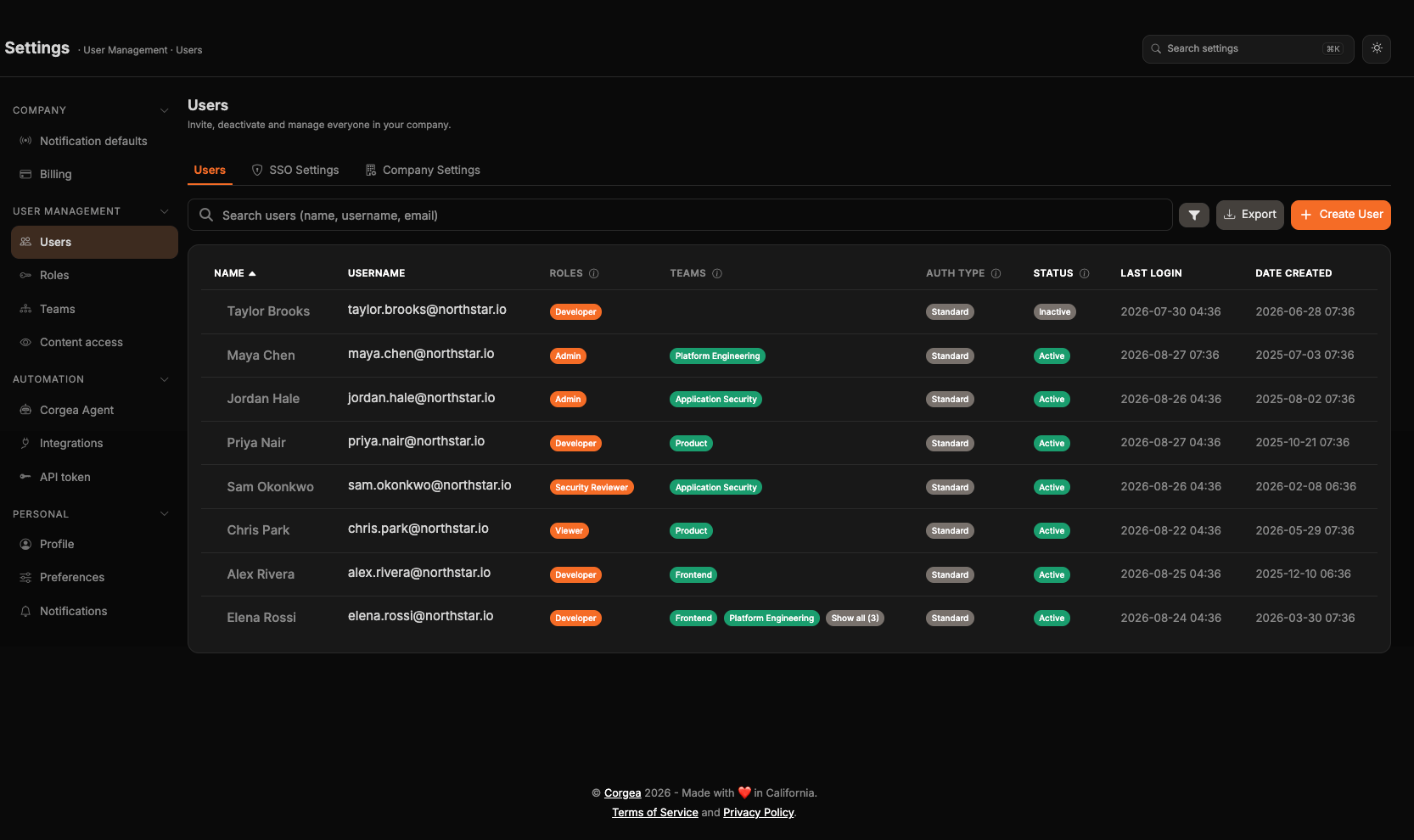
**Settings → User Management → Users** ([open](https://www.corgea.app/settings/company/members/))
Invite, deactivate, and reactivate people, and assign their roles. Company admins also set the **Company name** and the company-wide **Default Timezone** on the **Company Settings** tab of this page. See [User Management](/user_management).
## User Management
### Users
**Settings → User Management → Users** ([open](https://www.corgea.app/settings/company/members/))
Invite, deactivate, and reactivate people, and assign their roles. Company admins also set the **Company name** and the company-wide **Default Timezone** on the **Company Settings** tab of this page. See [User Management](/user_management).
 ### Roles
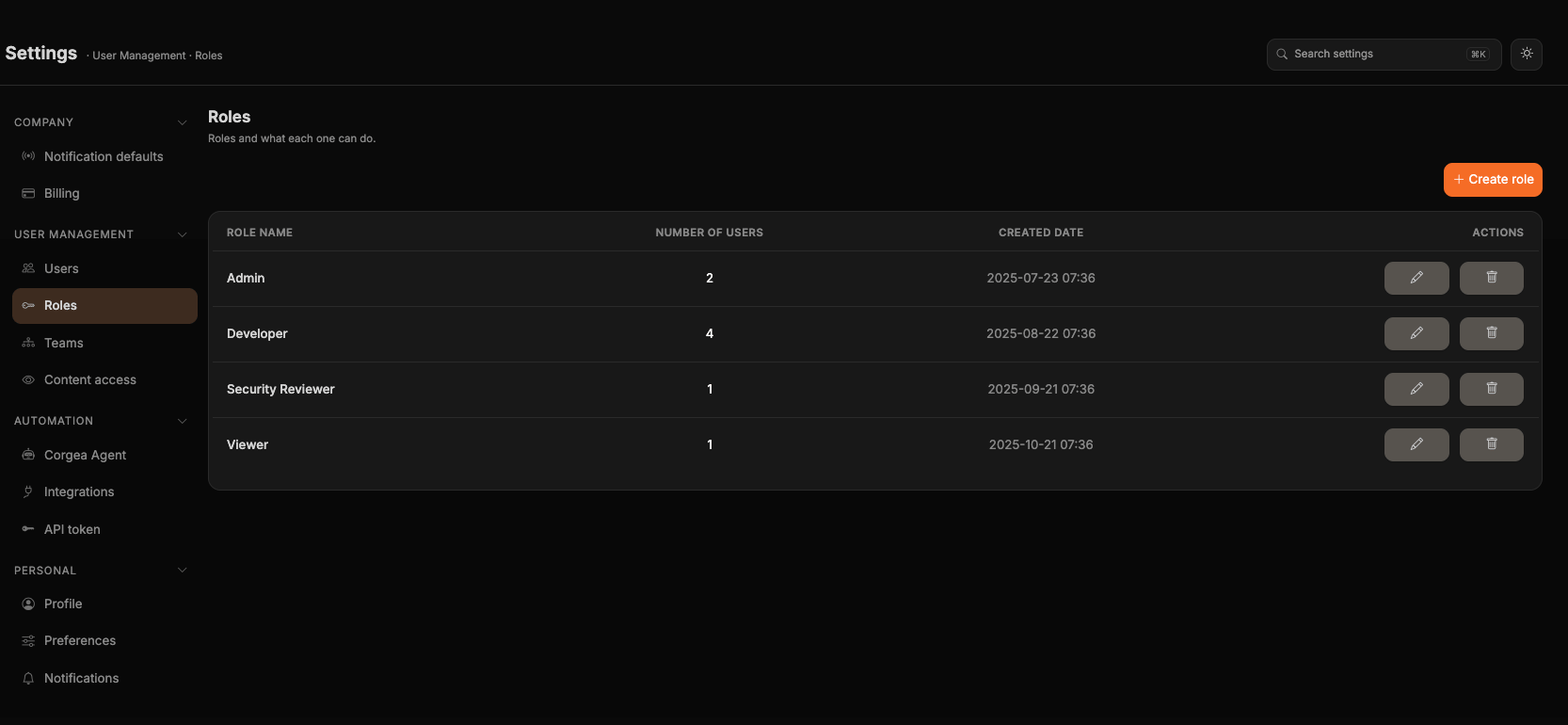
**Settings → User Management → Roles** ([open](https://www.corgea.app/settings/company/groups/))
Roles and the permissions each one grants. Requires a plan that includes role management. See [Permission Groups](/permission_groups).
### Roles
**Settings → User Management → Roles** ([open](https://www.corgea.app/settings/company/groups/))
Roles and the permissions each one grants. Requires a plan that includes role management. See [Permission Groups](/permission_groups).
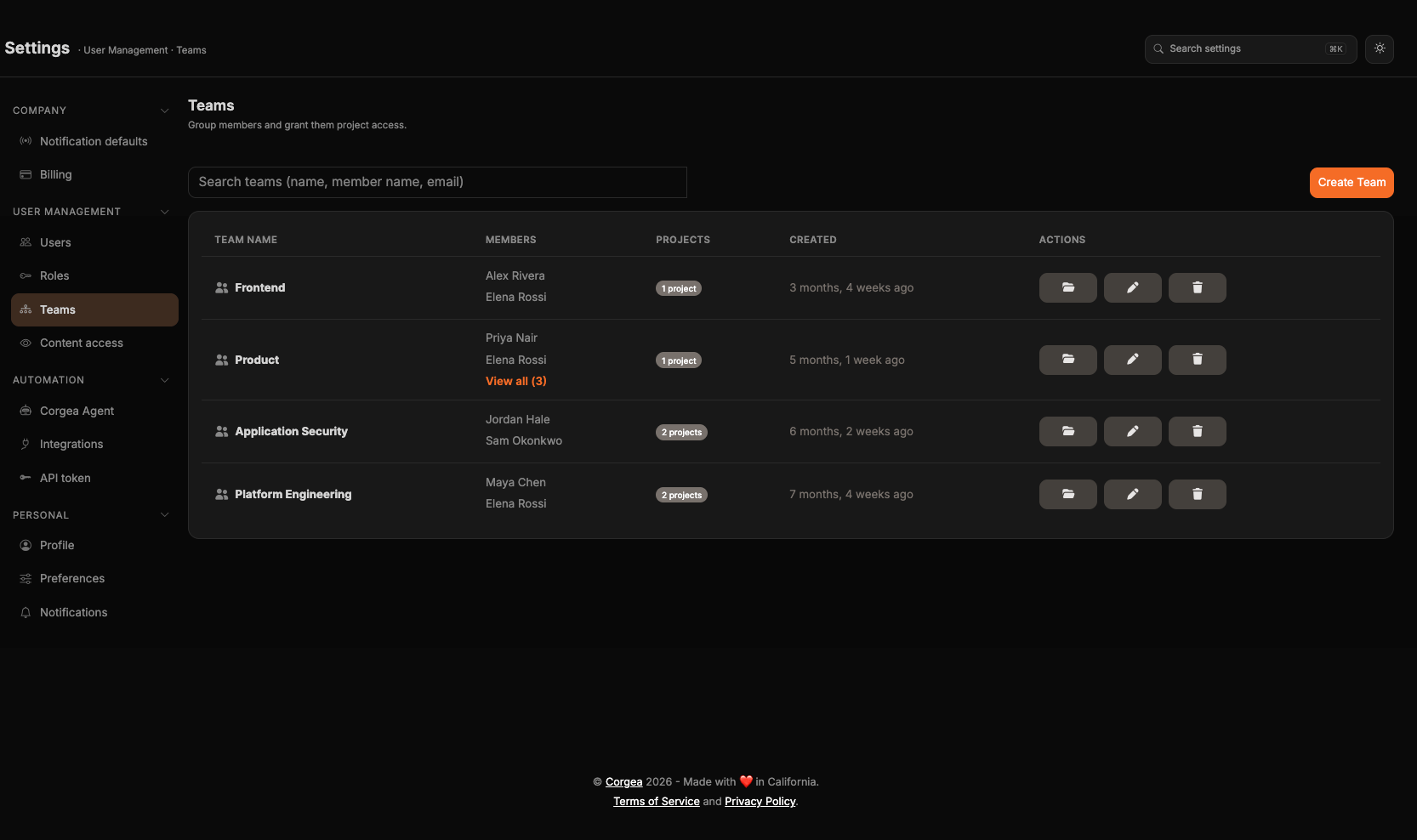
 ### Teams
**Settings → User Management → Teams** ([open](https://www.corgea.app/settings/company/teams/))
Group people together and grant the whole team access to projects. Requires a plan that includes teams. See [Teams](/teams).
### Teams
**Settings → User Management → Teams** ([open](https://www.corgea.app/settings/company/teams/))
Group people together and grant the whole team access to projects. Requires a plan that includes teams. See [Teams](/teams).
 ### Content access
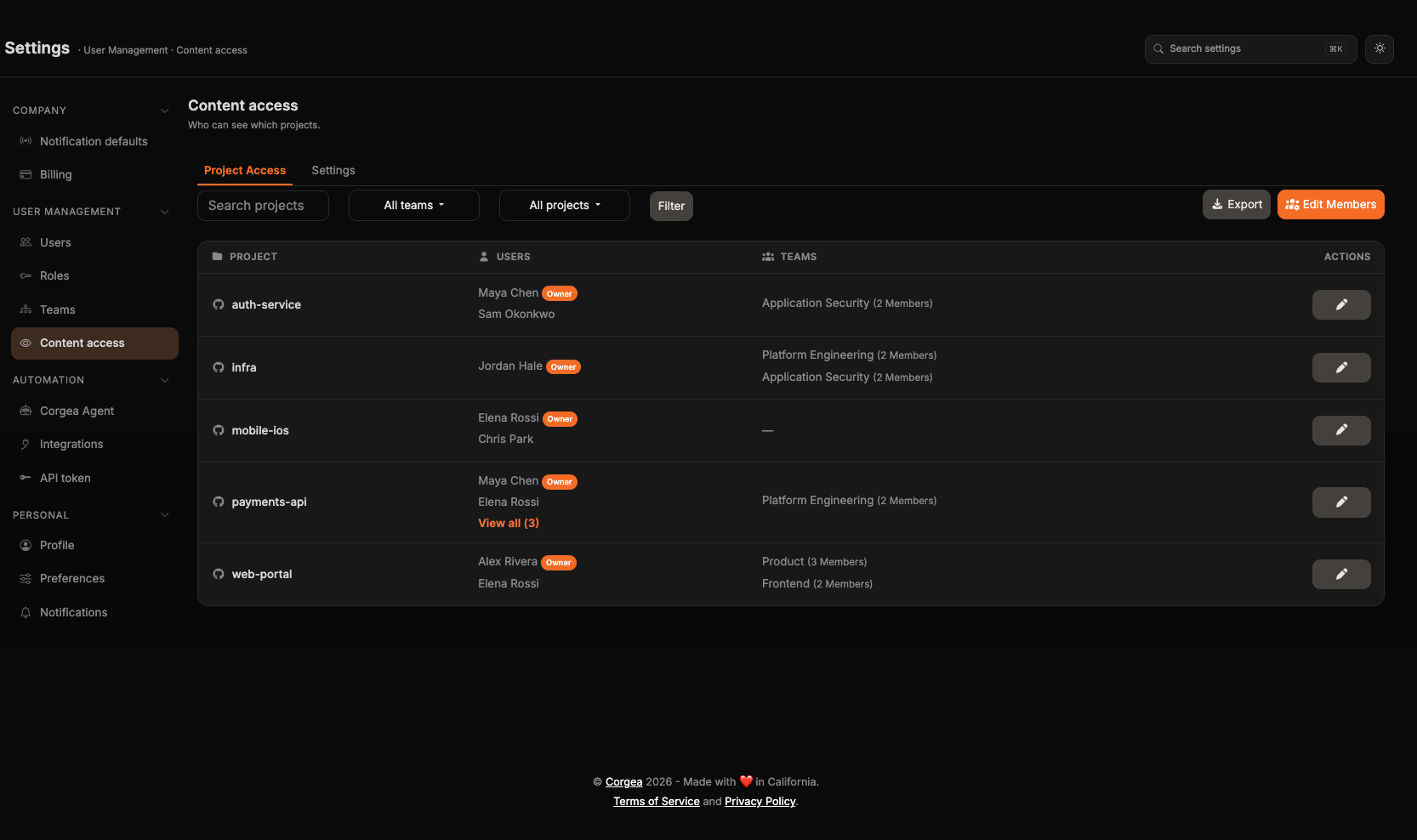
**Settings → User Management → Content access** ([open](https://www.corgea.app/settings/company/content-access/))
Control which projects each person and team can see. Requires a plan that includes teams. See [Content Access Management](/content-access-management).
### Content access
**Settings → User Management → Content access** ([open](https://www.corgea.app/settings/company/content-access/))
Control which projects each person and team can see. Requires a plan that includes teams. See [Content Access Management](/content-access-management).
 ## Automation
### Corgea Agent
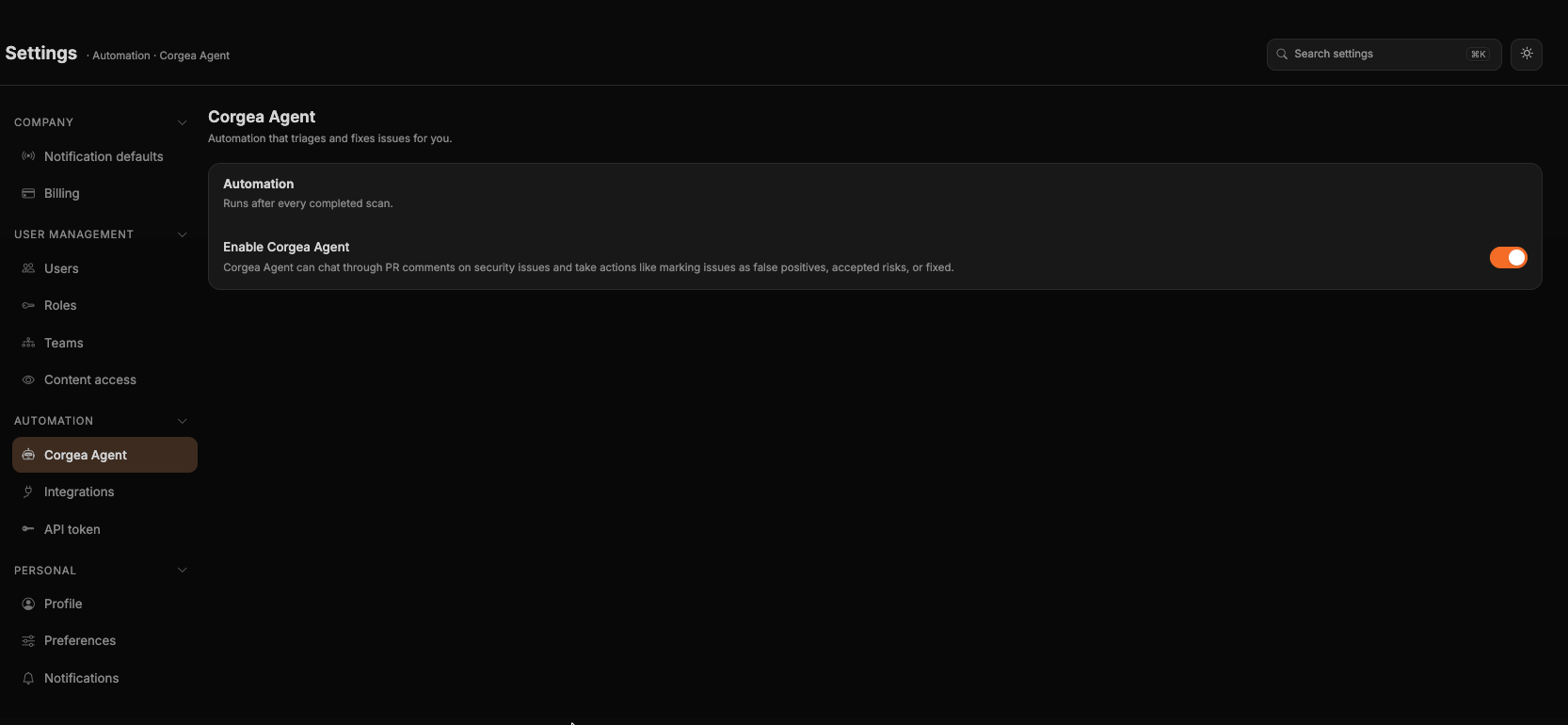
**Settings → Automation → Corgea Agent** ([open](https://www.corgea.app/settings/company/corgea-agent/))
Turn the agent on or off and configure how it triages and fixes issues. See [Corgea Agent](/agent).
## Automation
### Corgea Agent
**Settings → Automation → Corgea Agent** ([open](https://www.corgea.app/settings/company/corgea-agent/))
Turn the agent on or off and configure how it triages and fixes issues. See [Corgea Agent](/agent).
 ### Integrations
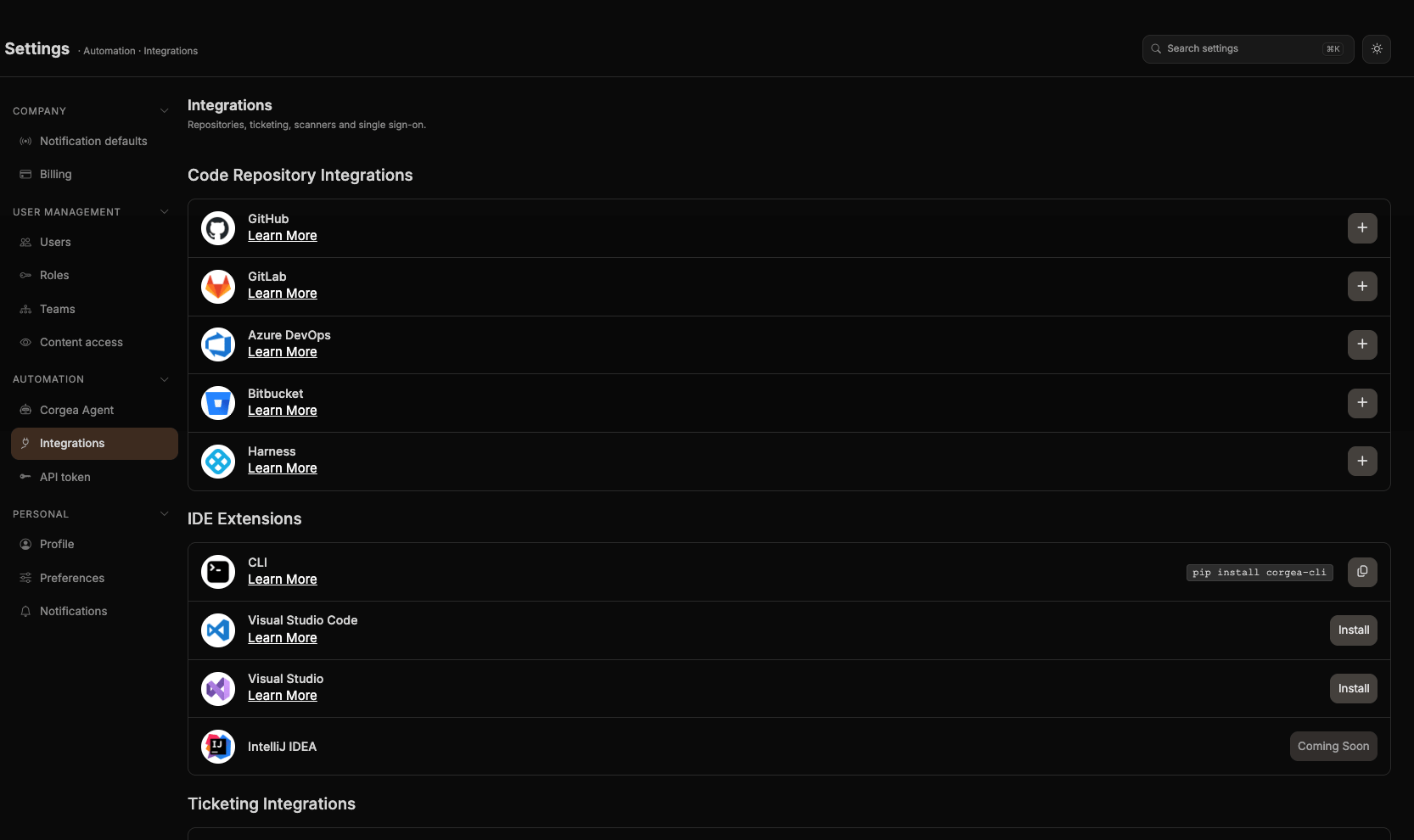
**Settings → Automation → Integrations** ([open](https://www.corgea.app/settings/integrations/))
Source control, ticketing, scanners, webhooks, package registries, and SAML SSO. Every integration guide in these docs starts here.
### Integrations
**Settings → Automation → Integrations** ([open](https://www.corgea.app/settings/integrations/))
Source control, ticketing, scanners, webhooks, package registries, and SAML SSO. Every integration guide in these docs starts here.
 ### API token
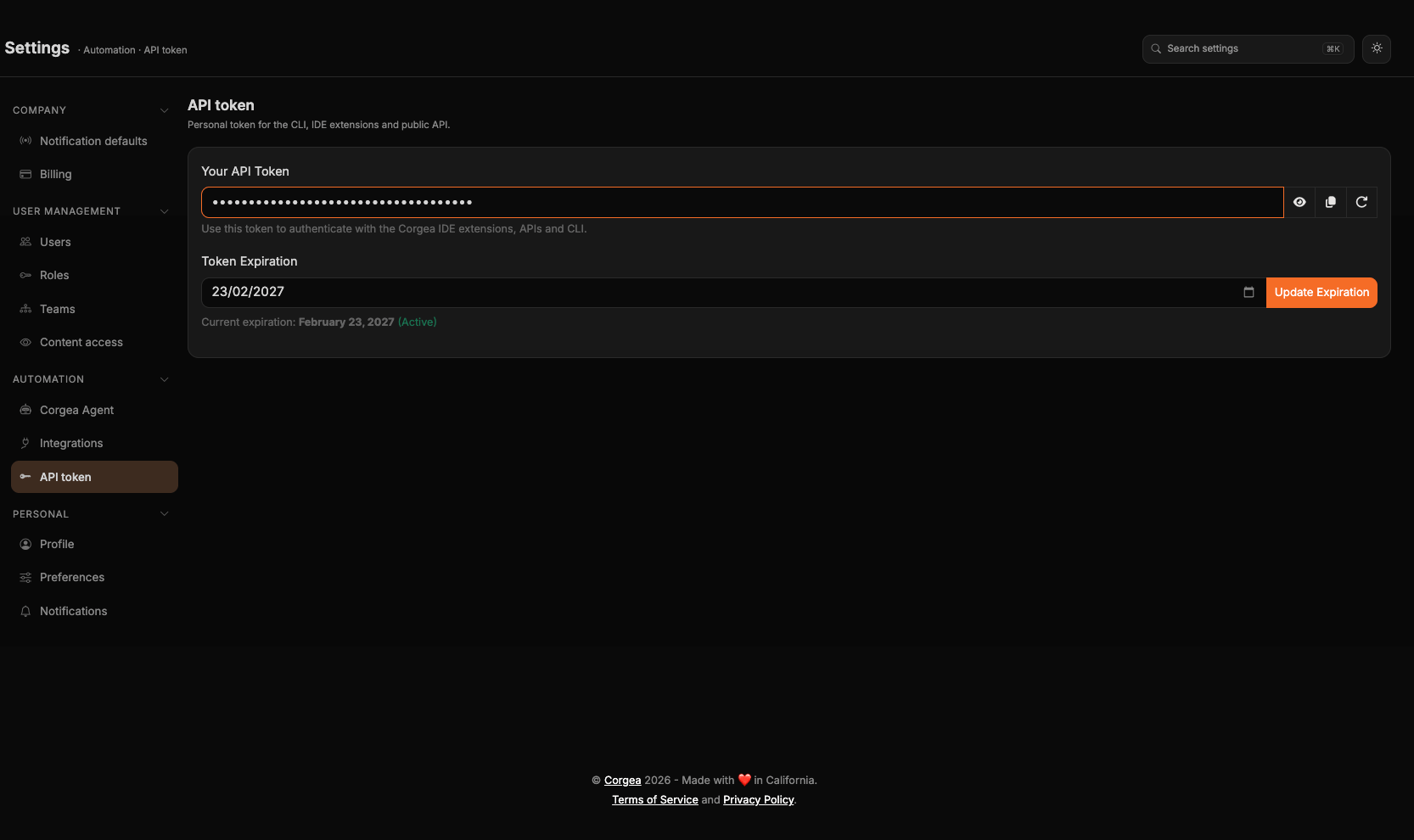
**Settings → Automation → API token** ([open](https://www.corgea.app/settings/integrations/api-token/))
Your personal token for the [CLI](/cli), the IDE extensions, the [MCP server](/modelcontextprotocol), and the [public API](/api-reference/introduction). You can show, copy, and rotate the token, and set an expiration date for it.
Rotating your token immediately invalidates the old one. Update it anywhere you've stored it — CI pipelines, IDE extensions, and local CLI configuration.
### API token
**Settings → Automation → API token** ([open](https://www.corgea.app/settings/integrations/api-token/))
Your personal token for the [CLI](/cli), the IDE extensions, the [MCP server](/modelcontextprotocol), and the [public API](/api-reference/introduction). You can show, copy, and rotate the token, and set an expiration date for it.
Rotating your token immediately invalidates the old one. Update it anywhere you've stored it — CI pipelines, IDE extensions, and local CLI configuration.
 ## Where Things Moved
If you have an old link or bookmark, it still works — Corgea redirects it to the new location.
| Previously | Now |
| --------------------------------------------------------- | -------------------------------------------------------------------- |
| User Settings | **Personal → Profile** and **Personal → Preferences** |
| Notifications, with a Company Defaults section at the top | **Personal → Notifications** and **Company → Notification defaults** |
| `/billing/` | **Company → Billing** |
| `/users` | **User Management → Users** |
| Permission Groups | **User Management → Roles** |
| `/teams` | **User Management → Teams** |
| `/content-access` | **User Management → Content access** |
| Agent Settings | **Automation → Corgea Agent** |
| `/integrations/` | **Automation → Integrations** |
| The API token section on the Integrations page | **Automation → API token** |
## Where Things Moved
If you have an old link or bookmark, it still works — Corgea redirects it to the new location.
| Previously | Now |
| --------------------------------------------------------- | -------------------------------------------------------------------- |
| User Settings | **Personal → Profile** and **Personal → Preferences** |
| Notifications, with a Company Defaults section at the top | **Personal → Notifications** and **Company → Notification defaults** |
| `/billing/` | **Company → Billing** |
| `/users` | **User Management → Users** |
| Permission Groups | **User Management → Roles** |
| `/teams` | **User Management → Teams** |
| `/content-access` | **User Management → Content access** |
| Agent Settings | **Automation → Corgea Agent** |
| `/integrations/` | **Automation → Integrations** |
| The API token section on the Integrations page | **Automation → API token** |