> ## Documentation Index
> Fetch the complete documentation index at: https://docs.corgea.app/llms.txt
> Use this file to discover all available pages before exploring further.
# Project Management
> Configure scanning behavior for your project including CWE filters and file ignore rules
## Overview
Corgea’s project management live inside each project’s dashboard. Use this page to tailor scanning behavior so it aligns with your codebase, compliance needs, and team workflows. You can block noisy files, ignore irrelevant CWEs, document policies, and see the operational views you need to keep your application secure.
Every change you make here applies to future scans for the selected branch. If you’re new to these controls, start with the Default Settings and gradually refine the filters after reviewing a few scan reports.
Changing scan settings requires the **Can edit project** permission. Users without project edit access can review existing ignore rules and CWE filters where shown, but cannot add, update, or delete them.
## File Ignore Rules
File ignore rules help you keep findings focused on the code that matters. Matching files are skipped for future scans and ignored when new issues are added to the project. We already exclude common build artifacts, dependency folders, and generated files, so you typically only need to add rules that are unique to your project structure.
### Default exclusions
* **Test files**: `*_test.*`, `test_*.*`, `*.test.*`, `*.spec.*`, `*__tests__/*`, `*test/*`, `*tests/*`
* **Dependencies**: `*node_modules/*`, `*python*/site-packages/*`
* **Generated code**: `*generated.*`, `*.gen.go`, `*.pb.*`, `*.designer.cs`, `*.d.ts`
* **Build artifacts**: `*build/*`, `*dist/*`, `*coverage/*`
* **Configuration**: `tsconfig.json`, `webpack.config.js`, `pnpm-lock.yaml`, `*compose*.yml`
* **Other common folders**: `*migrations/*`, `*mock/*`, `*mocks/*`, `*fixtures*`, `*tmp/*`, `*log/*`, `*logs/*`
### How to add custom ignores
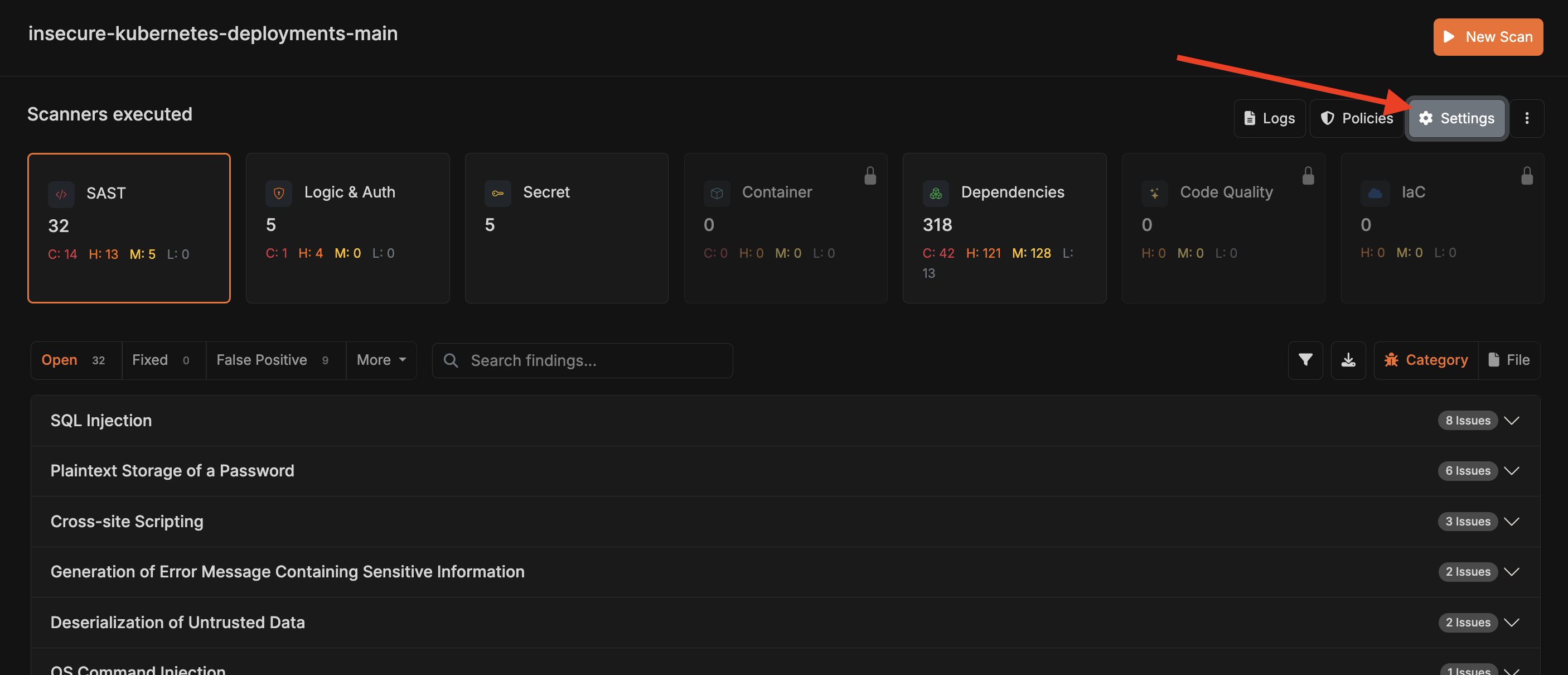
From the project dashboard, click **Settings** and choose **File ignore rules** from the sidebar.
 Use glob syntax to include paths (`src/tools/`), directories (`**/legacy/**`), or nested files (`src/assets/languages/**`). Patterns that start with `**/` can match the folder at any depth, including the repository root. Each line accepts a single pattern, so you can mix directories, files, and wildcard expressions.
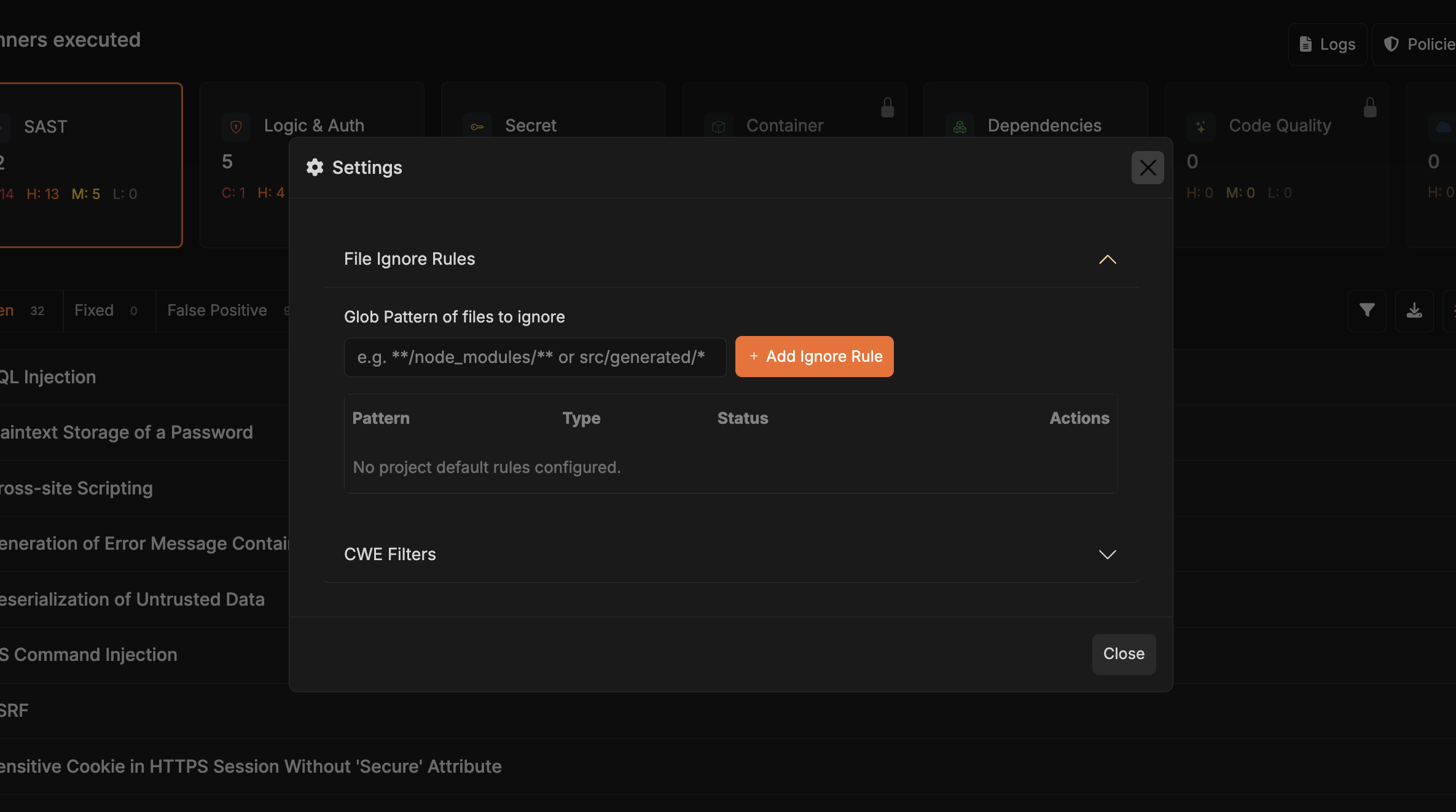 Save the rule list and run a test scan to make sure the behavior matches your expectations. Revisit this list whenever you add new generated outputs or temporary directories.
### When to add rules
* **Internal tooling**: Scripts or utilities that should never be scanned (e.g., internal deploy scripts or CLI helpers).
* **Legacy or deprecated code**: Modules you’re no longer shipping but still keep for reference.
* **Vendor or third-party artifacts**: Files provided by hardware vendors or partners that don’t change and you don’t control.
* **Documentation or content**: Rule out large doc folders when only code matters.
* **Custom output**: Non-standard build directories created during CI or local experimentation.
Always explain why a rule exists so teammates know why a folder is skipped during future reviews.
## CWE Filters
CWEs let you align Corgea’s findings with your project’s threat model. Think of this section as your security policy in code: you can disable specific vulnerability families that you’re already protecting through other controls or that don’t apply to your stack.
### How to configure filters
In the project settings sidebar, open the **CWE filters** tab.
Add a CWE ID and optionally include a **Glob Pattern** to scope the ignore rule to specific files or folders (for example, `**/tests/**`). Leave the glob pattern empty to apply the rule across all files in the project.
Save the rule list and run a test scan to make sure the behavior matches your expectations. Revisit this list whenever you add new generated outputs or temporary directories.
### When to add rules
* **Internal tooling**: Scripts or utilities that should never be scanned (e.g., internal deploy scripts or CLI helpers).
* **Legacy or deprecated code**: Modules you’re no longer shipping but still keep for reference.
* **Vendor or third-party artifacts**: Files provided by hardware vendors or partners that don’t change and you don’t control.
* **Documentation or content**: Rule out large doc folders when only code matters.
* **Custom output**: Non-standard build directories created during CI or local experimentation.
Always explain why a rule exists so teammates know why a folder is skipped during future reviews.
## CWE Filters
CWEs let you align Corgea’s findings with your project’s threat model. Think of this section as your security policy in code: you can disable specific vulnerability families that you’re already protecting through other controls or that don’t apply to your stack.
### How to configure filters
In the project settings sidebar, open the **CWE filters** tab.
Add a CWE ID and optionally include a **Glob Pattern** to scope the ignore rule to specific files or folders (for example, `**/tests/**`). Leave the glob pattern empty to apply the rule across all files in the project.
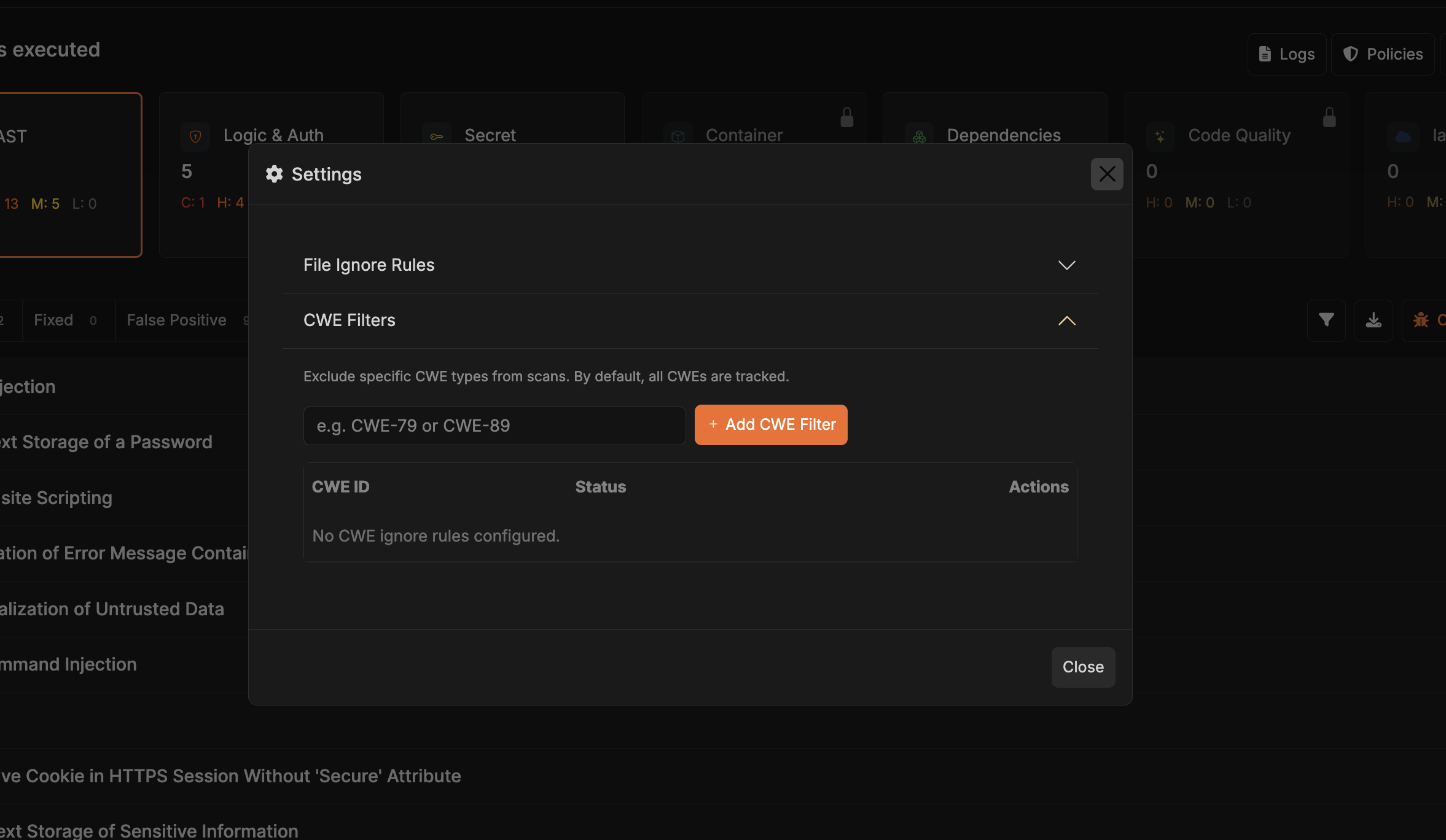 Add an internal note explaining why each rule exists—this helps new contributors understand whether the filter should remain in place.
### Common scenarios
* **Focus on critical paths**: Temporarily mute low-impact CWEs until you finish triaging high-severity findings.
* **Framework-level protection**: Skip CWEs covered by built-in framework hardening (e.g., managed auth providers).
* **Compliance tailoring**: Disallow CWEs that violate organizational policies while keeping scans manageable.
* **Early-stage development**: Move fast by hiding noise but re-enable the filters later before shipping.
> Tip: Periodically re-run scans with the full CWE list enabled so you don’t miss regressions when filters change.
## Project Views and Controls
### Trigger a Scan for a Specific Branch
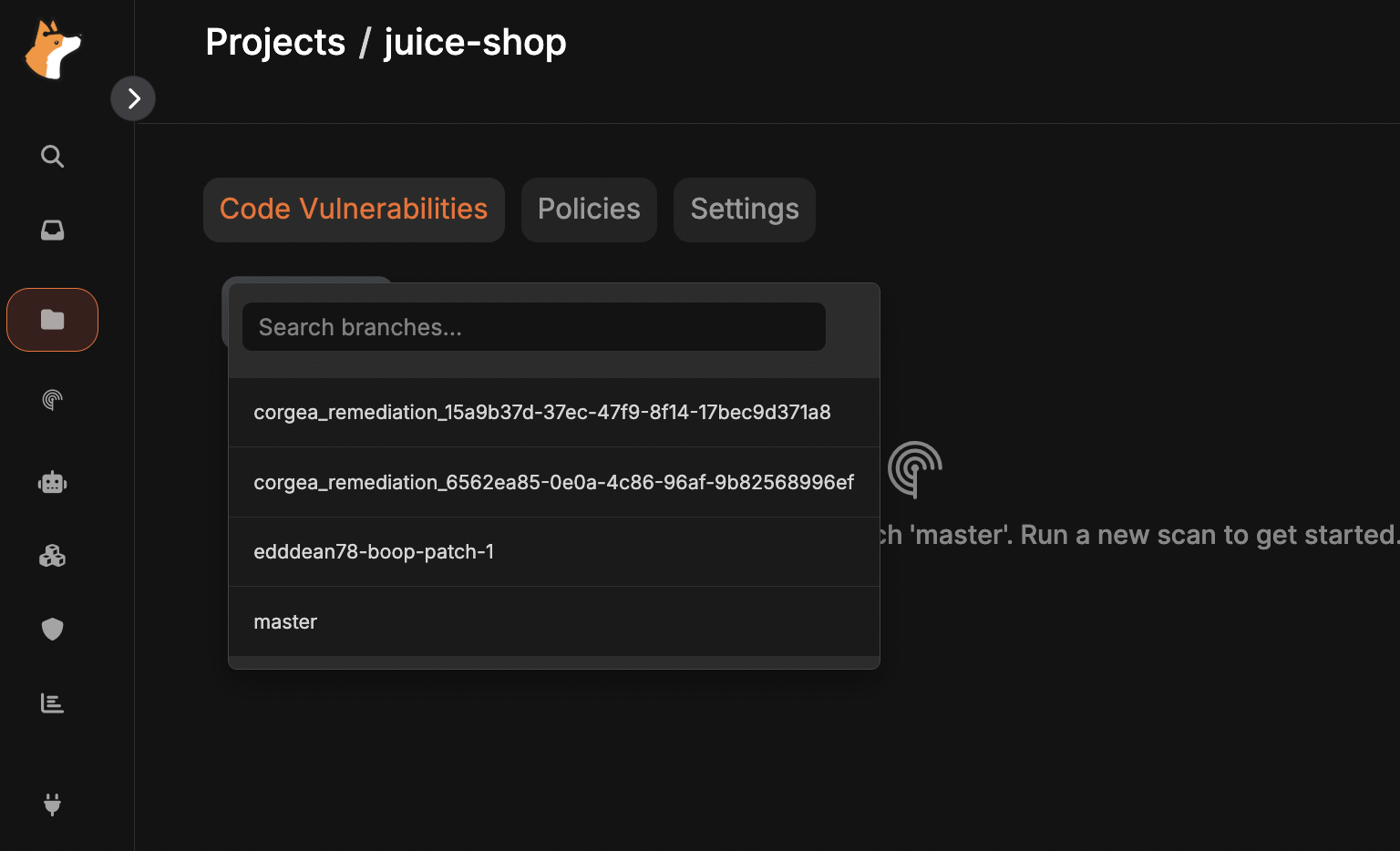
Select the branch you care about from the branch picker at the top of the dashboard before hitting **Scan now**. Corgea locks the scan to that branch's latest commit and stores branch metadata so you can compare results across lines of development.
Add an internal note explaining why each rule exists—this helps new contributors understand whether the filter should remain in place.
### Common scenarios
* **Focus on critical paths**: Temporarily mute low-impact CWEs until you finish triaging high-severity findings.
* **Framework-level protection**: Skip CWEs covered by built-in framework hardening (e.g., managed auth providers).
* **Compliance tailoring**: Disallow CWEs that violate organizational policies while keeping scans manageable.
* **Early-stage development**: Move fast by hiding noise but re-enable the filters later before shipping.
> Tip: Periodically re-run scans with the full CWE list enabled so you don’t miss regressions when filters change.
## Project Views and Controls
### Trigger a Scan for a Specific Branch
Select the branch you care about from the branch picker at the top of the dashboard before hitting **Scan now**. Corgea locks the scan to that branch's latest commit and stores branch metadata so you can compare results across lines of development.
 ### Scan Log
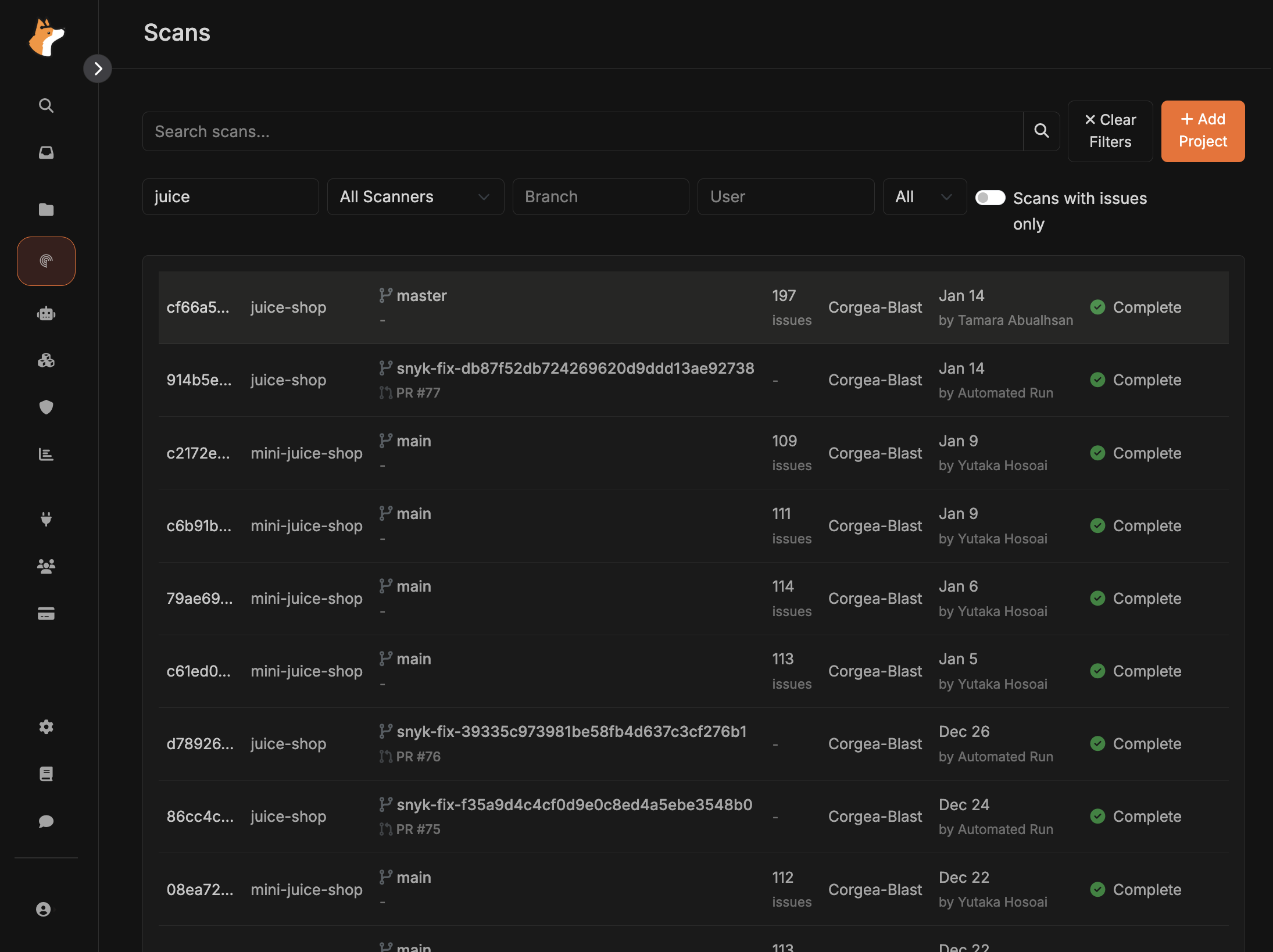
The Scan Log tracks every run you kick off. It records status, duration, branch, and who triggered each scan. Use this page to rerun scans, compare results side by side, and jump into the findings that caused failures.
### Scan Log
The Scan Log tracks every run you kick off. It records status, duration, branch, and who triggered each scan. Use this page to rerun scans, compare results side by side, and jump into the findings that caused failures.
 ### Endpoint Findings Filters
When you switch a scan’s findings table to the **Endpoint** view, use the **Reachable** toggle to limit results to issues that are reachable from the endpoint call path. The toggle state is preserved in the URL so you can share or bookmark the filtered view.
### Advanced Vulnerability Search
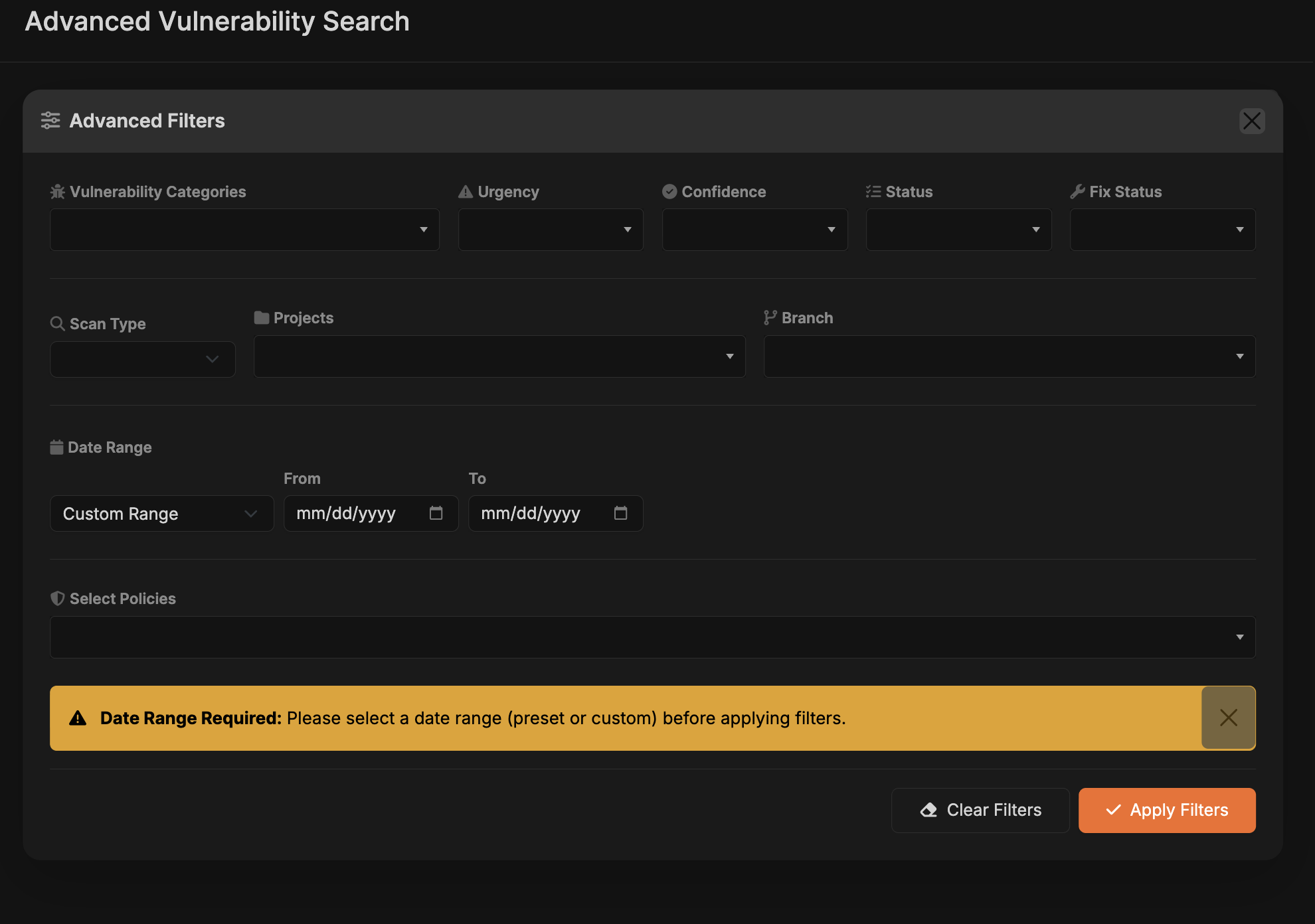
Click the **Advanced** button on the project page to open the Advanced Vulnerability Search page and zero in on findings across every scan run. The view surfaces totals plus severity counts at the top, and you can expand any project to reveal its files, CWE badges, urgency levels, detection times, and other context without leaving the list.
* **Filters**: Narrow results by Vulnerability Category, Urgency, Confidence, Status, Fix Status, Scan Type, Project, Branch, policies, or other metadata. A Date Range (preset or custom) is required so the system knows which span of time to examine.
* **Date reminder**: The interface highlights what’s missing if you try to run a search without selecting a date range, and keeps the controls disabled until you pick a preset or custom window.
* **Results exploration**: Click any row to load more context in the side panel while keeping your active filters in place. This lets you review evidence, remediation guidance, and related scan details without disrupting the list.
### Endpoint Findings Filters
When you switch a scan’s findings table to the **Endpoint** view, use the **Reachable** toggle to limit results to issues that are reachable from the endpoint call path. The toggle state is preserved in the URL so you can share or bookmark the filtered view.
### Advanced Vulnerability Search
Click the **Advanced** button on the project page to open the Advanced Vulnerability Search page and zero in on findings across every scan run. The view surfaces totals plus severity counts at the top, and you can expand any project to reveal its files, CWE badges, urgency levels, detection times, and other context without leaving the list.
* **Filters**: Narrow results by Vulnerability Category, Urgency, Confidence, Status, Fix Status, Scan Type, Project, Branch, policies, or other metadata. A Date Range (preset or custom) is required so the system knows which span of time to examine.
* **Date reminder**: The interface highlights what’s missing if you try to run a search without selecting a date range, and keeps the controls disabled until you pick a preset or custom window.
* **Results exploration**: Click any row to load more context in the side panel while keeping your active filters in place. This lets you review evidence, remediation guidance, and related scan details without disrupting the list.