> ## Documentation Index
> Fetch the complete documentation index at: https://docs.corgea.app/llms.txt
> Use this file to discover all available pages before exploring further.
# Notifications
> Stay informed about important security events with email and webhook notifications
## Overview
Corgea keeps you in the loop on important security events through **email** and **webhook** notifications, so you don't have to keep checking the platform.
You can manage your notification preferences from **Settings → Notifications**.
## How It Works
Notification preferences in Corgea follow a simple two-level model:
1. **Company defaults** — set by company admins, these apply to everyone in the company.
2. **Personal preferences** — each user can override the company default for their own email notifications.
If you haven't set a personal preference, you'll inherit whatever the company admin has configured.
## For Company Admins
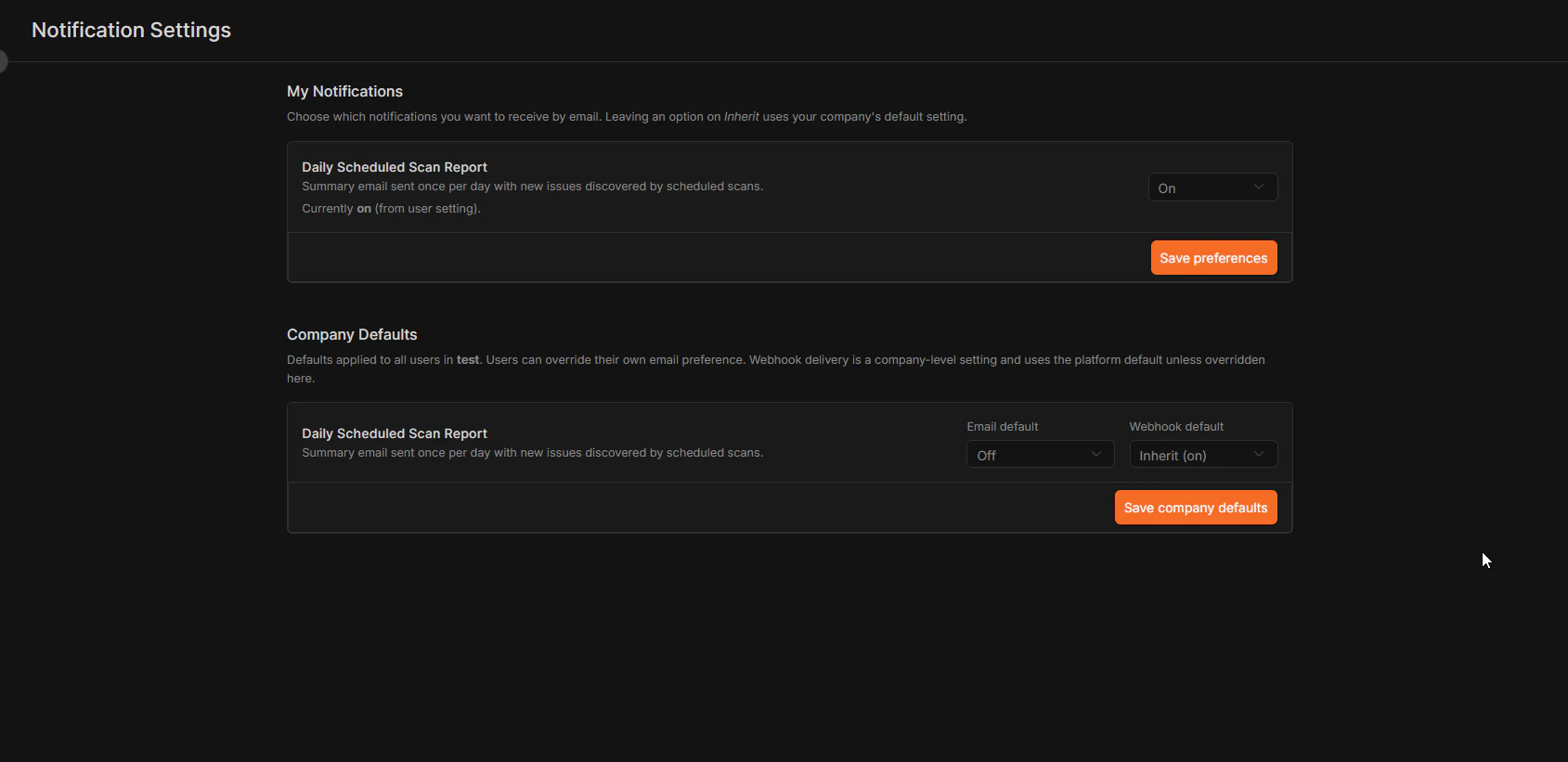
If you're a company admin, you'll see a **Company Defaults** section at the top of the notifications page. This is where you decide what's turned on by default for your whole company — for both email and webhook delivery.
 ## For Other Users
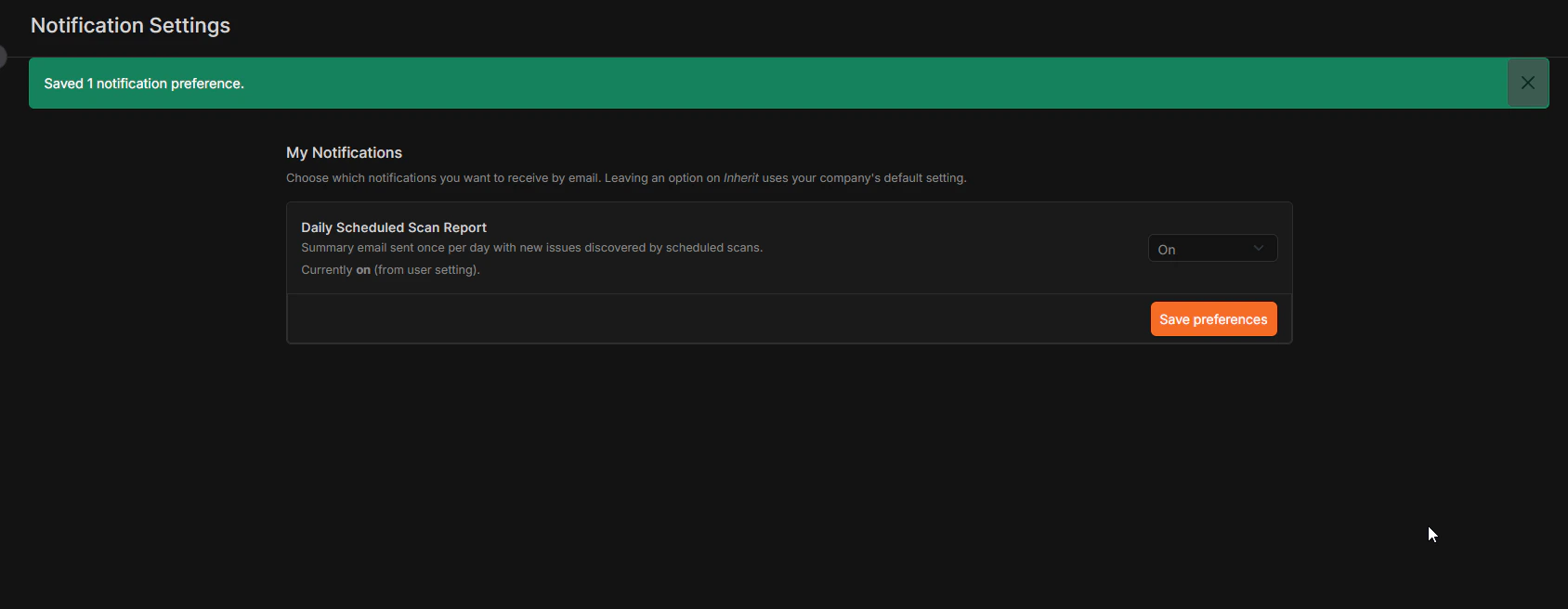
If you're not a company admin, you won't see the Company Defaults section — just your own personal preferences. You can still turn notifications on or off for yourself, or leave them set to inherit from your company's defaults.
## For Other Users
If you're not a company admin, you won't see the Company Defaults section — just your own personal preferences. You can still turn notifications on or off for yourself, or leave them set to inherit from your company's defaults.
 Webhook delivery requires a configured webhook subscribed to the matching event. See [Webhooks](webhooks) to set one up.
## Available Notifications
Corgea currently sends the following notifications. Each one can be turned on or off per company and per user from **Settings → Notifications**.
### Daily Scan Report
A daily summary email (and optional webhook) sent when scheduled scans have run, listing new issues found across all scan runs in the last 24 hours.
* **Who receives it:** All users in the company (admins can change the company default; individuals can override for themselves)
* **Channels:** Email and webhook
* **Default:** On for both email and webhook
For the webhook payload, see [Webhooks](webhooks#scheduled-scan-daily-report).
### SLA Violation
Sent when one or more issues pass their remediation or escalation deadline as set in your [SLA Management](sla_management) configuration.
* **Who receives it:** All users in the company (admins can change the company default; individuals can override for themselves)
* **Channels:** Email and webhook
* **Default:** Email on, webhook off
For the webhook payload, see [Webhooks](webhooks).
### Accepted Risk Expired
Sent when an issue that was previously marked as "accepted risk" reaches its expiry date and is automatically reverted to open.
* **Who receives it:** Company admins only
* **Channels:** Email
* **Default:** On
Webhook delivery requires a configured webhook subscribed to the matching event. See [Webhooks](webhooks) to set one up.
## Available Notifications
Corgea currently sends the following notifications. Each one can be turned on or off per company and per user from **Settings → Notifications**.
### Daily Scan Report
A daily summary email (and optional webhook) sent when scheduled scans have run, listing new issues found across all scan runs in the last 24 hours.
* **Who receives it:** All users in the company (admins can change the company default; individuals can override for themselves)
* **Channels:** Email and webhook
* **Default:** On for both email and webhook
For the webhook payload, see [Webhooks](webhooks#scheduled-scan-daily-report).
### SLA Violation
Sent when one or more issues pass their remediation or escalation deadline as set in your [SLA Management](sla_management) configuration.
* **Who receives it:** All users in the company (admins can change the company default; individuals can override for themselves)
* **Channels:** Email and webhook
* **Default:** Email on, webhook off
For the webhook payload, see [Webhooks](webhooks).
### Accepted Risk Expired
Sent when an issue that was previously marked as "accepted risk" reaches its expiry date and is automatically reverted to open.
* **Who receives it:** Company admins only
* **Channels:** Email
* **Default:** On