> ## Documentation Index
> Fetch the complete documentation index at: https://docs.corgea.app/llms.txt
> Use this file to discover all available pages before exploring further.
# JIRA
> Setting up the JIRA Integration in Corgea
Corgea's JIRA integration allows you to automatically create JIRA tickets for security issues found in your codebase and dependencies. This integration streamlines the process of tracking and managing security vulnerabilities within your existing JIRA workflow.
## Prerequisites
Before setting up the JIRA integration, ensure that you have the following:
* A JIRA account with administrative privileges
* Your JIRA instance URL (e.g., `https://mycompany.atlassian.net`)
* A JIRA API token ([How to create a JIRA API token](https://support.atlassian.com/atlassian-account/docs/manage-api-tokens-for-your-atlassian-account/))
## Setting up the Integration
Log in to your Corgea account and navigate to the "Integrations" page.
Locate the "JIRA" integration and click the "Add +" button.
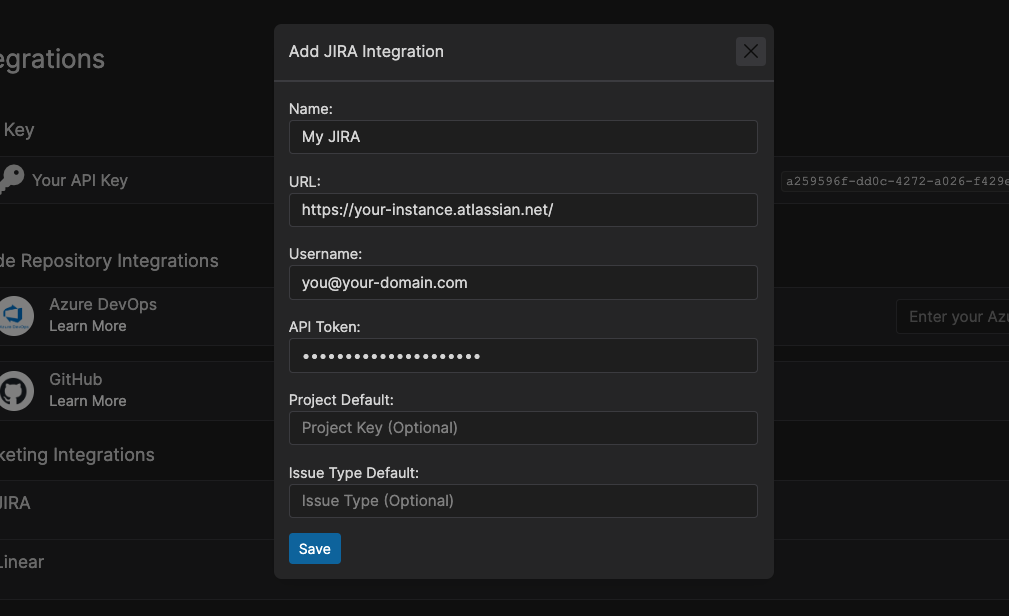 In the integration setup form, enter the following details:
* **Name**: A friendly name for the integration (e.g., "My JIRA Instance")
* **Base URL**: Your JIRA instance URL (e.g., `https://mycompany.atlassian.net`)
* **Username**: Your JIRA username
* **API Token**: Your JIRA API token
* **Project Key** (optional): The default JIRA project key to use when creating issues
* **Issue Type** (optional): The default JIRA issue type to use when creating issues
Click "Save" to complete the integration setup.
## Creating JIRA Issues
Navigate to either a code issue or dependency issue in Corgea and open the issue details page.
On the issue details page, select the ticket icon button (tooltip: "Create Ticket").
In the integration setup form, enter the following details:
* **Name**: A friendly name for the integration (e.g., "My JIRA Instance")
* **Base URL**: Your JIRA instance URL (e.g., `https://mycompany.atlassian.net`)
* **Username**: Your JIRA username
* **API Token**: Your JIRA API token
* **Project Key** (optional): The default JIRA project key to use when creating issues
* **Issue Type** (optional): The default JIRA issue type to use when creating issues
Click "Save" to complete the integration setup.
## Creating JIRA Issues
Navigate to either a code issue or dependency issue in Corgea and open the issue details page.
On the issue details page, select the ticket icon button (tooltip: "Create Ticket").
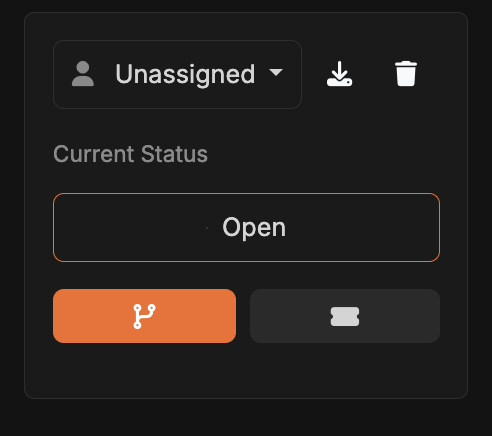 If you haven't specified default values for the project key and issue type during the integration setup, you'll need to provide them here. Corgea will automatically fetch your projects and the issue types for you to select.
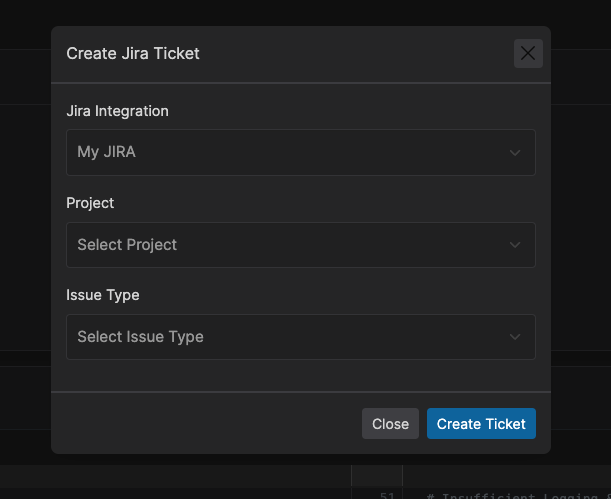 Click the "Create JIRA Ticket" button. Corgea will create a new JIRA issue with the relevant details.
You'll receive a confirmation message with a link to the newly created JIRA ticket.
## Customizing JIRA Ticket Details
By default, Corgea populates the JIRA ticket with the following information:
* **Summary**:
* Code issues: issue classification and file location
* Dependency issues: CVE, affected package, and affected version
* **Description**:
* Vulnerability details (location/package, category, severity)
* Issue explanation
* Proposed fix (if available)
* Link to the issue details page in Corgea
If you need to include additional fields or customize the ticket details, you can modify the JIRA ticket after it's created in your JIRA instance.
## Managing Multiple JIRA Integrations
If you have multiple JIRA instances or projects, you can set up multiple JIRA integrations in Corgea. When creating a JIRA ticket, you'll be prompted to select the appropriate integration to use.
By integrating Corgea with JIRA, you can streamline your security vulnerability management process and ensure that critical issues are tracked and addressed within your existing workflow.
Click the "Create JIRA Ticket" button. Corgea will create a new JIRA issue with the relevant details.
You'll receive a confirmation message with a link to the newly created JIRA ticket.
## Customizing JIRA Ticket Details
By default, Corgea populates the JIRA ticket with the following information:
* **Summary**:
* Code issues: issue classification and file location
* Dependency issues: CVE, affected package, and affected version
* **Description**:
* Vulnerability details (location/package, category, severity)
* Issue explanation
* Proposed fix (if available)
* Link to the issue details page in Corgea
If you need to include additional fields or customize the ticket details, you can modify the JIRA ticket after it's created in your JIRA instance.
## Managing Multiple JIRA Integrations
If you have multiple JIRA instances or projects, you can set up multiple JIRA integrations in Corgea. When creating a JIRA ticket, you'll be prompted to select the appropriate integration to use.
By integrating Corgea with JIRA, you can streamline your security vulnerability management process and ensure that critical issues are tracked and addressed within your existing workflow.