> ## Documentation Index
> Fetch the complete documentation index at: https://docs.corgea.app/llms.txt
> Use this file to discover all available pages before exploring further.
# Applying Fixes
> Start fixing vulnerable code.
## Scanning your repository
**Prerequisite** You [registered](https://www.corgea.app/registration/) in Corgea
**Prerequisite** You have completed a [scan](scanning)
Depending on the size of the results in the scan, it may take sometime for results to show up. For a couple of hundred findings, it should take 10 mins.
Go to [scanning](scanning) to learn more.
* Navigate to the [projects](https://www.corgea.app/projects/) page.
* Choose a project.
* Click on a Scan.
* Find an issue row with the `Fix Available` or `On Demand` status.
* Click the issue row to open the issue details sidebar.
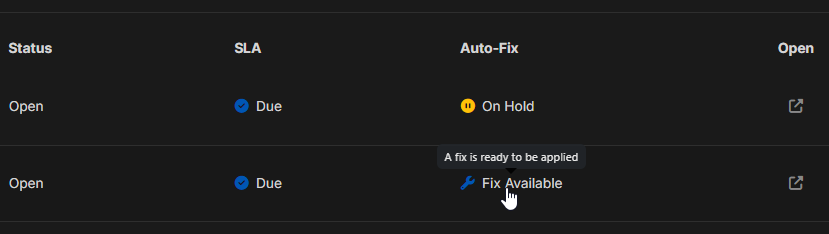 Review the suggested fix in the issue details sidebar before applying it.
If the issue is marked `On Demand`, Corgea starts generating the fix when you open the issue. This usually takes 15-30 seconds.
Corgea generates fixes using AI and runs quality checks before making them available. We still strongly recommend reviewing the suggested change for correctness and fit in your codebase before applying it.
If the fix seems appropriate, there are two ways to apply fixes:
* **Option 1**: Corgea Web Application
In the issue details sidebar, click on the `Create Pull Request` button.
To issue a pull-request from Corgea, you need to setup the appropriate integration with [GitHub](github) or [Azure DevOps](azure_devops).
Review the suggested fix in the issue details sidebar before applying it.
If the issue is marked `On Demand`, Corgea starts generating the fix when you open the issue. This usually takes 15-30 seconds.
Corgea generates fixes using AI and runs quality checks before making them available. We still strongly recommend reviewing the suggested change for correctness and fit in your codebase before applying it.
If the fix seems appropriate, there are two ways to apply fixes:
* **Option 1**: Corgea Web Application
In the issue details sidebar, click on the `Create Pull Request` button.
To issue a pull-request from Corgea, you need to setup the appropriate integration with [GitHub](github) or [Azure DevOps](azure_devops).
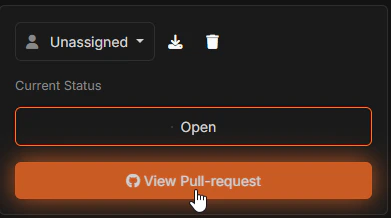
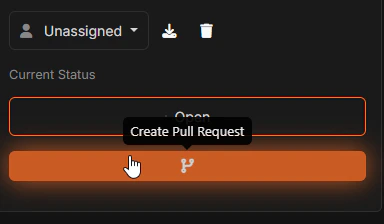 Corgea automatically generates a pull request with issue and fix context. Wait for PR creation to complete, then click `View Pull Request`.
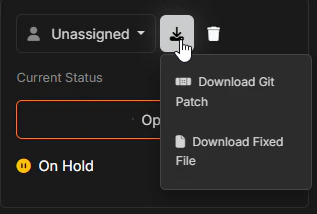
 Alternatively, use `Download Fix` and select one of the available options:
* `Download Git Patch`
* `Download Fixed File`
Alternatively, use `Download Fix` and select one of the available options:
* `Download Git Patch`
* `Download Fixed File`
 * **Option 2**: Corgea IDE Extensions
Corgea supports applying fixes locally using our IDE extensions. Corgea supports [Visual Studio Code](vsc_extension) and [Visual Studio 2022](vs2022_extension) IDE extensions.
* **Option 2**: Corgea IDE Extensions
Corgea supports applying fixes locally using our IDE extensions. Corgea supports [Visual Studio Code](vsc_extension) and [Visual Studio 2022](vs2022_extension) IDE extensions.
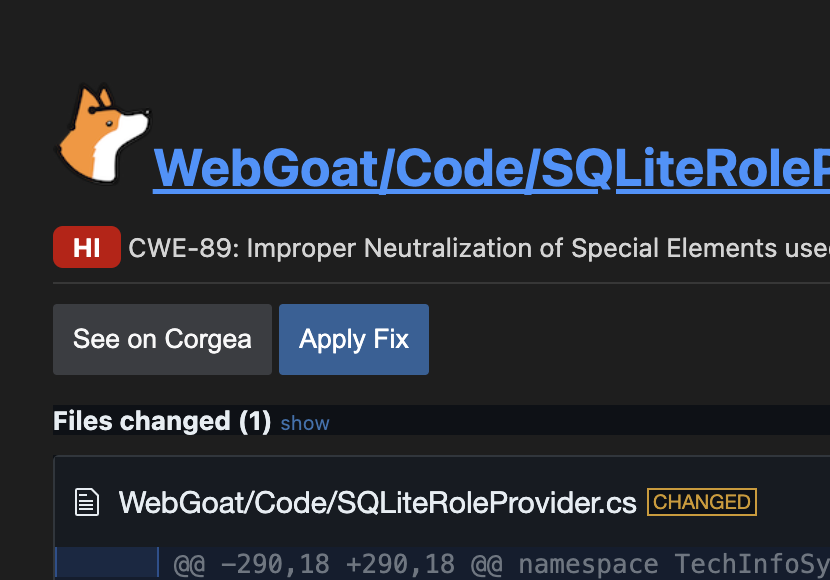 In Visual Studio Code, click a vulnerability in the sidebar to open issue details, review the suggested fix, then click `Apply Fix` and save the updated files.
If the fix is good or bad, please leave a vote, and ideally a comment. We review your feedback and use it to make Corgea better, so we greatly appreciate them.
In Visual Studio Code, click a vulnerability in the sidebar to open issue details, review the suggested fix, then click `Apply Fix` and save the updated files.
If the fix is good or bad, please leave a vote, and ideally a comment. We review your feedback and use it to make Corgea better, so we greatly appreciate them.
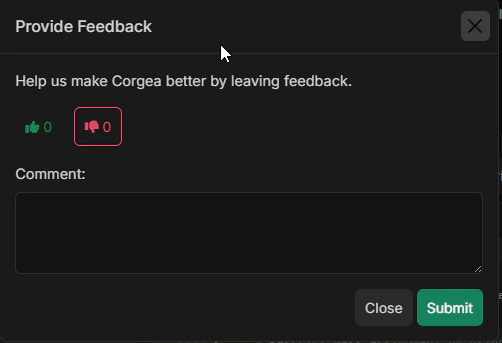
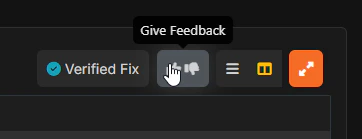 Click `Give Feedback` to open the feedback modal. In the modal, you can select a thumbs up or thumbs down, add an optional comment, and click `Submit`.
 ## Troubleshooting
For issues marked `On Demand`, open the issue details sidebar to generate the fix. If generation fails, click `Try Again`.
For issues still marked as processing, it might take several minutes to hours for a fix to be generated based on the backlog of other fixes that you sent.
Please leave a vote using the thumbs up and down icons, and ideally a comment. We review your feedback and use it to make Corgea better, so we greatly appreciate them.
## Troubleshooting
For issues marked `On Demand`, open the issue details sidebar to generate the fix. If generation fails, click `Try Again`.
For issues still marked as processing, it might take several minutes to hours for a fix to be generated based on the backlog of other fixes that you sent.
Please leave a vote using the thumbs up and down icons, and ideally a comment. We review your feedback and use it to make Corgea better, so we greatly appreciate them.