> ## Documentation Index
> Fetch the complete documentation index at: https://docs.corgea.app/llms.txt
> Use this file to discover all available pages before exploring further.
# Blocking Rules
> Blocking rules help enforce security and quality standards by preventing non-compliant code from being merged.
## Overview
### What it Does
Blocking rules are powerful guardrails that allow you to define specific conditions under which pull requests should be blocked from being merged. This helps ensure that your codebase adheres to your organization's security and quality standards by preventing potentially risky or non-compliant code changes from being merged.
You can create two types of blocking rules:
* **Code Vulnerability Rules**: Block PRs based on code security issues found by SAST scanning
* **Dependency Vulnerability Rules**: Block PRs based on vulnerable dependencies found by SCA scanning
### Who it's For
Blocking rules are primarily designed for:
* Development teams
* Project managers
* Security professionals
This feature is particularly useful for organizations with strict compliance requirements or those working on mission-critical applications where code quality and security are paramount.
## Key Features and Benefits
Define rules based on Common Weakness Enumerations (CWEs) to block pull requests that introduce specific types of vulnerabilities or code quality issues.
Assign urgency levels (e.g., critical, high, medium, low) to different types of issues, allowing you to prioritize and handle them accordingly.
For dependency vulnerability rules, define an inclusive CVSS score range to block vulnerable dependencies based on their CVSS score.
Apply blocking rules to specific projects, project tags, or across your entire organization, giving you granular control over which projects are subject to which rules.
Easily create, edit, and delete blocking rules through a user-friendly interface, ensuring your rules stay up-to-date with your evolving requirements.
Toggle the status of blocking rules to temporarily enable or disable them as needed, without losing their configurations.
## Rule Types
Blocking rules support two distinct types to provide comprehensive security coverage:
Blocks pull requests based on **code security issues** found by static application security testing (SAST).
Configure by:
* Selecting specific CWE (Common Weakness Enumeration) categories
* Setting urgency/severity levels
Use this to prevent issues like SQL injection, XSS, insecure cryptography, and other code-level vulnerabilities.
Blocks pull requests based on **vulnerable dependencies** found by software composition analysis (SCA).
Configure by:
* Setting urgency/severity levels (Critical, High, Medium, Low)
* Or setting an inclusive CVSS score range from 0.0 to 10.0
Use this to prevent the introduction of packages with known security vulnerabilities, ensuring your supply chain remains secure.
## How it Works with GitHub
**Prerequisite** You must have installed and configured the [Corgea GitHub App](github) with appropriate repository permissions.
Developer submits a pull request with code changes
System analyzes code changes against active blocking rules
If violations are found, pull request is automatically blocked
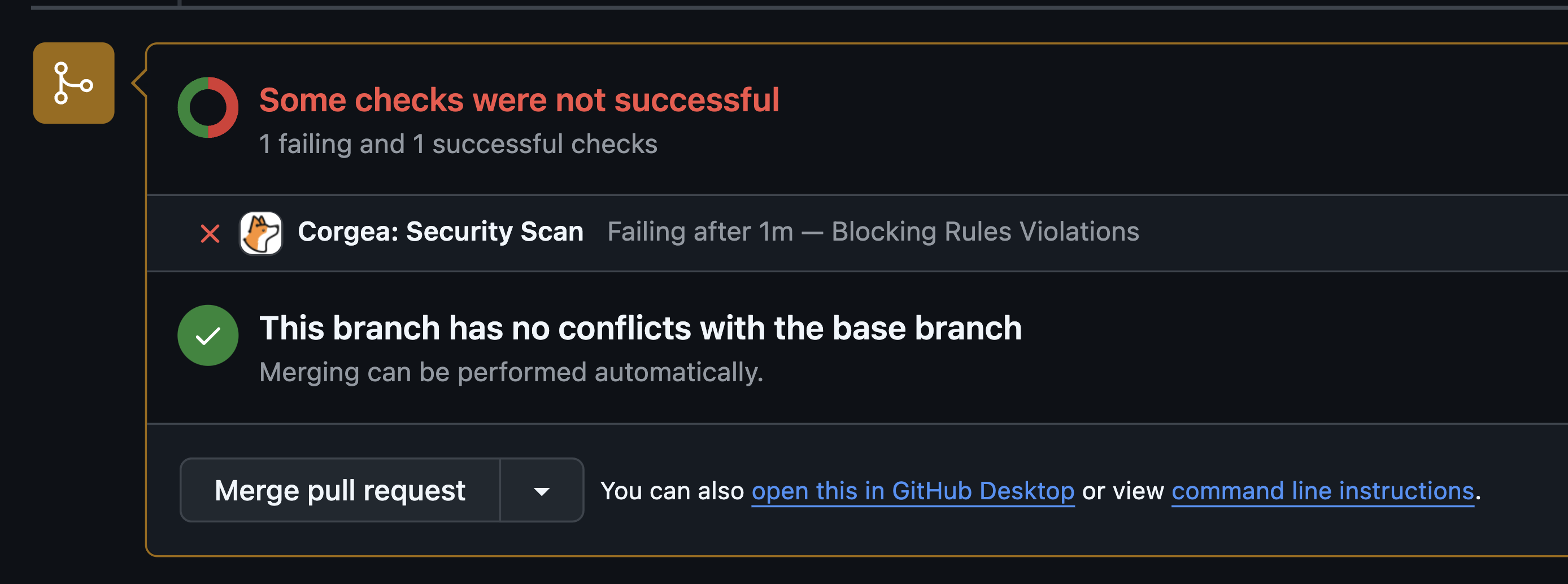 Developer receives detailed notification about rule violations
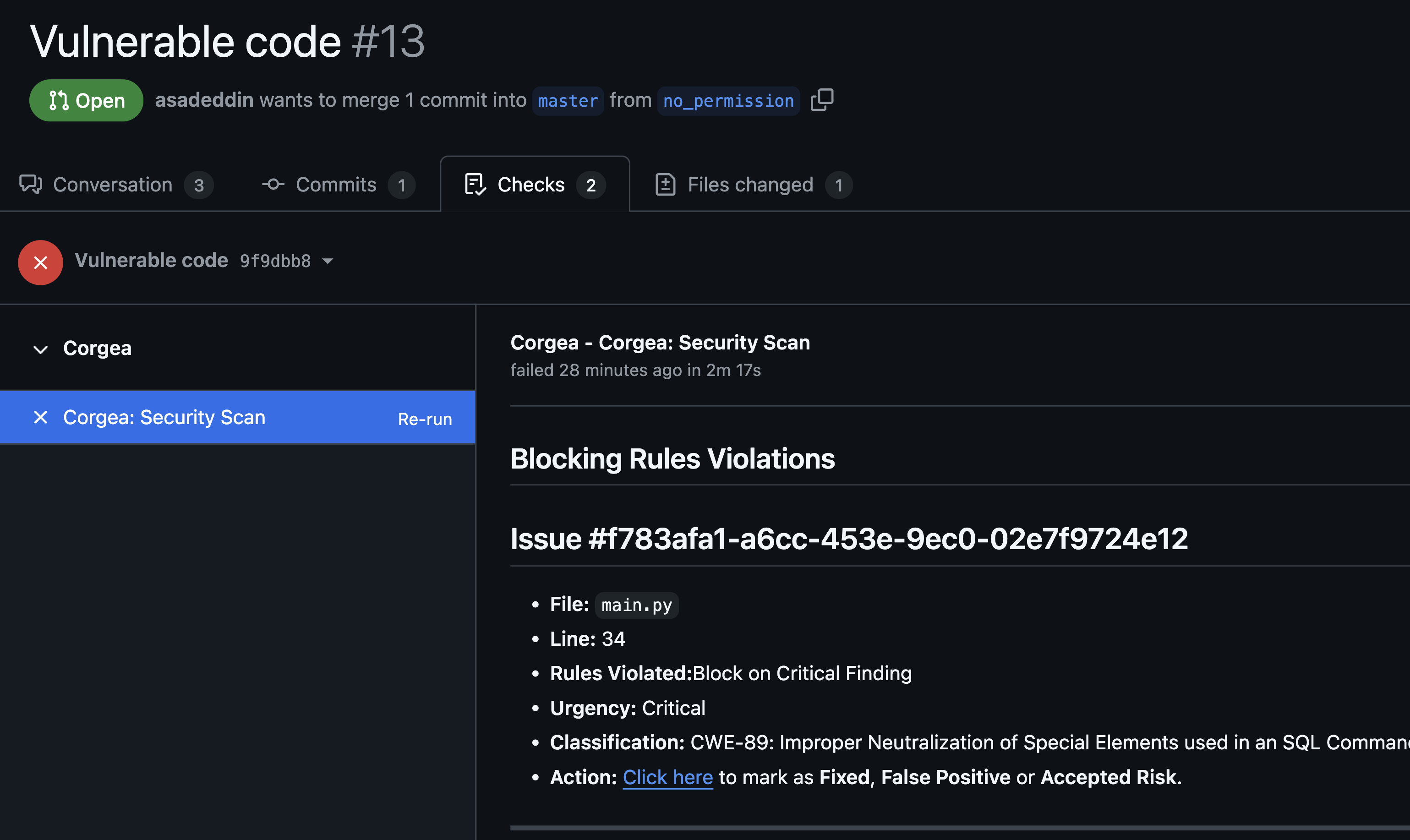 Developer must fix violations and mark them as Fixed, or mark them as False Positive or Accepted Risk before merge is allowed
## How it Works with Azure DevOps
**Prerequisite** Make sure the [Azure DevOps integration](azure_devops) with Corgea is configured and you have the necessary permissions.
A developer submits a pull request with code changes in Azure DevOps.
The system evaluates the code changes against the active blocking rules set in Corgea.
If violations are found, the pull request is automatically blocked.
Developer must fix violations and mark them as Fixed, or mark them as False Positive or Accepted Risk before merge is allowed
## How it Works with Azure DevOps
**Prerequisite** Make sure the [Azure DevOps integration](azure_devops) with Corgea is configured and you have the necessary permissions.
A developer submits a pull request with code changes in Azure DevOps.
The system evaluates the code changes against the active blocking rules set in Corgea.
If violations are found, the pull request is automatically blocked.
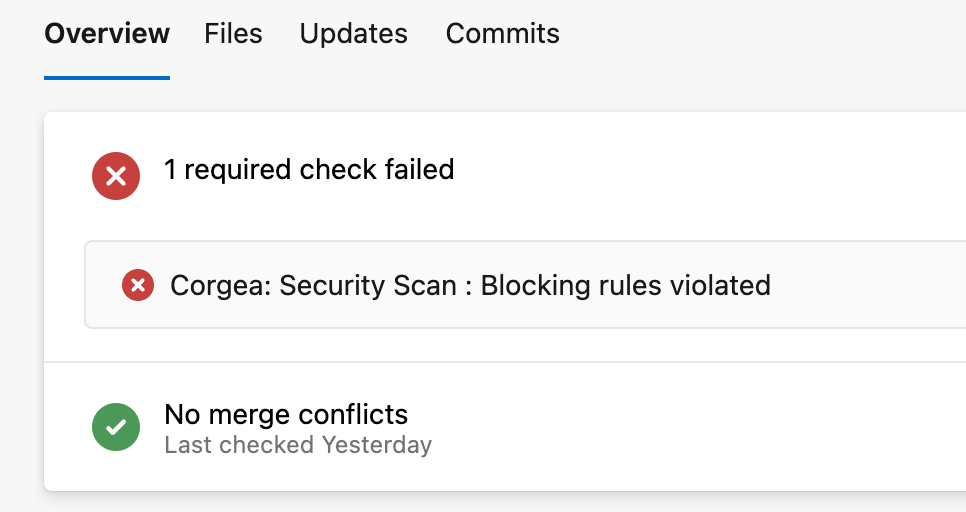 Developer cannot merge the PR until it is resolved.
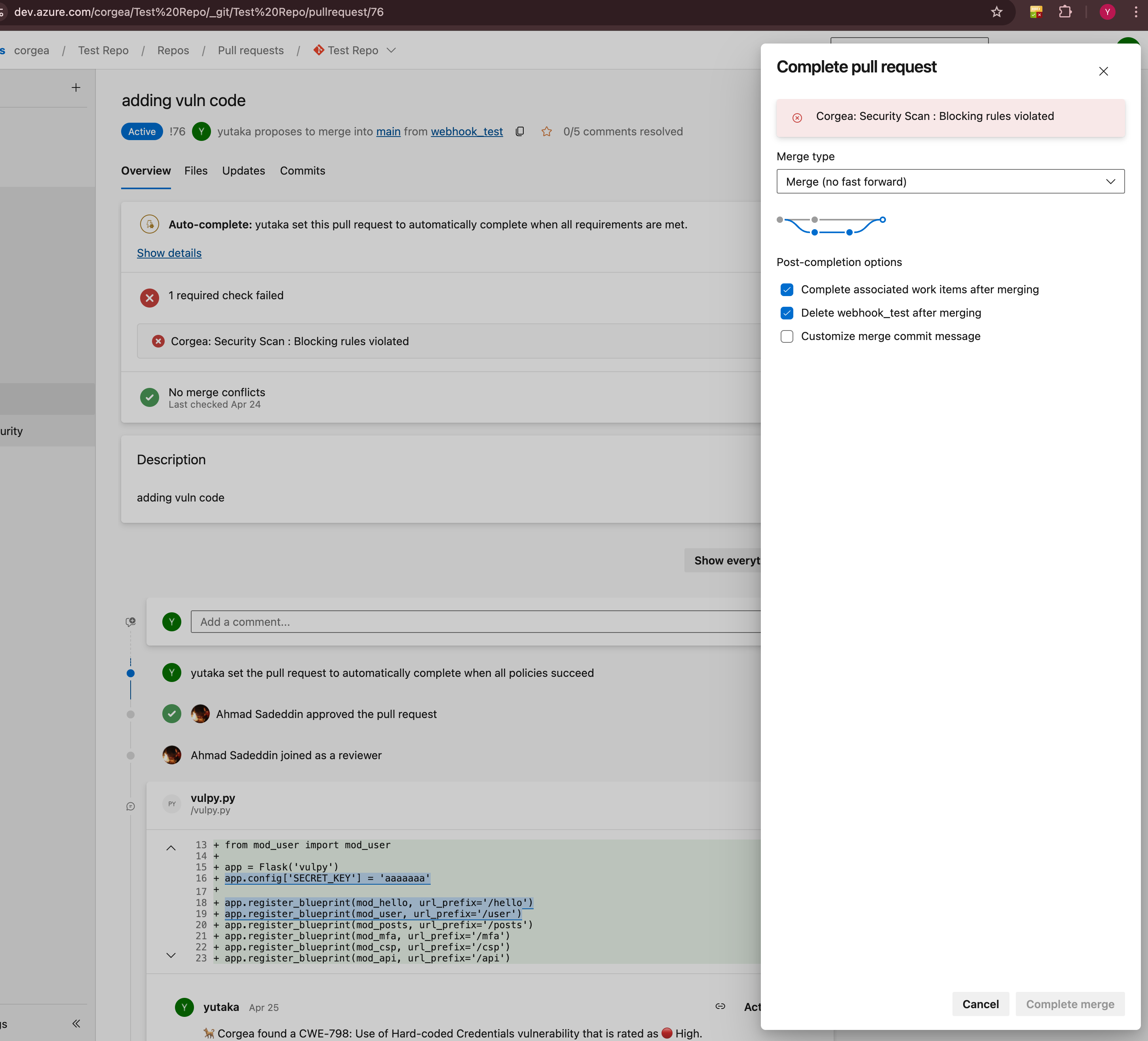 The developer receives a link to view detailed information about the failed issues on the Corgea Scan page.
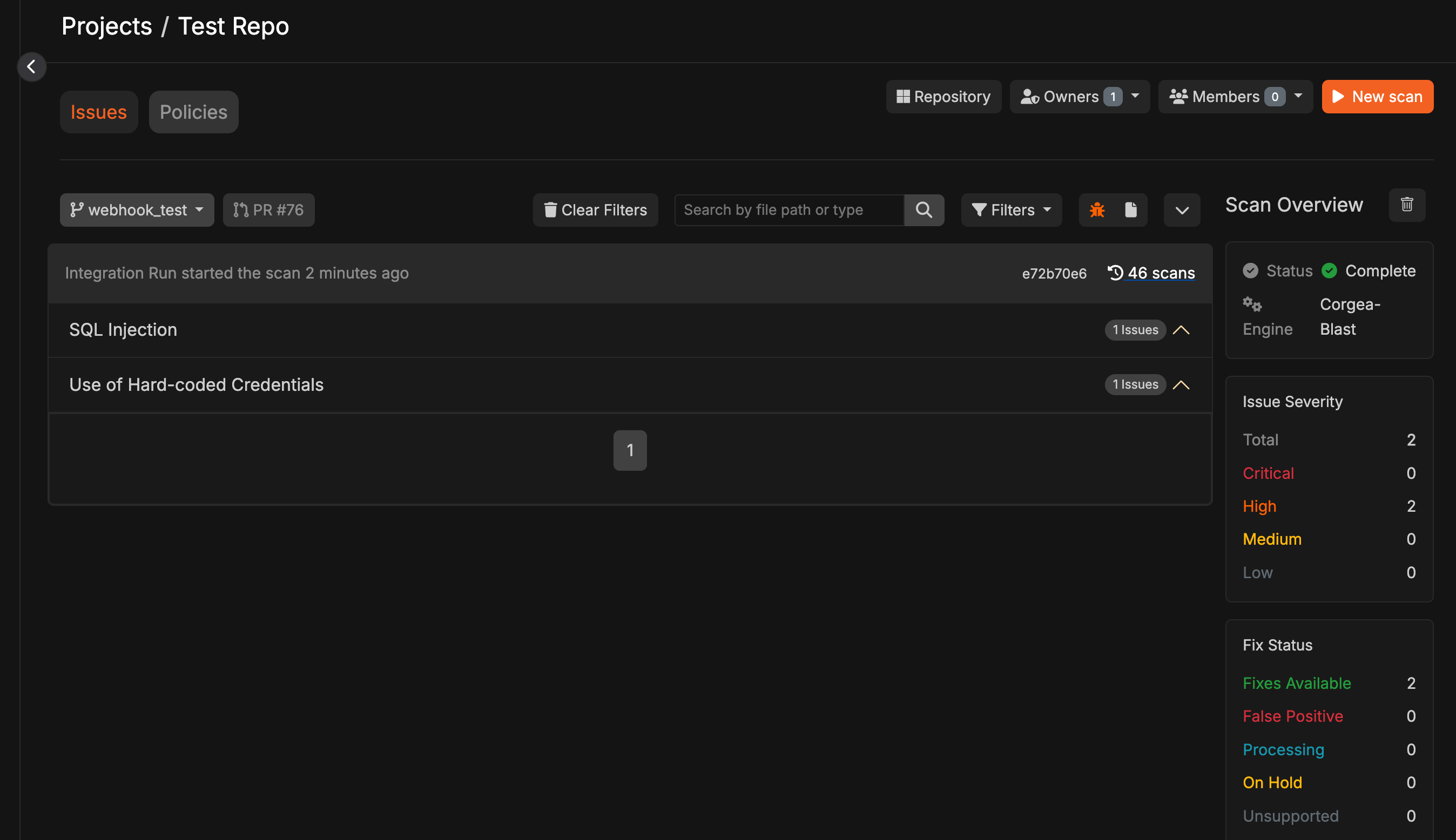 The developer must resolve the violations by fixing them or marking them as False Positive or Accepted Risk before the merge can proceed.
## Usage Guide
### Creating a New Blocking Rule
Click the "Add Blocking Rule" button
Select the type of blocking rule:
* **Code Vulnerability**: Block pull requests based on code security issues (SAST findings)
* **Dependency Vulnerability**: Block pull requests based on vulnerable dependencies (SCA findings)
The developer must resolve the violations by fixing them or marking them as False Positive or Accepted Risk before the merge can proceed.
## Usage Guide
### Creating a New Blocking Rule
Click the "Add Blocking Rule" button
Select the type of blocking rule:
* **Code Vulnerability**: Block pull requests based on code security issues (SAST findings)
* **Dependency Vulnerability**: Block pull requests based on vulnerable dependencies (SCA findings)
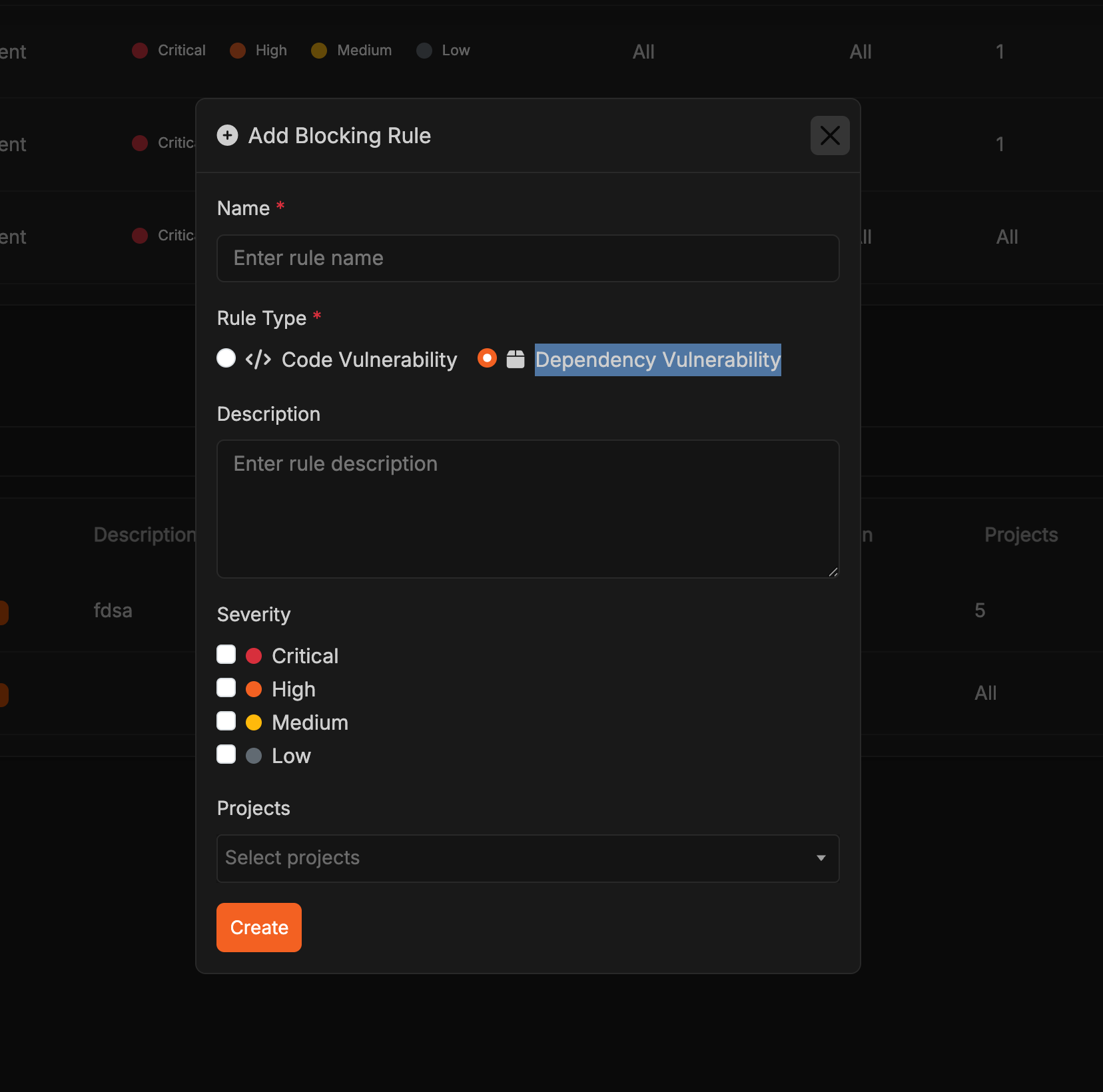 Enter rule name and description
For **Code Vulnerability** rules: Select urgency levels (Critical, High, Medium, or Low) and/or target CWEs - at least one of these must be defined for the rule to be valid
For **Dependency Vulnerability** rules: Choose whether to filter by severity or CVSS score. Select urgency levels (Critical, High, Medium, or Low), or enter a minimum and maximum CVSS score from 0.0 to 10.0 to block vulnerable dependencies within that inclusive range.
Choose applicable projects and/or project tags (optional). A rule applies when a project is selected directly or has any selected tag. If no projects or tags are selected, the rule applies to all projects.
Review and click "Create"
### Managing Existing Rules
Use search to find rules by name or settings, or use the project tag filter to show rules that apply to projects with a specific tag. In the rules table, the Projects column shows selected projects and project tags as chips; rules without a project or tag scope show **All Projects**, and longer scope lists are grouped behind a **+N more** tooltip.
1. Locate rule in table
2. Click "Edit" button
3. Modify settings as needed
4. Click "Update" to save
1. Find rule in table
2. Click "Toggle Status"
3. Confirm status change
1. Click on rule name
2. Review comprehensive information
3. Close modal when done
### Viewing Rules on scans
You can view blocking rules that apply to your scans in two places:
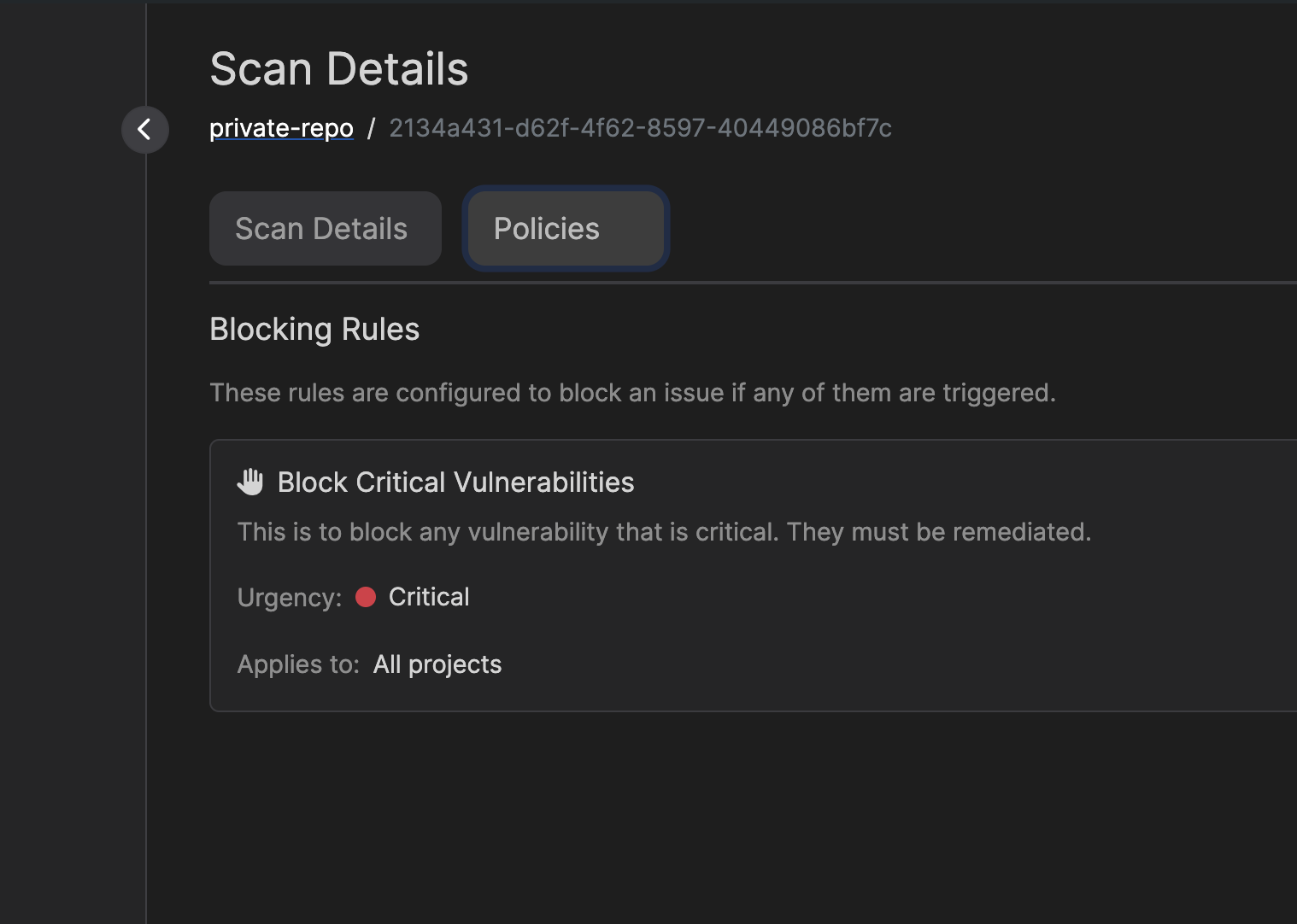
1. On the scan details page, you'll see a "Blocking Rules" section showing all rules that were evaluated:
Enter rule name and description
For **Code Vulnerability** rules: Select urgency levels (Critical, High, Medium, or Low) and/or target CWEs - at least one of these must be defined for the rule to be valid
For **Dependency Vulnerability** rules: Choose whether to filter by severity or CVSS score. Select urgency levels (Critical, High, Medium, or Low), or enter a minimum and maximum CVSS score from 0.0 to 10.0 to block vulnerable dependencies within that inclusive range.
Choose applicable projects and/or project tags (optional). A rule applies when a project is selected directly or has any selected tag. If no projects or tags are selected, the rule applies to all projects.
Review and click "Create"
### Managing Existing Rules
Use search to find rules by name or settings, or use the project tag filter to show rules that apply to projects with a specific tag. In the rules table, the Projects column shows selected projects and project tags as chips; rules without a project or tag scope show **All Projects**, and longer scope lists are grouped behind a **+N more** tooltip.
1. Locate rule in table
2. Click "Edit" button
3. Modify settings as needed
4. Click "Update" to save
1. Find rule in table
2. Click "Toggle Status"
3. Confirm status change
1. Click on rule name
2. Review comprehensive information
3. Close modal when done
### Viewing Rules on scans
You can view blocking rules that apply to your scans in two places:
1. On the scan details page, you'll see a "Blocking Rules" section showing all rules that were evaluated:
 2. For individual issues, you can see which blocking rules were triggered in the issue details:
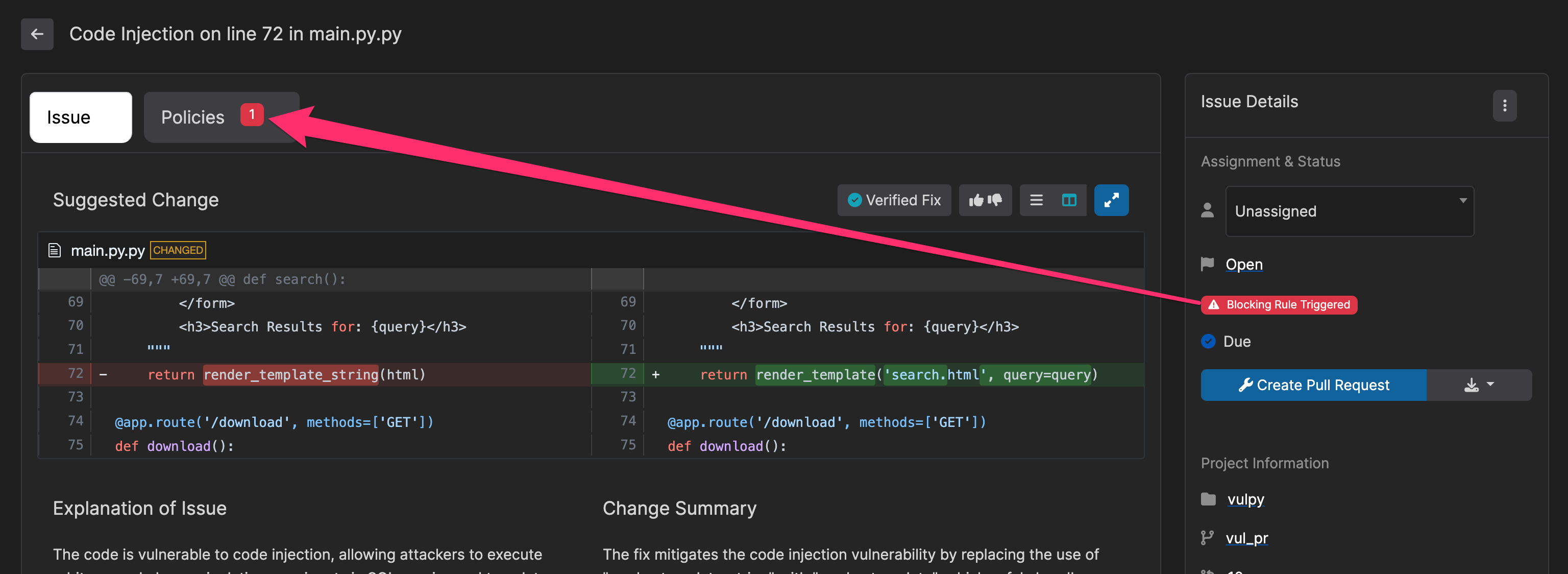 This makes it easy to understand which rules are affecting your scans and specific issues, helping you identify why certain changes may be blocked.
## Examples
**Rule Type:** Code Vulnerability
Create a rule targeting CWE-326 (Inadequate Encryption Strength) and CWE-327 (Use of a Broken or Risky Cryptographic Algorithm) with "Critical" urgency to prevent weak encryption usage.
**Rule Type:** Code Vulnerability
Set up a rule for CWE-398 (Indicator of Poor Code Quality) and CWE-477 (Use of Obsolete Functions) with "Medium" urgency to maintain code standards.
**Rule Type:** Dependency Vulnerability
Create a rule with "Critical" and "High" urgency levels selected to automatically block any pull request that introduces dependencies with critical or high-severity vulnerabilities. This ensures your supply chain remains secure and prevents known vulnerable packages from entering your codebase.
**Rule Type:** Dependency Vulnerability
Create a rule that filters by CVSS score, such as 7.0 to 10.0, to block pull requests that introduce vulnerable dependencies within that score range.
## Best Practices
* Start with essential rules and gradually expand
* For **Dependency Vulnerability rules**, begin with Critical severity only or a focused CVSS range, then expand as your team adjusts
* For **Code Vulnerability rules**, focus on the most impactful CWEs first (e.g., injection flaws, authentication issues)
* Regular review and updates
* Clear documentation and team training
* Encourage feedback and collaboration
* Strategic use of urgency levels
* Consider project tags when the same rule should cover a group of related projects
## Troubleshooting
If a pull request is unexpectedly blocked, verify the active rules and their configurations first.
* Unexpected blocking behavior
* Rule targeting issues
* Project scope problems
* Check rule configurations
* Verify CWE targeting
* Confirm project settings
* Contact support if needed
This makes it easy to understand which rules are affecting your scans and specific issues, helping you identify why certain changes may be blocked.
## Examples
**Rule Type:** Code Vulnerability
Create a rule targeting CWE-326 (Inadequate Encryption Strength) and CWE-327 (Use of a Broken or Risky Cryptographic Algorithm) with "Critical" urgency to prevent weak encryption usage.
**Rule Type:** Code Vulnerability
Set up a rule for CWE-398 (Indicator of Poor Code Quality) and CWE-477 (Use of Obsolete Functions) with "Medium" urgency to maintain code standards.
**Rule Type:** Dependency Vulnerability
Create a rule with "Critical" and "High" urgency levels selected to automatically block any pull request that introduces dependencies with critical or high-severity vulnerabilities. This ensures your supply chain remains secure and prevents known vulnerable packages from entering your codebase.
**Rule Type:** Dependency Vulnerability
Create a rule that filters by CVSS score, such as 7.0 to 10.0, to block pull requests that introduce vulnerable dependencies within that score range.
## Best Practices
* Start with essential rules and gradually expand
* For **Dependency Vulnerability rules**, begin with Critical severity only or a focused CVSS range, then expand as your team adjusts
* For **Code Vulnerability rules**, focus on the most impactful CWEs first (e.g., injection flaws, authentication issues)
* Regular review and updates
* Clear documentation and team training
* Encourage feedback and collaboration
* Strategic use of urgency levels
* Consider project tags when the same rule should cover a group of related projects
## Troubleshooting
If a pull request is unexpectedly blocked, verify the active rules and their configurations first.
* Unexpected blocking behavior
* Rule targeting issues
* Project scope problems
* Check rule configurations
* Verify CWE targeting
* Confirm project settings
* Contact support if needed